



Expanding your Shopify store to Amazon can help you reach more customers without managing two completely separate sales channels. By linking the two platforms, products, inventory, and orders can be managed through a single workflow while keeping stock synchronized across both channels. This complete guide covers how to connect Shopify to Amazon step by step, choose the right integration app, and set up a reliable connection for more efficient selling.
Why connect Shopify to Amazon
Connecting the two platforms can help your business expand its reach, capture more purchase-ready shoppers, strengthen customer trust, and simplify daily operations.
- Reach: Amazon gives your products access to 300+ million active buyers, including shoppers who may never find your Shopify store through Google or other channels.
- Purchase intent: Amazon shoppers are often closer to buying, as they are already on a marketplace designed for product discovery and transactions.
- Trust and Prime: Amazon’s established reputation can reduce buyer hesitation, while FBA and Prime eligibility add convenience and trust.
- Centralized operations: A reliable sync system keeps products, inventory, and orders aligned across both platforms, reducing manual work, stock discrepancies, and overselling risks.
That doesn’t mean Amazon should replace Shopify as your primary sales channel. The two platforms serve different purposes: Shopify gives you control over your brand, customer relationships, and margins, while Amazon helps capture demand from shoppers who are already searching for products on its marketplace.

What you need to connect Shopify to Amazon
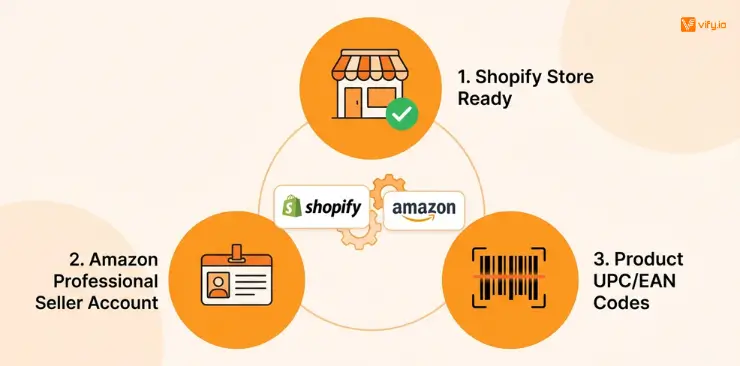
Before connecting Shopify to Amazon, make sure your Shopify store and Amazon Seller Central account are ready. Having these requirements in place first can prevent most connection and product-sync issues later.
1. A Shopify store and Amazon Professional Seller account
You’ll need an active Shopify store with permission to install apps, as well as an Amazon Professional Seller account. Individual Seller accounts don’t support third-party integration apps, so the Professional plan is required to connect the two platforms.
Amazon’s Professional plan costs $39.99 per month. Before registering, prepare your business information, tax details, bank account, credit card, and government-issued ID. Make sure the information matches your official documents exactly, as inconsistencies can delay the verification process.
2. Product Information and Amazon Marketplace
Your products should have valid UPC, EAN, or GTIN codes that match Amazon’s catalog. Incorrect or unofficial identifiers can prevent products from matching existing listings or lead to listing restrictions.
You’ll also need to decide which Amazon marketplace you want to connect, such as Amazon.com, Amazon.co.uk, or Amazon.de. Starting with one marketplace makes it easier to configure pricing, currency, tax, and inventory settings before expanding to additional regions.
It’s also worth checking whether your products belong to a restricted category. Certain categories require Amazon approval before products can be listed, regardless of which Shopify integration app you use.
3. Start with a small Product Batch
Avoid syncing your entire Shopify catalog immediately. Choose a small group of products for the initial connection instead.
This gives you a chance to check whether product matching, pricing, inventory synchronization, and fulfillment settings are working correctly before you publish everything to Amazon.
Setting up Amazon Seller Central account
If you don’t have an Amazon Professional Seller account, complete the registration before starting the Shopify integration. The verification process can take longer than the technical connection itself, especially if Amazon needs additional documents.
Prepare your ID, business information, tax details, bank account, and credit card before starting. Then register through Amazon Seller Central, choose the Professional plan, enable two-factor authentication, and complete the identity verification process.
Amazon may verify your identity through a photo submission or video call. Once your account is approved and active, you can proceed to the Shopify setup.
How to connect Shopify to Amazon
Once your Amazon account is ready, the actual connection is relatively straightforward. Shopify doesn’t provide a built-in connection to Amazon, so you’ll need a third-party integration app from the Shopify App Store.
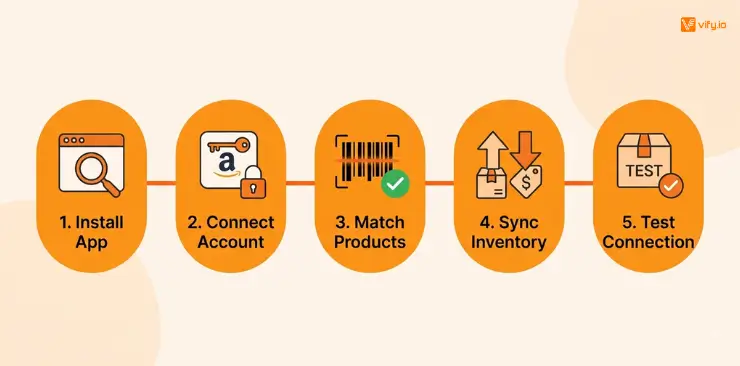
Step 1: Install an Amazon integration app
Choose an integration app that supports the features you need, then install it from the Shopify App Store. Open the app inside Shopify Admin and select Connect Account.
Step 2: Connect Amazon account
Sign in to Amazon Seller Central when prompted and authorize the required permissions. Select your Amazon marketplace, such as Amazon.com or Amazon.co.uk.
If your Amazon account uses the Individual plan, the connection won’t work because third-party integrations require a Professional Seller account.
Step 3: Match products
The app will usually match products using their UPC, EAN, or GTIN codes. Products that already exist in Amazon’s catalog can often be matched automatically, while products without an existing listing may need to be created manually.
Review the product information carefully before publishing the listings.
Step 4: Configure Inventory and Pricing
Set your inventory synchronization rules and consider adding a small inventory buffer. This keeps a few units out of Amazon’s available stock and helps reduce overselling when there is a short delay between Shopify and Amazon updates.
You can also configure pricing rules based on your Shopify prices. Depending on the integration app, you may be able to match prices directly or apply a fixed or percentage markup to account for Amazon selling fees.
Step 5: Choose fulfillment and Test connection
Select how Amazon orders will be fulfilled, save your settings, and test the connection with a small product batch.
Check that product information, inventory, pricing, orders, and fulfillment status are syncing correctly before connecting the rest of your catalog.
Fulfillment options after connect Amazon to Shopify
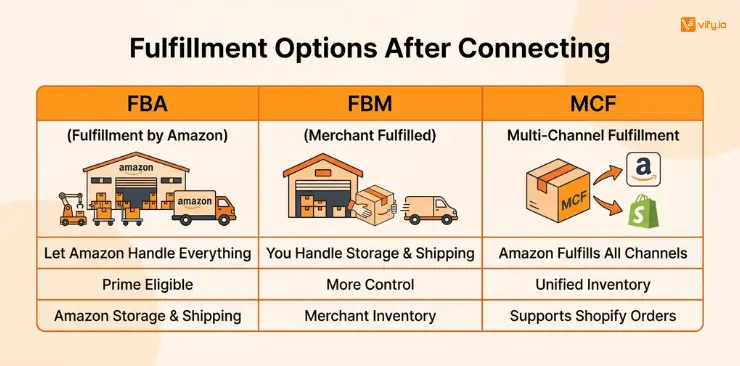
Knowing how to connect Amazon to Shopify is only part of the setup. You also need to decide who will store and ship your products after an order comes in.
| Fulfillment method | How it works | Best for |
|---|---|---|
| Merchant Fulfilled | You or your 3PL stores, packs, and ships Amazon orders. | Merchants with an existing fulfillment operation |
| FBA | Amazon stores, packs, and ships your inventory. | Sellers who want Prime eligibility |
| Amazon MCF | Amazon fulfills orders from Amazon and Shopify. | Merchants managing multiple sales channels |
Merchant Fulfilled gives you more control over fulfillment, but your Amazon listings won’t have Prime eligibility. FBA handles storage and shipping for you and can provide the Prime badge, but you’ll need to account for fulfillment and storage fees.
Amazon MCF is useful when you want Amazon to fulfill orders from multiple sales channels. It allows the same inventory pool to support both Amazon and Shopify orders, although you’ll need an integration app that supports MCF.
Common issues when linking Shopify to Amazon
Even after you successfully link Shopify to Amazon, a few problems can affect your listings or inventory.
Inventory and Product Matching
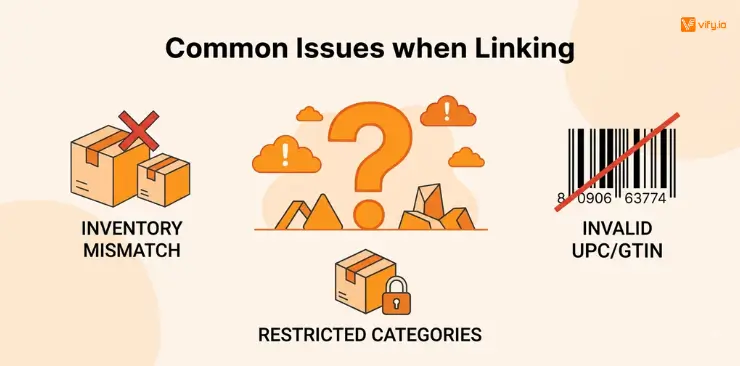
Inventory mismatches are one of the biggest risks. A short synchronization delay can cause Shopify and Amazon to show different stock levels, especially during high-volume sales. Setting an inventory buffer can help reduce this risk.
Product identifiers are another common issue. Amazon uses UPC, EAN, and GTIN codes to match products, so incorrect or unofficial codes can cause failed matching or listing suppression. Verify your identifiers before starting a bulk upload.
Category, Tax, and Marketplace Issues
Some product categories require additional approval before they can be sold on Amazon. Check these requirements in Seller Central before attempting to sync restricted products.
If you sell across multiple Amazon marketplaces, review your currency, tax, and pricing settings for each region. Settings configured for one marketplace may not automatically work correctly for another.
Integration Support
Finally, consider the quality of support when choosing an integration app. A small sync error can become a serious inventory or order problem when sales volume is high. Checking recent Shopify App Store reviews can help you understand how quickly the developer responds when merchants encounter issues.
Conclusion
Knowing how to connect Shopify to Amazon is only the first step. A reliable integration should keep your product listings, inventory, pricing, and orders synchronized while aligning with how your business handles fulfillment.
Start with a Professional Amazon Seller account, choose a reliable integration app, and test a small group of products before expanding. With the right setup, you can use Shopify as your central store management system while Amazon provides an additional sales channel without creating unnecessary manual work.
If you’re selling on Shopify and need a professional invoice solution, then Vify Shopify Order Printer app is the best choice for you. Try it for free today and experience it for yourself. We’re confident you’ll love it.