



Google Tag Manager for Shopify looks simple until the tracking setup reaches checkout. A few misplaced tags can leave important purchase data missing, while an existing Google & YouTube integration can cause the same order to be counted twice. Shopify’s checkout restrictions and sandboxed tracking environment make GTM setup different from a standard website. This guide explains how to install Google Tag Manager on Shopify correctly, connect it with GA4, choose the right setup method, and avoid common tracking issues that can affect your data.
How Google Tag Manager works in Shopify
Google Tag Manager (GTM) is a free container for managing tracking tags such as GA4, Google Ads, Meta, TikTok, and other marketing tools. Instead of editing store code whenever a new tracking script is needed, everything can be managed through one interface.
GTM uses three core components:
- Tags: The code that sends data to a platform, such as a GA4 purchase event.
- Triggers: The rules that determine when a tag fires, such as when checkout is completed.
- Variables: The information passed with an event, such as order ID, currency, or order value.
On a standard website, GTM can monitor the page directly. Shopify uses a different system. Shopify’s pixel manager is available under Customer events in the admin. Scripts added through this system run inside a sandbox, which restricts third-party code from interfering with the storefront or checkout.
In practice, Shopify sends information about what happened, such as a product view, cart addition, or completed checkout. GTM then determines which tags should fire based on that event.
This is an important part of any Google Tag Manager Shopify setup because pixels loaded through GTM still operate inside Shopify’s sandbox. The sandbox therefore affects what the tags can access and how certain events need to be handled.


GTM vs. Google & YouTube app
Before starting a Shopify Tag Manager setup, it is worth checking whether GTM is actually necessary.
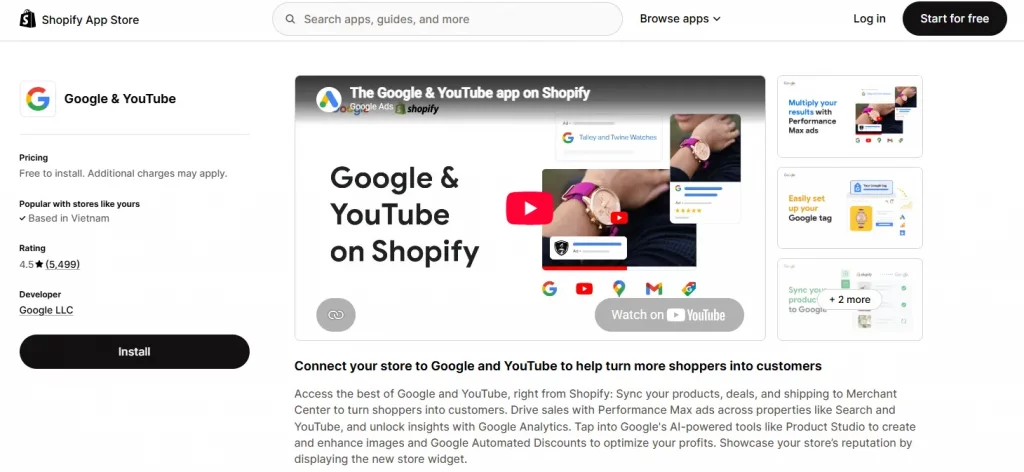
Shopify’s Google & YouTube app already connects a store with Google Analytics and Google Ads without requiring a separate tag container. The more useful question is what the native integration does not cover.
| Google & YouTube app | Google Tag Manager in Shopify | |
|---|---|---|
| Setup effort | Connect a Google account | Create a container, add pixel code, build tags and triggers |
| Events sent | A fixed set: page_view, view_item, add_to_cart, begin_checkout, purchase, plus four more added August 17, 2026 | Any event created in GTM, including custom events |
| Data control | Limited control over included data | Full control over parameters and tag firing |
| Other platforms | Not its main purpose | Meta, TikTok, Pinterest, and other platforms can run through one container |
| Maintenance | Google maintains the integration | Store teams maintain tags, triggers, and tests |
For basic GA4 and Google Ads tracking, the Google & YouTube app may provide everything needed. GTM becomes more useful when a store needs custom events, several advertising platforms, or greater control over the data sent to each platform.
Common examples include form submissions, button clicks, subscription actions, and custom conversion events.

3 ways to install Google Tag Manager for Shopify
There are three practical methods to install Google Tag Manager on Shopify. Each one has different capabilities.
| Custom pixel | theme.liquid | Shopify app | |
|---|---|---|---|
| Where it runs | Storefront, checkout, Thank you, Order status | Storefront pages only | Depends on the app |
| Checkout events | Yes | No | Yes |
| Technical skill | Comfortable with JavaScript | Basic theme editing | Low |
| Cost | Free | Free | Paid |
| Best for | Stores that need proper GTM coverage | Legacy or storefront-only setups | Non-technical store owners |
Shopify’s Help Center states that pixels can load on the storefront, checkout, Thank you page, and Order status page. That makes the custom pixel method the most important option to understand for a complete tracking setup.
Method 1: Install Google Tag Manager on Shopify as a Custom Pixel
This is the method Shopify documents for using GTM as a custom pixel.
There is one important limitation to understand first. Shopify considers custom pixels an advanced feature that requires JavaScript knowledge and states that Shopify does not support adding and using them. Consent, compliance, testing, and troubleshooting therefore remain the store’s responsibility.
Before starting
- Create or open a Google Tag Manager account.
- Copy the GTM Container ID, which starts with
GTM-. - Consider whether an existing Shopify app can handle the tracking requirement. Shopify recommends reviewing App Store options for stability, security, and performance before using custom code.
- Identify the Shopify events that need to reach GTM.
Step-by-step setup
- Open Google Tag Manager and go to Admin → Install Google Tag Manager.
- Copy the code block intended for the
<head>section. - Remove the HTML tags around the code, including the
<script></script>wrapper. Shopify’s pixel environment does not accept HTML. - In Shopify admin, go to Settings → Customer events.
- Add a new custom pixel and give it a clear name, such as
GTM. - Paste the JavaScript into the custom pixel.
- Add
analytics.subscribe(...)calls for the Shopify events that need to be sent to the GTMdataLayer. - Set the required consent permissions.
- Save and connect the pixel.
- Return to GTM and create the required tags, triggers, and variables.
- Test the setup before publishing the container.

Common mistakes with a custom pixel
Adding the noscript snippet
Shopify’s documented process only calls for the head code block. The standard website installation includes a noscript snippet, but that does not belong in this Shopify custom pixel setup.
Copying the sample consent settings without reviewing them
Shopify’s example pixel sets Google Consent Mode v2 signals to granted. Shopify also warns that these settings may not match privacy requirements in every region.
The example should therefore be treated as a starting point rather than a complete compliance solution.
Subscribing to events without creating tags
Sending events into the dataLayer is only one part of the setup. Shopify’s tutorial requires at least one tag and trigger in GTM before data can be transferred to the destination platform.
Method 2: Add Google Tag Manager through theme.liquid
The classic installation method still works for storefront pages.
Go to Online Store → Themes → Edit code, then open layout/theme.liquid.
Google’s installation guidance places the first GTM snippet immediately after the opening <head> tag and the second noscript iframe immediately after the opening <body> tag.


This approach has two important limitations:
It only covers the storefront
theme.liquid controls the storefront layout. Checkout and Thank you page events need to go through Shopify’s pixel system.
That means a theme-based installation alone cannot provide complete purchase tracking.
Avoid loading the same container twice
If a GTM container is already installed in theme.liquid and the same container ID is added again through a custom pixel, tags can fire more than once.
Each container needs a single installation point.
If event data was previously pushed with dataLayer.push() in theme files, Shopify’s guidance is to replace those calls with Shopify.analytics.publish(). The custom pixel can then subscribe to the custom event.
Method 3: Use a Shopify Tag Manager app
For stores that do not want to manage JavaScript manually, a Shopify app can simplify the setup.
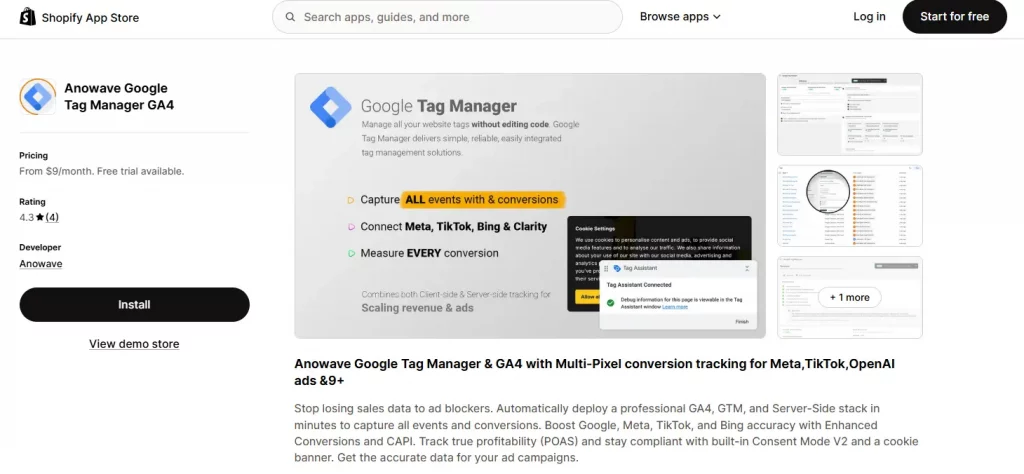
One example is Anowave Google Tag Manager GA4, which describes automated GTM installation through the Web Pixels API and also offers optional server-side tracking.
The app listing also shows permissions for customer data such as names, emails, and addresses, along with web pixel and script tag permissions.
Those permissions are relevant to any tracking implementation. Before installation, the requested access should be checked against the store’s privacy policy and data-protection requirements.

Test and debug Shopify Tag Manager setup
Testing a Shopify GTM implementation is different from testing a standard website because regular debugging tools do not always see inside the Shopify sandbox.
Shopify recommends using Shopify Pixel Helper to confirm that events reach the sandbox without errors.
Google Tag Assistant can still help identify Google tags that load on the page. However, Shopify states that Tag Assistant’s Troubleshoot tag feature is not compatible with custom pixels and cannot detect Google tags inside a custom pixel or other pixels loaded through GTM.
| Symptom | Likely cause | Fix |
|---|---|---|
| No data reaches GTM | No tag or trigger configured | Create at least one trigger and tag |
| Tag Assistant shows nothing | Custom pixel incompatibility | Use Shopify Pixel Helper and GA4 DebugView |
| Trigger never fires | Event name does not match | Match the event name exactly |
| GA4 page URLs look unusual | Sandbox URL information | Turn off automatic page tracking and send page_viewed manually |
| Purchases are counted twice | App and GTM both send the event, or the container is installed twice | Remove one source |
| Fewer EU/UK events appear | Visitors declined consent | Review consent settings |
| Scroll or outbound clicks are missing | Sandbox cannot detect the interaction | Publish custom events from theme code |
Reports from Shopify community discussions and third-party guides also describe GTM initialization problems and missing events in GTM Preview when custom pixels are involved.
These reports are anecdotal rather than official guidance. The more reliable approach is to validate events with Shopify Pixel Helper, the browser network tab, and GA4 DebugView instead of depending on GTM Preview alone.
FAQs
Can I use Google Tag Manager with Shopify?
Yes. Shopify’s Help Center documents using GTM as a custom pixel, and you can also load it through theme.liquidor a Shopify app. The custom pixel route is the one that covers storefront, checkout, Thank you, and Order status pages.
Do I need Shopify Plus to use Google Tag Manager?
No. Custom pixels are managed under Customer events in the admin. Plus stores simply faced earlier deadlines for retiring checkout.liquidon checkout-related pages.
Is the Google & YouTube app enough, or do I need GTM?
For basic GA4 and Google Ads tracking, the app can be enough. GTM becomes worth it when you need custom events, multiple ad platforms, or control over the parameters you send.
Why aren’t my events showing in GTM Preview mode?
Checkout-related events run in Shopify’s sandbox, so GTM’s usual debugging tools may not show them. Verify with Shopify Pixel Helper, your browser’s network tab, and GA4 DebugView, and confirm a trigger and tag exist in GTM.
Will Google Tag Manager slow down my Shopify store?
It can. Shopify warns that the more scripts you run, the slower your store can get, and broken pixel code can cause slow or failed loads. Keep your container lean, remove unused tags, and avoid installing GTM in more than one place.
Conclusion
Google Tag Manager for Shopify becomes useful when the native Google & YouTube app does not provide enough control over events, parameters, or marketing platforms. The installation method matters just as much as the tags themselves. A custom pixel provides the coverage needed for checkout and purchase events, while a clear event ownership strategy helps prevent duplicate tracking. Careful testing with Shopify Pixel Helper and GA4 DebugView also helps keep the data reliable as Shopify and Google continue to change how tracking works.
For Shopify stores looking for a professional invoice solution that’s easy to customize without any coding, Vify Shopify Order Printer app is worth considering. Try it for free today and see how it fits your store’s needs.