


Mailchimp Shopify Integration helps merchants connect their Shopify store with Mailchimp to streamline email marketing and customer engagement. A properly configured integration can sync store data, support targeted campaigns, and automate key marketing activities. This guide covers the setup process, pricing, automation ideas, and common troubleshooting steps to help ensure a smooth integration.
What is Mailchimp Shopify integration?
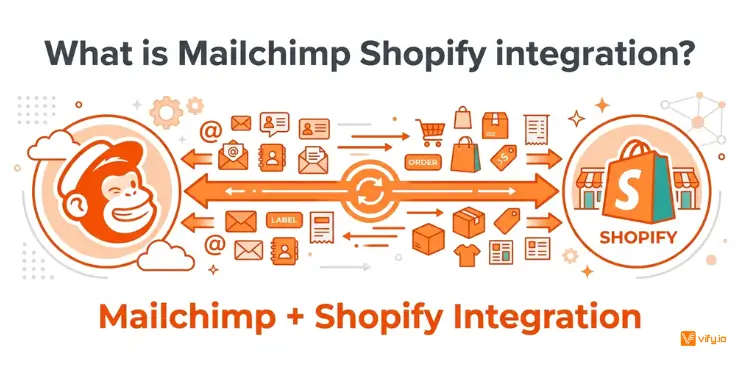
The Mailchimp Shopify integration is a direct, native connection that links your Shopify store’s customer, order, and product data to your Mailchimp account. Once connected, Mailchimp can trigger automated emails and SMS messages based on real shopping behavior: someone abandons a cart, a product comes back in stock, a customer hasn’t purchased in three months. Instead of manually exporting CSVs of customer emails, the two platforms communicate continuously.
This is different from just “having a Mailchimp account and a Shopify store.” Mailchimp on Shopify specifically means the two systems are linked through the official connector, so segmentation, product recommendations, and revenue attribution all pull from live store data rather than a static list you uploaded once.
How to connect Mailchimp on Shopify
Setting up Mailchimp on Shopify takes about 10–15 minutes if you already have accounts on both platforms.
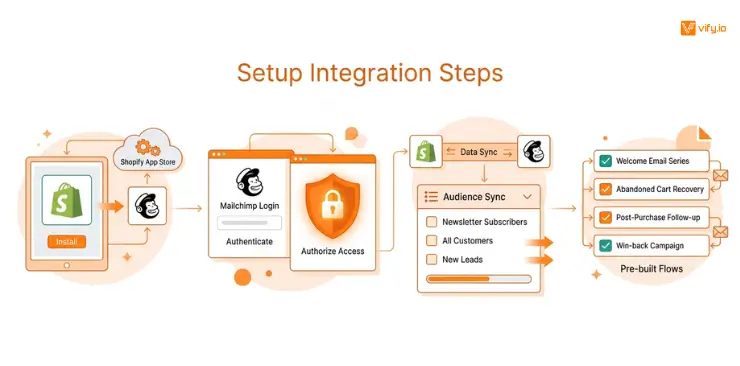
- Install the official app. From your Shopify admin, go to the Shopify App Store and search “Mailchimp Email SMS Marketing,” or install directly from the app’s listing page.
- Log in or create your Mailchimp account. You can start on the free plan; no credit card is required to connect the integration.
- Authorize the connection. Shopify will prompt you to approve the data Mailchimp can access: customer records, order history, products/collections, discounts, and store analytics.
- Choose or create your audience. If you’re new to Mailchimp, create a dedicated audience for your Shopify contacts. If you already have an existing list, you can merge Shopify customers into it, though a clean, dedicated audience makes segmentation easier down the line.
- Set your sync preferences. Decide whether to sync all customers or only those who’ve opted into marketing. This matters for compliance since syncing non-subscribers doesn’t permit you to email them.
- Enable pre-built automations. Mailchimp will surface templates for welcome series, abandoned cart, and win-back flows immediately after the sync completes. You can turn these on with default timing or customize triggers and delays.
- Check the sync. Check that a handful of test orders and customers appear correctly in your Mailchimp audience before you launch your first campaign. This step catches most configuration issues early. Manager-level access or higher is required inside Mailchimp to configure or modify the integration.
What data syncs between Mailchimp and Shopify
| Data Type | What Syncs | Sync Direction |
|---|---|---|
| Customers | Name, email, phone, address, marketing consent status | Shopify → Mailchimp |
| Orders | Order history, order value, line items, fulfillment status | Shopify → Mailchimp |
| Products | Product catalog, collections, variants, inventory status | Shopify → Mailchimp |
| Customer behavior | Browsing activity via Shopify pixel, product views | Shopify → Mailchimp |
| Discount codes | Unique, single-use codes created in Mailchimp | Mailchimp → Shopify |
| Campaign revenue | Attributed sales from Mailchimp campaigns | Mailchimp → Shopify |
Mailchimp Shopify automation ideas
Once the Mailchimp and Shopify integration is live, the real value comes from the automations you turn on. These are the ones worth prioritizing first:
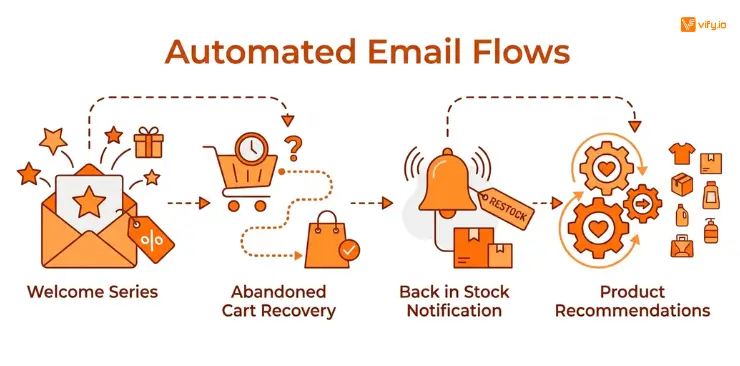
Abandoned cart recovery. Automatically emails shoppers who added items but didn’t check out. Industry benchmarks put recovery rates at 5–15% of abandoned carts — meaningful revenue that requires zero manual work once configured.
Welcome series. Triggered the moment a new contact syncs from a Shopify sign-up or first purchase. A well-timed welcome email with a unique discount code (generated and tracked in Mailchimp, redeemed in Shopify) is one of the highest-converting automations available.
Back-in-stock alerts. Notify customers automatically when a previously out-of-stock product becomes available again, based on live Shopify inventory data.
Post-purchase follow-up. A thank-you email plus review request, commonly sent about seven days after delivery — useful for both retention and building social proof through reviews.
Win-back campaigns. Re-engage customers who haven’t purchased in 60–90 days, typically with personalized product recommendations pulled from their past purchase history.
Product recommendations. AI-generated suggestions based on browsing and purchase behavior synced through the Shopify pixel — these work best once you have a few months of order history feeding the integration.
According to Mailchimp’s own reported data, users of Marketing Automation Flows saw up to 9x more revenue compared to standalone bulk email, and merchants who segment their campaigns see up to 24% higher click rates than those who don’t segment at all. Mailchimp also reports that Shopify-connected stores have seen up to a 41x return on their Mailchimp investment, based on internal data comparing campaign revenue to plan cost — a figure worth treating as a best-case benchmark rather than a guarantee, since it depends heavily on list size, automation setup, and how established the store already is.
Conclusion
A well-configured Mailchimp Shopify integration helps merchants sync store data, automate customer communication, and create more targeted email campaigns. With workflows such as abandoned cart recovery, welcome emails, post-purchase follow-ups, and win-back campaigns, Mailchimp and Shopify can work together to improve engagement while reducing manual marketing tasks.
If you’re selling on Shopify and need a professional invoice solution, then Vify Shopify Order Printer app is the best choice for you. Try it for free today and experience it for yourself. We’re confident you’ll love it.