


Did you know that a one-second delay in page load time can drop your conversion rate by up to 7%? For Shopify store owners, images are almost always the number one culprit behind slow-loading pages — and slow pages silently bleed revenue every single day. If you’ve never taken the time to optimize Shopify images, you’re likely leaving money on the table and ranking below competitors who have. In this guide, you’ll learn about image optimization for Shopify to boost your store’s page speed, SEO, and conversions effectively.
Why Shopify Image Optimization matters
Before diving into the how, it’s worth understanding the why — because once you see the full picture, you’ll treat image optimization as a priority, not an afterthought.
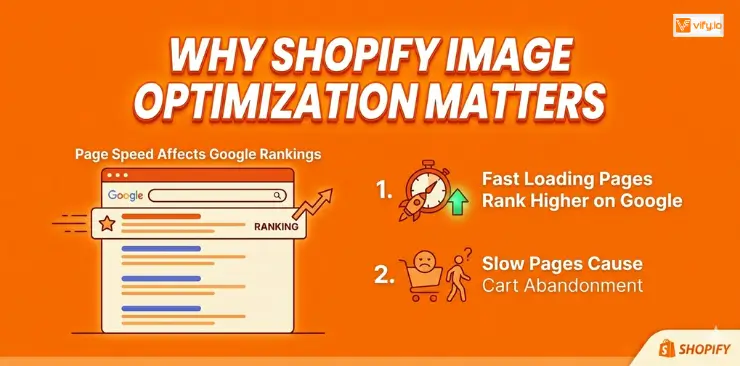
Page Speed affects your Google Rankings
Google uses Core Web Vitals as a ranking signal, and images directly impact two of the most important metrics: Largest Contentful Paint (LCP) — which measures how quickly the main visual element loads — and Cumulative Layout Shift (CLS) — which measures visual stability. Heavy, unoptimized images cause both metrics to suffer, which pushes your store down in search results.
When you use Shopify optimize images properly, you improve LCP scores, which signals to Google that your store delivers a fast, high-quality experience — and that earns you better rankings.
Mobile Shoppers have zero patience for Slow Pages
More than 70% of e-commerce traffic now comes from mobile devices. On mobile networks, image-heavy pages take even longer to load. Research consistently shows that mobile users abandon pages that take more than 3 seconds to load. Since images account for the largest share of page weight on most Shopify stores, they’re the first place to look when optimizing for mobile performance.
How to optimize Shopify images
Step 1: Choose the right image format
The format you choose for each image significantly impacts file size and quality. Using the wrong format is one of the most common and costly mistakes in image optimization Shopify.
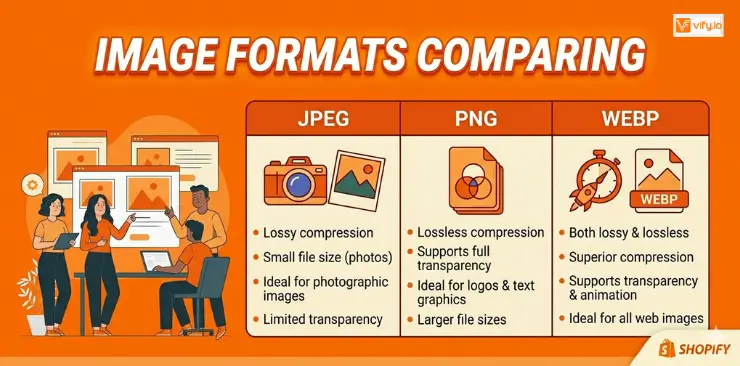
JPEG: Best for Product Photos
JPEG is the go-to format for product photography, lifestyle shots, and any image with lots of colors and gradients. It uses lossy compression, meaning some quality is sacrificed to achieve smaller file sizes — but at the right settings (80–85% quality), the difference is virtually invisible to the human eye.
Use JPEG for: product photos, banner images, editorial content, and any image without a transparent background.
PNG: Best for Logos and Transparent Backgrounds
PNG uses lossless compression, which means no quality is lost — but file sizes are significantly larger. PNG is the right choice only when you need a transparent background (eg, logos placed over colored sections, or icons overlaid on product images).
Avoid using PNG for standard product photography. A product photo saved as PNG can easily be 3–5x larger than the same image saved as JPEG.
WebP: The Modern Standard
WebP is a newer format developed by Google that offers superior compression compared to both JPEG and PNG — typically 25–35% smaller than JPEG at equivalent quality. The good news: Shopify automatically converts your uploaded images to WebP format when serving them to browsers that support it (which includes all modern browsers).
This means even if you upload a JPEG, Shopify will serve a WebP version to most visitors automatically. However, this doesn’t mean you can skip compression before uploading — the base file size still matters.
Step 2: Resize and Compress Images
This is the single most impactful step for optimizing images on Shopify.
What dimensions does Shopify actually display?
One of the most common mistakes is uploading images straight from a camera or design tool without resizing. A modern DSLR photo might be 6000 × 4000 pixels and 15MB+ in size — but Shopify product images are typically displayed at 800–2000px wide, depending on your theme.
Here are the recommended maximum dimensions by image type:
| Image Type | Recommended Max Size |
|---|---|
| Product images | 2048 × 2048px |
| Image collection | 1800 × 1000px |
| Hero/banner images | 2400 × 800px |
| Blog post images | 1800 × 1000px |
| Thumbnails | 800 × 800px |
Target File Size
As a general rule, aim for under 200KB per product image and under 500KB for large hero banners. For thumbnail images displayed in grids, 50–100KB is achievable without any visible quality loss.
Step 3: Write SEO Alt Text for images
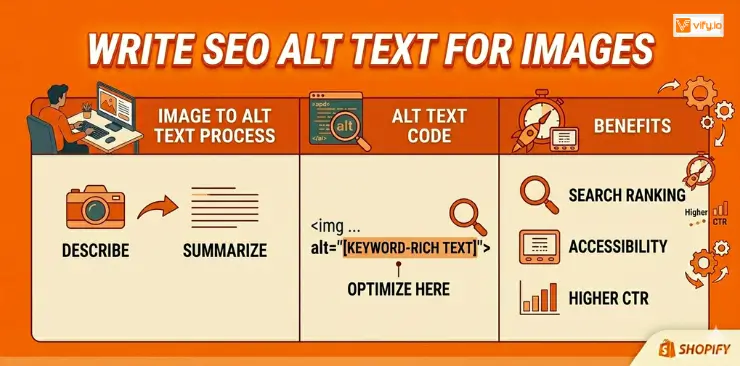
Alt text (alternative text) is a short description of an image that appears when the image fails to load, is used by screen readers for accessibility, and — most importantly for SEO — is read by search engine crawlers to understand what an image depicts.
Since Google can’t “see” images the way humans do, it relies heavily on alt text to index your images in Google Images Search and to understand the context of your product pages. Properly written alt text for Shopify images can drive meaningful organic traffic from image search alone.
How to Add Alt Text in Shopify
- Go to your Shopify Admin
- Navigate to Products → select a product
- Click on a product image
- A pop-up will appear with an “Alt text” field
- Add your alt text and click Save
For collection images, blog images, and theme images, you’ll find alt text fields in the relevant sections of the theme editor or Files section.
Common mistakes to avoid
Leaving alt text blank — this is a major missed opportunity, especially for product images. Every important image should have descriptive alt text.
Using the file name as alt text — “DSC_00342” tells Google absolutely nothing.
Writing identical alt text for multiple images — if your product has multiple angle shots, each alt text should describe what’s unique about that specific view.
Step 4: Use Image File Names
Before you upload any image to Shopify, rename the file. This is a quick win that takes seconds and provides a small but real SEO benefit.
Why File Names Matter
When you upload a file named ‘DSC_00342.jpg‘, Shopify stores it with that name in its URL structure.
Renaming files to be descriptive provides an additional SEO signal — particularly for Google Images — and reinforces the topical relevance of your page.
Naming Best Practices
- Use hyphens between words, not underscores. For example, using ‘
blue-leather-bag‘ instead of ‘blue_leather_bag‘. - Include the primary keyword naturally where it fits.
- Use lowercase only — avoids inconsistencies across operating systems.
Conclusion
Learning how to optimize Shopify images is one of the highest-impact improvements you can make for your online store. Faster-loading images not only improve page speed and SEO rankings but also create a smoother shopping experience that can directly increase conversions and reduce bounce rates. By consistently taking the time to optimize images Shopify stores use every day, you’ll build a faster, more professional storefront that performs better for both customers and search engines.
If you’re selling on Shopify and need a professional invoice solution, then Vify Order printer app Shopify is the best choice for you. Try it for free today and experience it for yourself. We’re confident you’ll love it.