



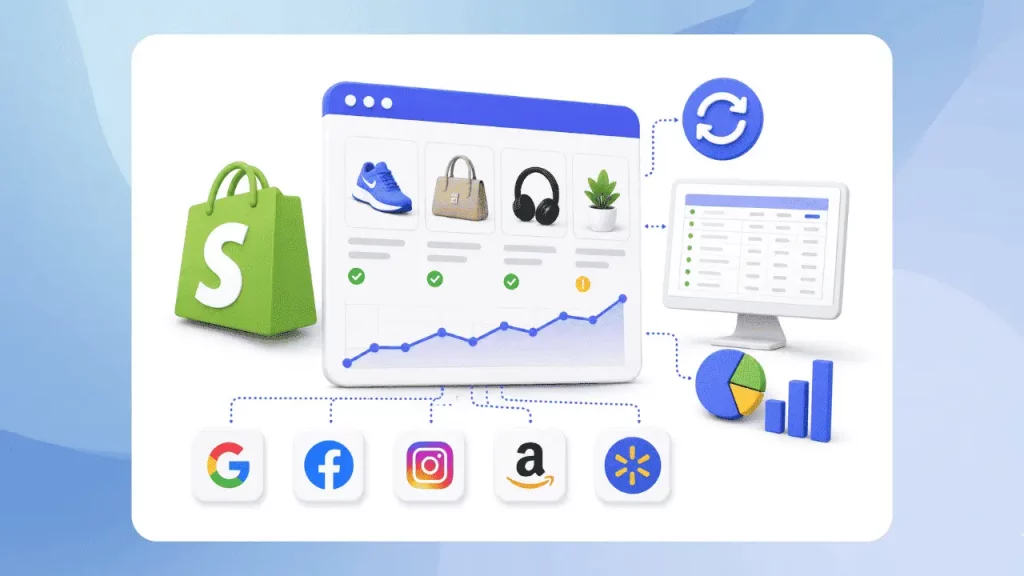
A Shopify product feed connects your store’s product data with Google, Meta, and other shopping platforms, helping them understand and display your products correctly. A well-structured feed needs accurate, consistent, and complete information, since missing or duplicated data can prevent products from appearing in shopping results. This guide explains three practical ways to create a Shopify product feed, the key attributes to include, and the common mistakes that can lead to product disapprovals.
What is a Shopify product feed?
A product feed is a structured data file that describes the products sold by a store in a format that shopping platforms can read. Each product or variant has its own entry with attributes such as title, price, availability, image, and product URL.
Think of a feed as a translation layer between Shopify and a shopping platform. Shopify stores product information in its own fields, while Google and other platforms expect that information under specific attribute names. The feed maps the two systems together.
| Shopify admin field | Google feed attribute | What the platform does with it |
|---|---|---|
| Product/variant SKU or ID | id | Tracks the item over time and must stay stable |
| Product title | title | Main matching and display text |
| Product description | description | Provides context for matching and quality checks |
| Product/variant URL | link | Sends shoppers to the product page |
| Featured image | image_link | Displays the product image in listings |
| Price | price | Shows the product price and checks it against the page |
| Inventory status | availability | Determines whether the item can appear as purchasable |
| Vendor | brand | Helps identify and match the product |
| Barcode | gtin | Provides a strong product identifier |
A Shopify product feed is not limited to Google. The same underlying product data can also be used for Microsoft Advertising, Meta catalogs, Pinterest, and other shopping channels. Attribute names vary slightly between platforms, but the core requirement stays the same: product data needs to be accurate, complete, and consistent.
Why product feed for Shopify matters
Merchants often spend significant time optimizing ad budgets and bids, but shopping platforms first need accurate product data. Google generates Shopping listings from information submitted to Merchant Center, so feed quality is a key part of the process.
Three factors make a product feed for Shopify especially important.
- Eligibility: If a required attribute is missing or incorrectly formatted, the product may be disapproved. A disapproved product cannot enter Shopping ad auctions or appear in eligible free listings.
- Trust: Google compares information in the feed with the product landing page. Price and availability are particularly important. If the feed says a product is in stock while the product page shows it as unavailable, the mismatch can lead to disapproval. Repeated issues can also trigger broader account reviews.
- Matching: Product titles, categories, identifiers, and other attributes help Google understand what a product is and which searches may be relevant to it.
In simple terms, increasing an ad budget will not fix a broken feed. Accurate product data needs to come first.

3 ways to create a product feed for Shopify
There are three main ways to create a product feed for Shopify, and each approach offers a different balance of convenience and control.
| Native Google & YouTube app | Third-party feed app | Manual / scheduled file | |
|---|---|---|---|
| Setup time | Within an hour | 1 to 3 hours | Several hours plus ongoing maintenance |
| Cost | Free to install | Free plans to roughly $64+/month | Free, excluding time |
| Attribute control | Basic editing in Shopify | High, with rules and bulk edits | Total, but manual |
| Automatic updates | Yes | Yes | Only with scheduled fetches |
| Channels | Mainly Google/YouTube | Google, Meta, Microsoft, Pinterest, and more | Any supported channel |
| Best for | New and small stores | Larger catalogs and multiple channels | Custom or unusual catalogs |
For most new stores, starting with the native Google & YouTube app is a practical approach. A third-party tool can be added later when the catalog, market setup, or channel mix requires more control. The important point is to avoid connecting multiple feed sources to the same Merchant Center account.
Create a Shopify Google product feed with native app
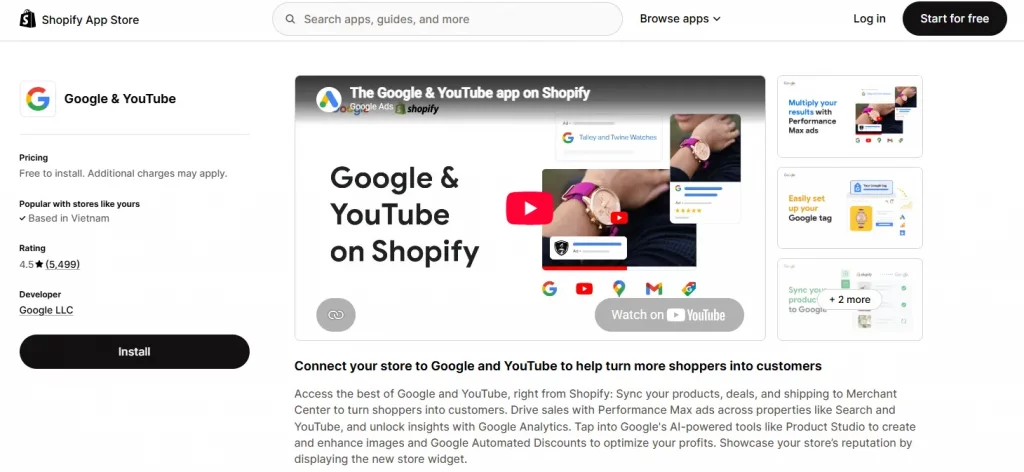
The Google & YouTube app is Shopify’s free channel built by Google LLC. As of late September 2026, it has a 4.5-star rating across roughly 5,500 Shopify App Store reviews and is free to install. Advertising costs are separate and are billed by Google when campaigns are run.
The rating is useful context, but it is not perfect. Roughly one in eight reviews is a one-star review, with some merchants mentioning repeated product data warnings. Understanding this before setup makes it easier to plan for feed cleanup.
Requirements
Before setting up a Shopify Google product feed with the native channel, prepare the following:
A Google Merchant Center account: The app can create an account, and Shopify’s documentation states that the channel requires a standalone account. Multi-client accounts cannot be used for product synchronization.
A verified and claimed domain: The website domain needs to be verified and claimed in Merchant Center. If another Merchant Center account currently owns the claim, the claim may need to be transferred.
A Google account with admin access: The Google email used for the connection needs appropriate permissions on the Merchant Center account.
English-language product options: Shopify’s requirements state that product options and variants need to be in English for synchronization with Google.
Required product data: Most product information comes directly from Shopify, but some fields, such as Google product category, may need to be added manually.

Step-by-step setup
- Install the Google & YouTube channel from the Shopify App Store.
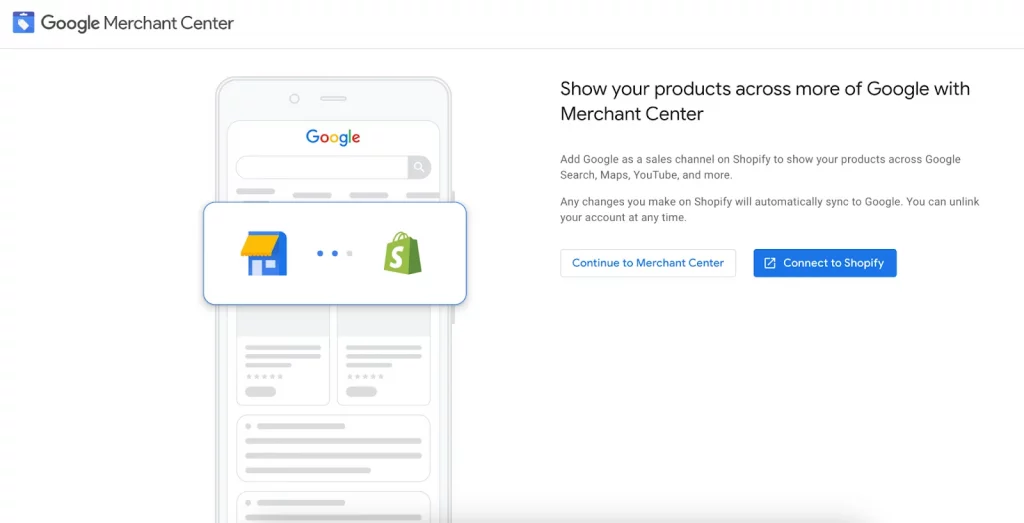
- Connect the Google account and select or create a Merchant Center account.
- Verify and claim the store’s domain.
- Open the product feed section and review the status of each product.
- Add missing information such as Google product category, gender, age group, or GTIN.
- Select the preferred sync mode, save the settings, and wait for Google’s review.
If the Merchant Center account already has a product feed, connecting the Shopify channel can overwrite that feed. Shopify does this to prevent conflicts between product sources.
Before connecting a new source, export or document the existing feed if it is already working. This is especially important when switching to a native feed after using a third-party solution.
Automatic vs. Manual Sync
With automatic sync, products available on the Shopify online store are pushed to Merchant Center automatically, and product status can be reviewed inside Shopify.
With manual sync, Google’s documentation states that product data is not sent automatically. The merchant needs to deliver the data to Merchant Center manually.
For most stores, automatic sync reduces maintenance and is the simpler option.
How long does a Shopify Google product feed take to update?
Shopify’s Help Center says changes typically sync within a few hours after the initial synchronization, while another Shopify guide describes a 24 to 48-hour update cycle. A practical expectation is therefore a few hours to two days rather than instant updates.
New products also need to go through Google’s review process. Shopify’s guidance indicates that the first review can take around three to five business days.

Use a third-party product feed app for Shopify
The native Google channel covers the basics, but its attribute controls are limited. Third-party feed apps provide additional tools such as rule-based editing, bulk changes, metafield mapping, and output for multiple shopping platforms.
A third-party product feed for Shopify becomes more useful when a store has a large catalog, multiple currencies or languages, several markets, or advertising campaigns across multiple channels.
The following options are based on Shopify App Store product feed listings checked on September 29, 2026.
| App | Rating and reviews | Pricing | Notable strengths | Best for |
|---|---|---|---|---|
| Simprosys Google Shopping Feed | 4.9 (4,895) | Free trials; plans from about $4.99/month | Feed rules, bulk editing, Google, Microsoft, Meta, Pinterest | Google-focused stores wanting more control at a low entry price |
| Multifeed Google Shopping Feed | 4.9 (1,108) | Free plan available | Built for Shopify badge, feeds, server-side tracking | Stores wanting a free starting point |
| Mulwi | 5.0 (603) | Free to install | Built for Shopify badge, Google, Facebook, and custom channels | Multichannel testing |
| Nabu for Google Shopping Feed | 4.7 (538) | Free to install | AI-assisted feed optimization and Shopify Markets support | International and Plus-scale stores |
| DataFeedWatch | 4.7 (339) | Free trials; plans from about $64/month | Broad channel coverage, advanced rules, Shopify Markets integration | Agencies and multi-channel brands |
Ratings and review counts come from Shopify App Store listings on the stated check date. Entry-level pricing for Simprosys and DataFeedWatch comes from secondary sources, so current pricing should be confirmed on each app’s listing before subscribing.
Create a product feed for Shopify manually
A third option is to build the feed as a spreadsheet or file and submit it to Merchant Center manually.
Google supports spreadsheet-style and file-based formats, with core attributes such as id, title, description, price, condition, link, availability, and image_link.
This approach gives merchants complete control over the feed, but automation is limited. Product data needs to be exported from Shopify, mapped to Google’s attributes, uploaded, and updated whenever prices, inventory, or other product information changes.
Scheduled fetches can reduce some of this work, but maintenance is still required.
Manual feeds are generally more suitable for unusual catalogs with custom attributes or channels that are not supported by available apps. Unsupported file formats and missing required attributes are common failure points, so the feed should be validated in Merchant Center before relying on it.

Common feed errors and how to fix
| Symptom | Likely cause | Fix |
|---|---|---|
| Products will not sync | Multi-client Merchant Center account or unverified domain | Use a standalone account and verify the domain |
| Missing gender/age group warnings | Apparel attributes are incomplete | Add the required attributes and wait for the next sync |
| Price or availability mismatch | Feed and page are out of sync or duplicate sources exist | Remove extra sources and confirm Shopify price and inventory |
| Feed stopped updating | Product sync is disabled or the connection is broken | Check sync settings and reconnect Merchant Center if needed |
| Variants are not appearing | Variant options are not in English or variant limits apply | Translate options and check Google’s variant limits |
| Products remain pending | Initial Google review is still in progress | Allow several business days |
| Warnings appear despite data being present | The field is not mapped correctly | Check the source field and consider an app with metafield mapping |
When troubleshooting a Shopify product feed, start with the Diagnostics section in Merchant Center. It identifies the specific attribute and reason behind each disapproval.
Fixing the root cause is also more efficient than correcting products one by one. A single mapping issue can affect hundreds of products at once.
Which method should you choose?
| Store situation | Recommended approach |
|---|---|
| New store with fewer than a few hundred products in one country | Native Google & YouTube app |
| Native app keeps flagging data that has already been entered | Rules-based third-party app |
| Multiple countries, currencies, or languages | Third-party app with Shopify Markets support |
| Advertising on Google, Meta, Microsoft, or Pinterest | Multichannel feed app |
| Unusual catalog or unsupported channel | Manual or scheduled file |
The right method is the simplest option that meets the store’s data requirements. Additional complexity creates more opportunities for feed errors, so advanced tools are most useful when there is a clear need for them.
Conclusion
A reliable Shopify product feed does not require complicated optimization tricks. The essentials are complete product attributes, consistent pricing and inventory, accurate product information, and a single source of truth. Before launching campaigns, take time to review Merchant Center Diagnostics and fix recurring feed issues at their source. A clean product feed for Shopify gives shopping platforms the information they need to understand and display the catalog correctly, creating a stronger foundation for future shopping campaigns.
For Shopify stores looking for a professional invoice solution that’s easy to customize without any coding, Vify Shopify Order Printer app is worth considering. Try it for free and see how it fits your store’s needs.