


When something goes wrong with your Shopify store, one of the first questions to answer is whether the issue is affecting only your store or Shopify’s platform as a whole. That’s where the Shopify status page becomes essential. It provides real-time updates on system performance, ongoing incidents, scheduled maintenance, and service disruptions across Shopify’s infrastructure.
What is the Shopify status page?
The Shopify status page is an official, publicly accessible dashboard hosted at shopifystatus.com that displays real-time and historical data on the performance of Shopify’s core services. It is Shopify’s primary communication channel for informing merchants and developers about ongoing incidents, scheduled maintenance, and resolved issues.
With over a million active stores on the platform, Shopify rarely experiences a complete outage affecting every merchant simultaneously. Much more commonly, a specific component or geographic region is affected while everything else continues working normally. The status page gives you that precision.

How to access the status page of Shopify
The main status page
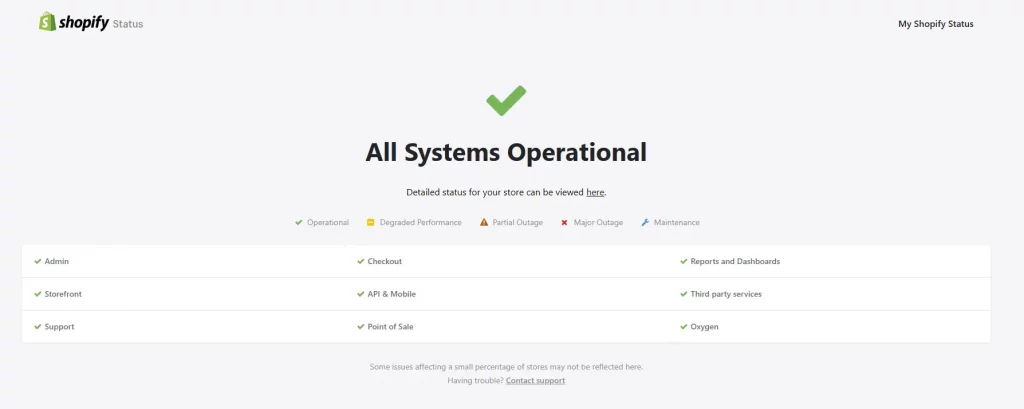
The primary Shopify status page is available at shopifystatus.com. Anyone can view the current platform health at any time. This is the page you want to check immediately whenever you suspect a platform-wide issue.
The page displays a summary banner at the top showing the overall system status, followed by a component-by-component breakdown, a list of current or recent incidents, and a history of past incidents going back several months.
The store-specific status page
Shopify offers a store-specific status view that shows status data tailored to your individual store, not just the platform as a whole. To access this, you need to be logged into your Shopify account using single sign-on, which is available for all Shopify account types.
An incident might affect only a subset of stores. The platform-level status page might show ‘Operational’ while your specific store is still experiencing issues due to a cascading effect from an earlier incident. The store-specific view closes that gap.


Subscribing to status notifications
From the main status page, you can subscribe to receive push notifications whenever an incident is created, updated, or resolved. Notification options include email and SMS. You can also filter by component so you only receive alerts for the services most relevant to your business. For example, only getting notified about Checkout issues if you do not use Shopify POS.
Shopify status page indicators
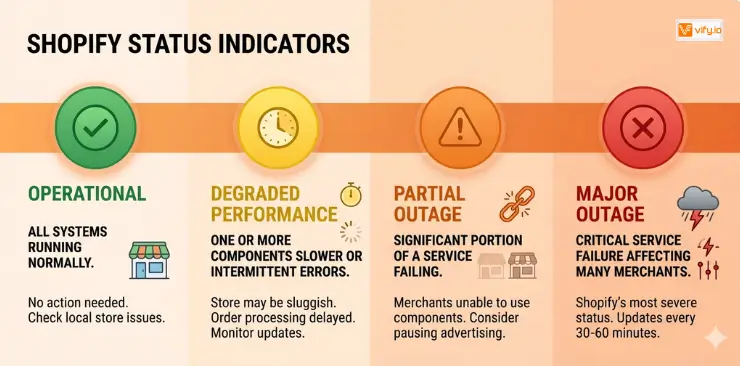
The Shopify status page uses a color-coded system to communicate severity at a glance. Here is what each status level means in practical terms for your store:
Operational (Green). All systems are running normally. No action needed. If your store is still having issues, the cause is local to your store. Check your apps, theme, and browser cache.
Degraded Performance (Yellow). One or more components are slower than normal or are experiencing intermittent errors. Your store may be working but feeling sluggish. Order processing might be delayed. Monitor the page for updates.
Partial Outage (Orange). A significant portion of a service is failing. Some merchants may be completely unable to use the affected component. Consider pausing advertising spend for that component until resolved.
Major Outage (Red). A critical service failure affecting a large number of merchants. This is Shopify’s most severe status level. Expect updates on the incident timeline every 30 to 60 minutes as engineers work to restore service.
How the status page helps Shopify users
For Merchants
The status page is your first line of defense against unnecessary troubleshooting. Before spending an hour disabling apps and testing themes, a 10-second check tells you whether the problem is even within your control. If Shopify shows a known issue with Checkout, there is nothing for you to debug. You just have to wait, notify your customers, and pause any active ad spend.
For Developers and Agencies
If you manage multiple Shopify stores or build Shopify apps, the status page is essential reading. API degradation can cause your integrations to fail in ways that look like bugs in your code when they are actually platform-side. Checking the status page Shopify before diving into debugging logs saves enormous time.


The incident history is also invaluable for developers. Understanding past outage patterns, their duration, and which components were affected helps you design more resilient integrations with appropriate fallback behavior during platform incidents.
For Customer Support Teams
When customers contact your support team saying they cannot check out or that the store is not loading, your support staff needs to quickly determine whether this is a platform issue or something specific to that customer. A quick glance at the status page gives them an authoritative answer — and if there is a known incident, they can communicate that to the customer with confidence rather than escalating unnecessarily.
Conclusion
The Shopify status page is a simple tool, but it can save merchants a significant amount of time when technical issues arise. Instead of immediately troubleshooting themes, apps, or store settings, a quick status check can help you determine whether the problem is isolated to your store or affecting Shopify’s platform more broadly. By bookmarking the page and enabling status notifications, you’ll be better prepared to respond to outages, monitor ongoing incidents, and make informed decisions during unexpected disruptions. In many cases, checking the Shopify status page first is the fastest way to find the answers you’re looking for.
If you’re selling on Shopify and need a professional invoice solution, then Vify Shopify Order Printer app is the best choice for you. Try it for free today and experience it for yourself. We’re confident you’ll love it.