

In this article, we will provide a detailed answer to the question, “How to use the Vify Order Printer PDF Invoice app?” We hope that all customers using the Vify Order Printer PDF Invoice app can easily take full advantage of its useful features, helping to improve store performance for all Vify users.
Brief Overview of Vify Order Printer PDF Invoice App
Vify Order Printer is a Shopify app that helps you customize your order invoices, packing slips, and other documents with ease. With this app, you can create professional-looking documents that match your brand’s aesthetic and include all the necessary information for your customers.
The app comes with a variety of pre-designed templates to choose from, or you can create your own custom template. You can also include custom fields, such as order notes, tracking information, and more.
Additionally, the Vify Order Printer app allows you to automate your document printing and delivery process. You can automatically send invoices and other documents to customers via email or print them in bulk.
Overall, the Vify Order Printer app can save you time and streamline your order processing, while also providing a professional and cohesive brand experience for your customers.
How to use the Vify Order Printer PDF Invoice app?
Here are some documents guide:
- Print invoice from order list
- Directly print invoice via popup
- Print and download multiple invoices
- Print and download invoices on Shopify admin
- Template list
- Edit template
- Email automation
- Setting
Print invoice from order list
On the sidebar menu, select Invoices to access the order list, or select Invoice list on Dashboard:
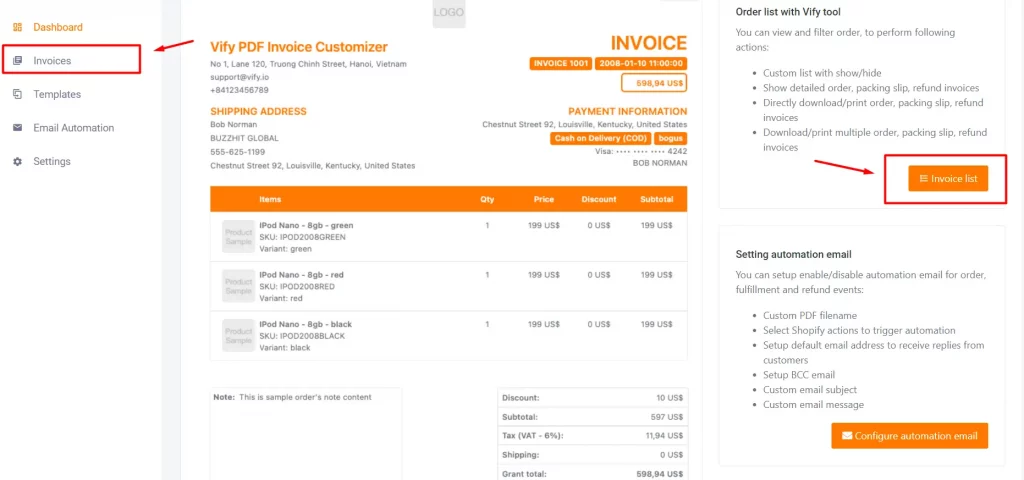
You will then access the Invoice dashboard:
With:
- Order filter: Users can filter orders by Order status, Payment status, Fulfillment status, and Date range.
- Select fields to be displayed. It is recommended to add/remove some fields to match your browser display.
- Download one order’s invoice.
- Open popup to print/ download invoice, packing slip, or refund invoice.
- Open option to download packing slip or refund ((6), (7))
- Download order’s packing slip
- Download order’s refund invoice
- Load older/newer orders. By default, each page displays 10 orders.
- Select multiple orders
- Select actions to perform with orders selected on (9)
Directly print invoice via popup
To print an invoice of any order, click on the Print icon of that specific order:
A new window will pop up as below:
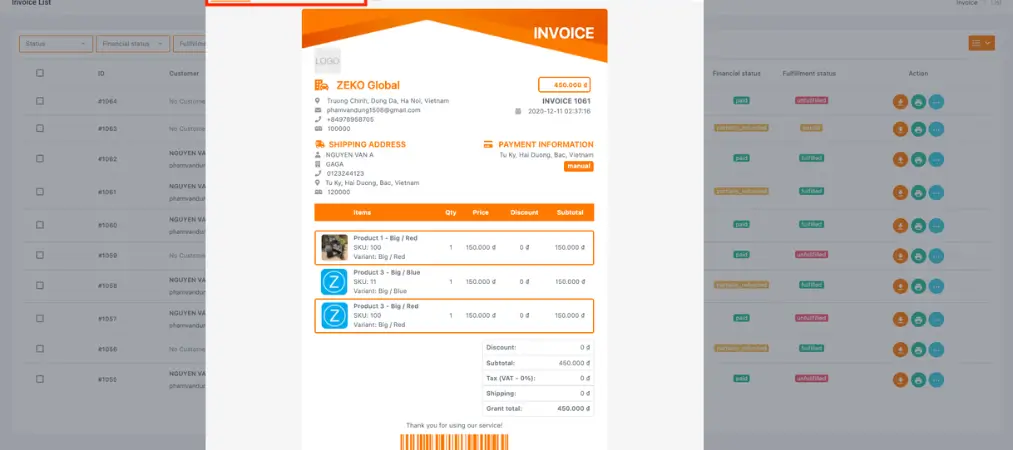
With:
- Select invoice type (invoice, packing slip, or refund)
- Download the select invoice type
- Print invoice directly with browser print
You can then print the invoice as you wish.
Print and download multiple invoices
When a user selects multiple orders along with actions such as printing invoices, packing slips, or refunds, they will be redirected to the browser’s print popup—an essential step in understanding how to use the Vify Order Printer PDF Invoice app effectively.
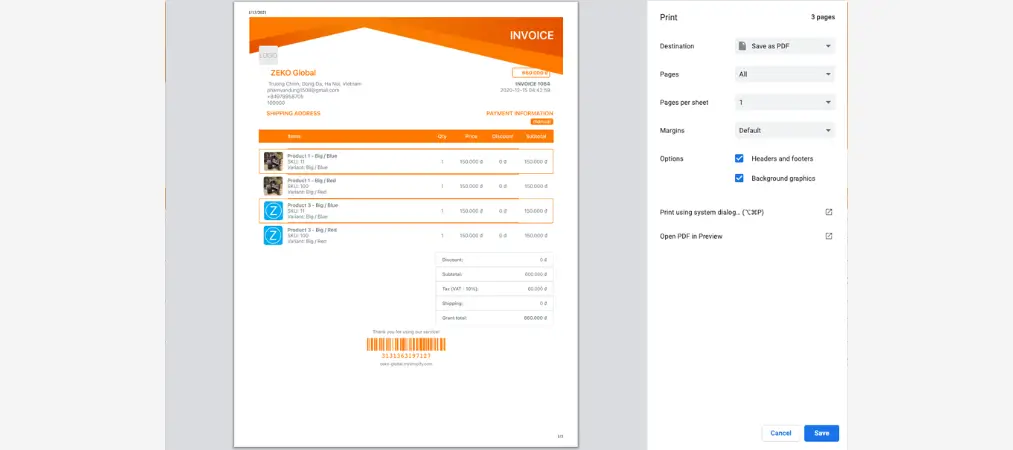
The browser print feature allows users to print invoices directly. In addition, they can manually print by clicking Print (1) or download the files by selecting Download (2).
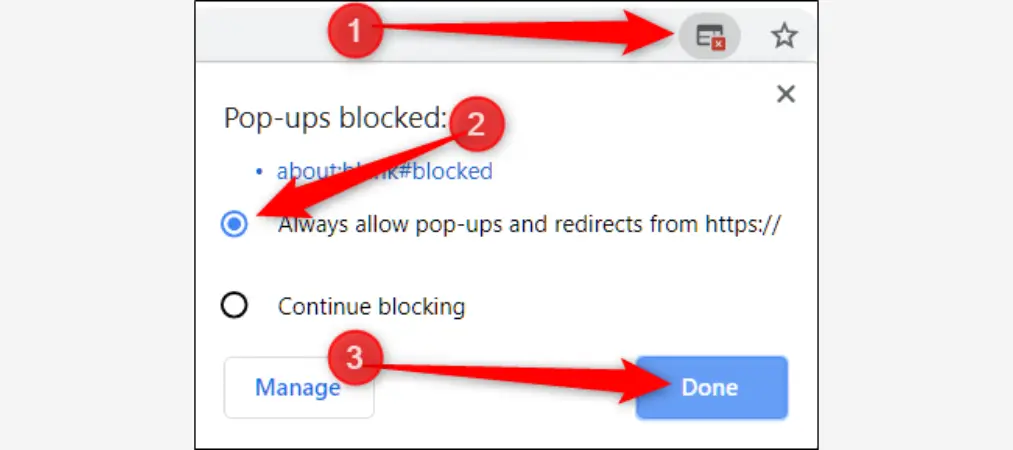
Note: If the print popup does not appear automatically, make sure it is enabled in your browser settings. For example, here’s how to enable it in Chrome (the process is similar for other browsers).
Print and download invoices on Shopify admin
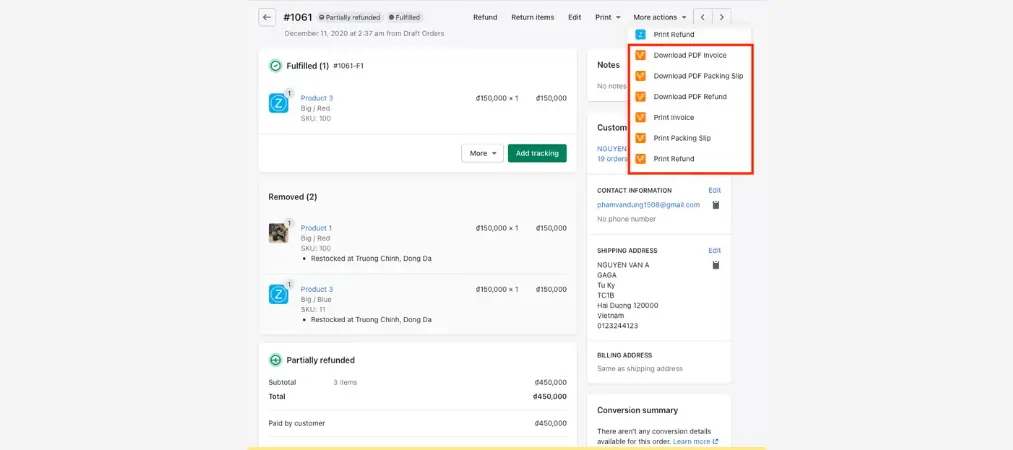
1. Print or download a single invoice
On the order detail page in Shopify, click “More actions” to access options for printing or downloading an invoice, packing slip, or refund. This is a key step in learning how to use the Vify Order Printer PDF Invoice app effectively.
Then, select the action you want to perform.
2. Print or download multiple orders
From the Shopify admin order list, you can select multiple orders at once. After that, click “More actions” to access options for printing or downloading multiple invoices, packing slips, or refunds.
Finally, choose the appropriate action to proceed.
Template list
To access the Template list, simply click on Templates (sidebar menu), or Setup template (Dashboard):
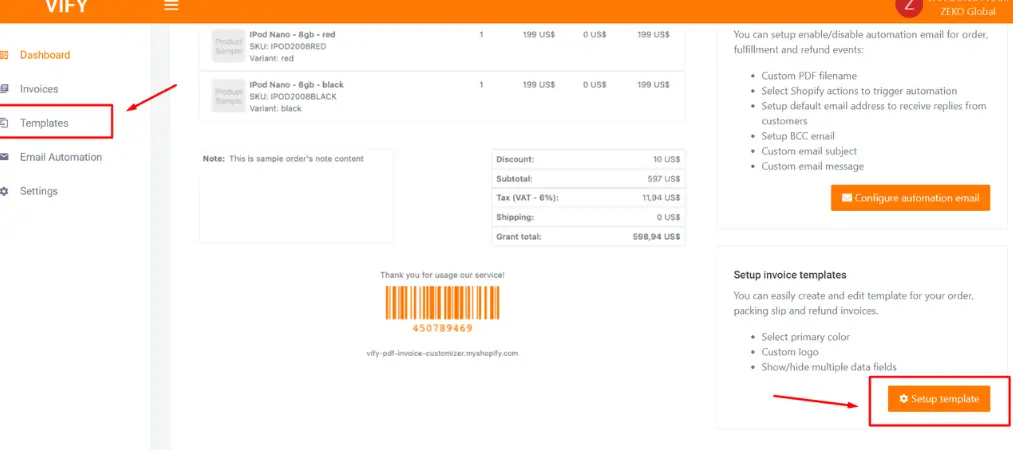
Template page will display all enabled templates:
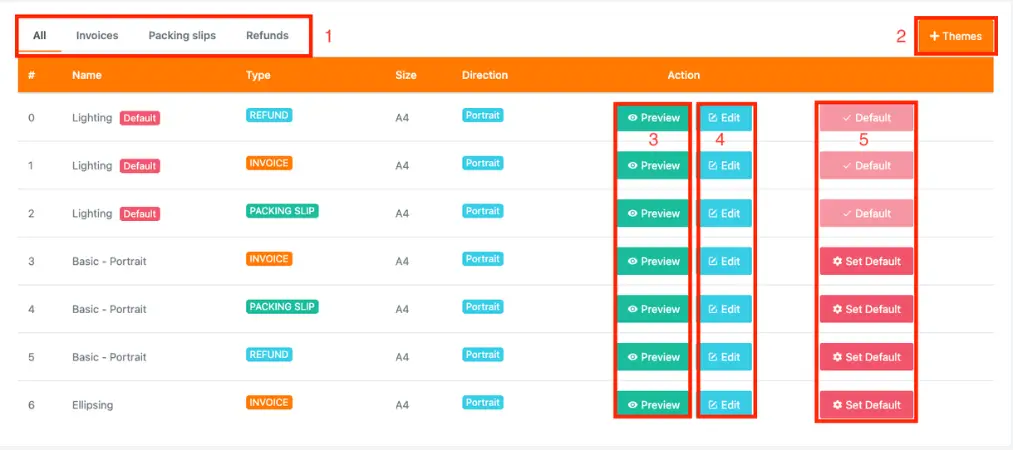
- Filter to view templates by type
- View/add/remove templates
- Preview template
- Edit/customize template
- Select the default template. Each Invoice/Packing Slip/Refund template only accepts 1 default template.
Edit template
To edit a specific template, click Edit on that template:
You will then be on the Edit page:
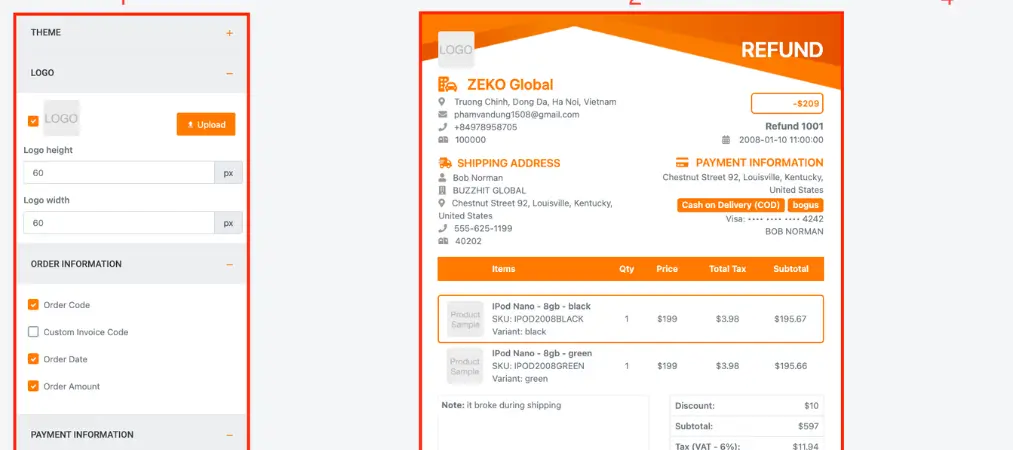
Editing template:
- Sections: Users can freely enable/disable sections to be displayed on templates
- Preview: Reflects changes from (1) instantly
- Save: Save all changes
- Export: Print template sample
Email automation
Email automation allows you to automatically send emails to your customers with PDF invoices attached whenever orders are placed, fulfillments are created or updated, or refunds are processed—an important feature to understand when learning how to use the Vify Order Printer PDF Invoice app.
To access Email Automation, click on Email Automation in the sidebar menu or select Configure automation email on the dashboard.
You will have access to the following configuration options:
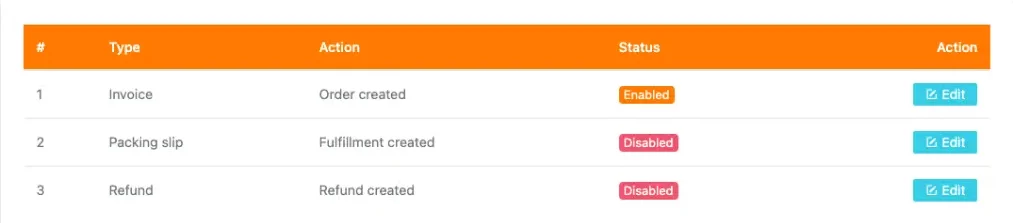
- Invoice: Customize content and time to send customers invoices
- Packing slip: Customize content and time to send customers packing slips
- Refund: Customize content and time to send customers refunds
Click on Edit to customize each:
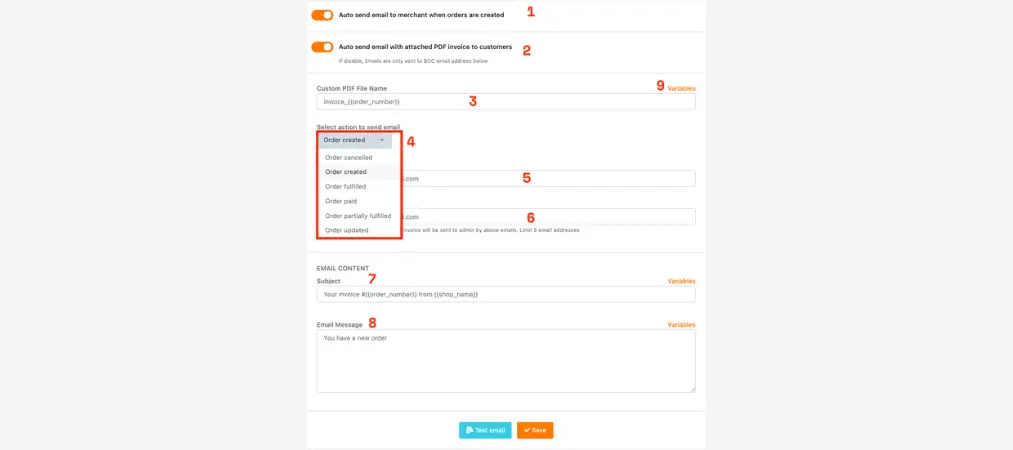
- Enable/disable email automation
- Enable/disable sending automation email to customers
- Customize pdf file name. Users can select keywords from (9)
- Select time to send email
- Select email address to receive responses. By default, it is the store’s email address
- Select BCC email addresses
- Customize email subject
- Customize email content
- Display all variables to be used on automation emails. User syntax {{keyword}} to select them:
order_number
shop_name
order_created_at
order_paid_at
order_amount
customer_first_name
customer_last_name
customer_phone_number
Select “Save” to save all changes.
Select “Test email” to send email sample to the store’s mailbox.
Setting
To access Setting, click on Setting (sidebar menu), or Setting (account):
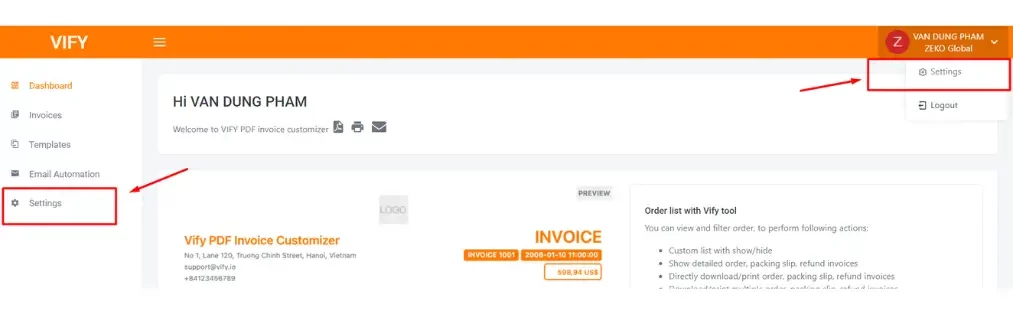
Customize store information to be displayed on invoices.
1. Upload, change store logo
2. Store location, including: Address, Company name, Store name, Phone number, Email, Zipcode:
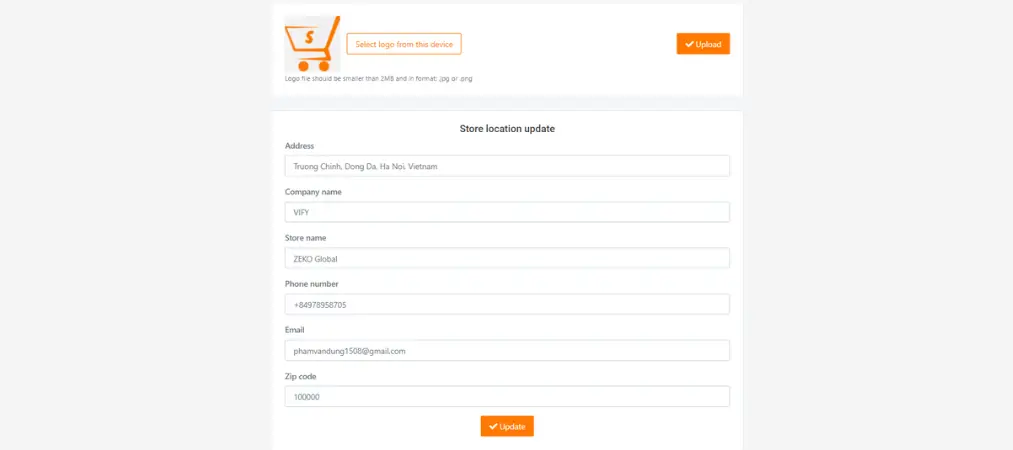
3. Click “Update” to save all changes
Conclusion
This guide provides a detailed overview of how to use the Vify Order Printer PDF Invoice app and helps you get the most out of it. We hope it gives you a clear understanding of the app and allows you to use it in the most efficient way possible.
If you’re selling on Shopify and need a professional invoice solution, especially one that’s easy to customize without any coding skills, then Vify’s Shopify Order Printer app is the best choice for you. Try it for free today and experience it for yourself. We’re confident you’ll love it.