

Accessing your store should be quick and secure, yet many users still encounter issues with Shopify store login due to incorrect credentials, device settings, or security checks. Whether you’re trying to log in to Shopify for the first time or need a faster way accessing, understanding the right process can save time and prevent disruptions. In this guide, you’ll learn how to access your store safely, troubleshoot common login problems, and ensure a smooth login experience across all devices.
Setting up your Shopify account
Before you can log in to a Shopify store, you need an account. Here’s how the initial setup works — and a few things worth getting right from the start.
Step 1 — Create your account
Go to shopify.com and click Start free trial. You’ll be asked for your email address, a password, and a store name. That store name becomes your permanent myshopify subdomain — for example, a store called “BluePine” becomes ‘bluepine.myshopify.com‘. This is the URL you’ll use every time you log in to your Shopify store, so note it down somewhere.
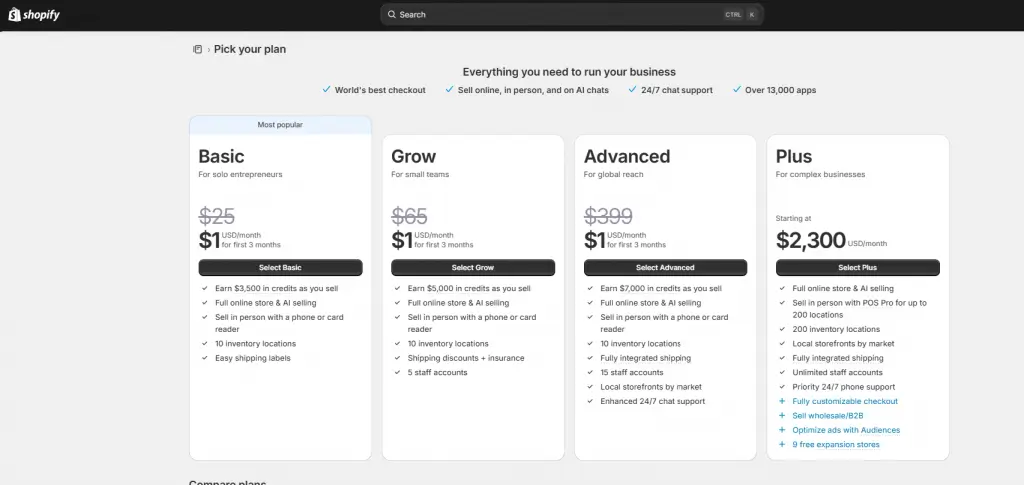
Step 2 — Choose a plan
Shopify offers several plans from Basic to Plus. You don’t need to decide immediately — your 3-day free trial lets you explore the admin before committing. Your plan affects how many staff accounts can log in simultaneously, among other things.
Step 3 — Set a strong password from day one
Your Shopify admin login protects your entire business — orders, customer data, payment details. Use a unique password you don’t use anywhere else, and enable two-factor authentication (2FA) straight away. We cover this in detail in the security section below.
How to Log In to Your Shopify Store (Step-by-Step)
There are two ways to reach the Shopify store login page. The fastest is going directly to your store’s admin URL. The other is starting from the main Shopify website.
Method A — Direct admin URL (recommended)
Type ‘yourstore.myshopify.com/admin‘ into your browser, replacing “yourstore” with your actual subdomain. Bookmark this URL — it never changes, even if you add a custom domain to your storefront.
Method B — Via shopify.com
Go to shopify.com/login. You’ll be asked for your store’s URL first, then taken to the login form.
Whichever method you use, the login steps are the same:
1. Enter your email address
Type the email you used when you registered your Shopify account. This is the email address tied to your store owner account. Click Continue.
2. Enter your password
Type your Shopify account password. Passwords are case-sensitive — check that Caps Lock is off. Click Log in.
3. Complete two-factor authentication (if enabled)
If you’ve set up 2FA, you’ll be prompted for a 6-digit code from your authenticator app. Enter the code and click Verify. If you use SMS-based 2FA, check your phone for the text message instead.
4. You’re in — welcome to the Shopify Admin
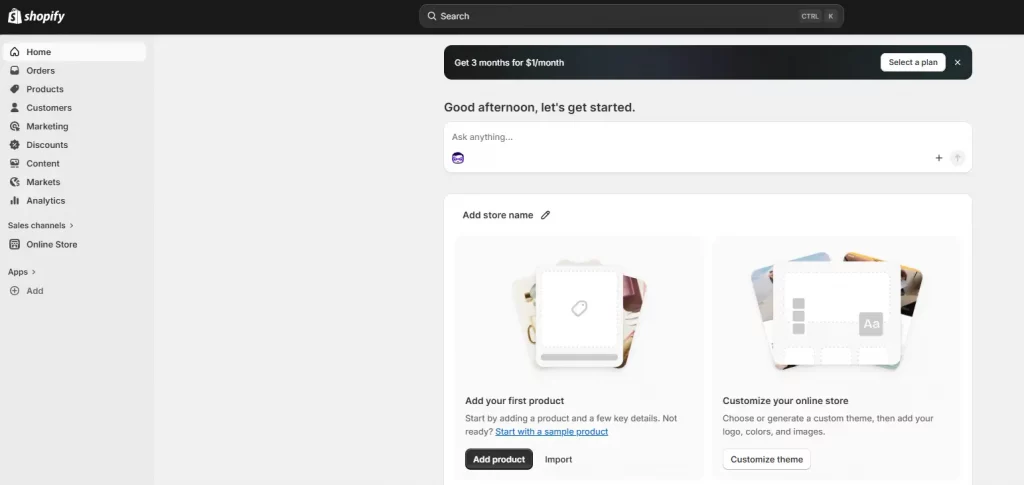
You’ll land on the Shopify Admin home screen. From here you can manage orders, products, customers, analytics, marketing, and all store settings.
Three Ways to Log In to a Shopify Store
Shopify has three distinct login paths depending on your role. Each uses a different starting URL and has different permissions once you’re in.
Store Owner Login
As the store owner, your login gives you unrestricted access to every part of the Shopify Admin. Use the email and password you set when creating the store, then follow the four steps above. The store owner account is the only one that can access billing, change plans, or delete the store entirely.
Staff Member Login
Staff members don’t create their own account on shopify.com. Instead, the store owner goes to Settings → Users and permissions → Add staff account and enters the staff member’s email. Shopify sends an invitation email with a setup link. The staff member clicks that link, creates a password, and from that point can log in at the same admin URL as the owner. They’ll only see the sections the owner has given them access to.
⚠️ Staff invitation links expire after 7 days. If a team member missed it, ask the store owner to go to Settings → Users and permissions and click Resend invite.
Shopify Partner Login
If you’re a developer or agency working on a client’s store, you do not use the store’s admin URL to log in. Go to partners.shopify.com, sign in with your Partner credentials, then navigate to Stores to access any client store where you’ve been granted collaborator access. This keeps client credentials safe and lets store owners control exactly which sections of their store you can see.

Logging In on the Shopify Mobile App
The Shopify mobile app lets you manage your store from your phone — viewing orders, updating inventory, checking analytics, and chatting with customers on the go. It’s available for both iOS and Android.
1. Download the Shopify app
Search for Shopify in the App Store (iOS) or Google Play (Android). Install the official app — it has a green shopping bag icon. Open the app once installed.
2. Tap “Log in” and enter your credentials
On the welcome screen, tap Log in. Enter the same email and password you use to log in to your Shopify store on desktop. Tap Continue to proceed.
3. Complete 2FA if prompted
If two-factor authentication is enabled on your account, enter your 6-digit code from your authenticator app when asked.
4. Select your store
If you have more than one store under your account, the app will show a list. Tap the store you want to manage and you’ll be taken to its dashboard.
5. Enable biometric login for faster access
After your first login, go to Account → Security → Biometric login and enable Face ID or fingerprint unlock. From that point you won’t need to type your password on that device — just a glance or a tap.
Wrap-up
Mastering your Shopify store login process is essential for managing your business efficiently and securely. By understanding the correct login methods, setting up proper security measures, and knowing how to troubleshoot common issues, you can avoid unnecessary disruptions and maintain full control of your store at all times. Whether you’re a store owner, staff member, or partner, taking a few extra steps to log in to your Shopify store safely will ensure a smoother workflow and a more reliable day-to-day operation.
If you’re selling on Shopify and need a professional invoice solution, especially one that’s easy to customize without any coding skills, then Vify’s Shopify Order Printer app is the best choice for you. Try it for free today and experience it for yourself. We’re confident you’ll love it.