
If you’re running a Shopify store and wondering why your competitors seem to show up everywhere on Google, the answer is almost always the same: they’re running Shopify Google Ads. While social media ads get a lot of attention, Google Ads consistently delivers some of the highest return on ad spend (ROAS) in e-commerce — because you’re reaching shoppers who are already searching for what you sell. Let’s explore ways to setting up and optimizing Google Ads for your Shopify.
What are Shopify Google Ads?
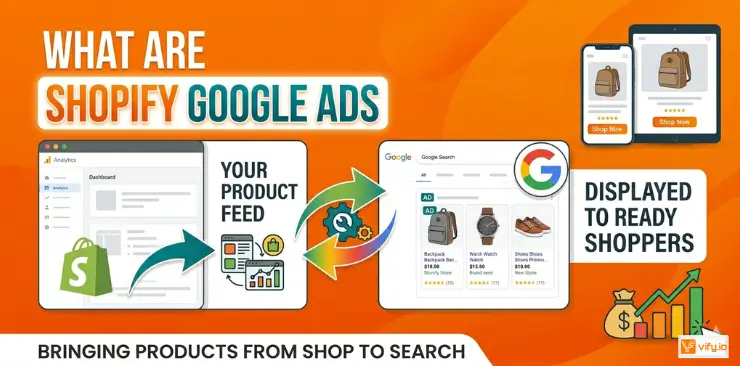
Google Ads for Shopify refers to running paid advertising campaigns through Google’s advertising platform — Google Ads — to drive traffic and sales to your Shopify store. These ads can appear across Google Search, Google Shopping, YouTube, Gmail, and millions of websites in Google’s Display Network.
The reason Shopify merchants gravitate toward Google Ads is search intent. When someone types “buy wireless earbuds under $50” into Google, they’re ready to buy. That’s fundamentally different from interrupting someone on Instagram or TikTok who wasn’t thinking about your product at all. High-intent traffic converts at a meaningfully higher rate, which is why Google Ads for Shopify tends to outperform social channels in direct ROAS for most product categories.
The main campaign types relevant to Shopify merchants are:
- Google Shopping Ads — Product listing ads that show your product image, price, and store name directly in search results
- Performance Max (PMax) — Google’s AI-powered campaign type that automatically serves ads across all Google channels
- Search Campaigns — Text ads triggered by specific keywords; ideal for branded terms and high-intent queries
- Display & Remarketing — Banner ads shown to people who previously visited your store (great for cart abandonment)
- YouTube Ads — Video ads for brand awareness and top-of-funnel reach
How to connect Google Ads Shopify
Connecting Google Ads to Shopify is simpler than it used to be. Here’s how to do it:
Step 1: Install the Google & YouTube app. Go to your Shopify Admin → Apps → search for “Google & YouTube” → Install the app. This is the official integration maintained by Google.
Step 2: Connect your Google account. Once installed, the app will prompt you to connect your Google account. Use the same Google account that has access to your Google Ads and Merchant Center accounts.
Step 3: Set up Google Merchant Center. The app will guide you through creating or linking an existing Merchant Center account. This is where your Shopify product catalog gets synced as a product feed. Make sure your product titles, descriptions, and images are clean — feed quality directly affects Shopping ad performance.
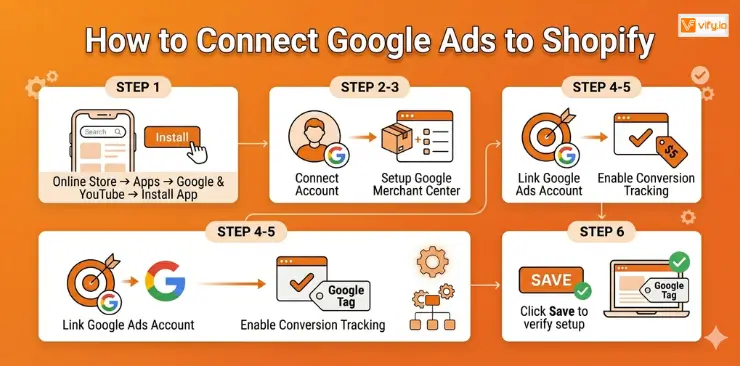
Step 4: Link your Google Ads account. In the app settings, link your Google Ads account. If you don’t have one yet, you can create one at this stage.
Step 5: Enable conversion tracking. Go to Google Ads → Tools → Conversions → New conversion action → Website. Add the Google Tag snippet to your Shopify store. Set your primary conversion event to “Purchase” and assign a conversion value equal to the transaction value.
Step 6: Verify the setup. Use Google Tag Assistant or the “Test this event” feature in GA4 to confirm your tag fires correctly on the order confirmation page.
Recommendation: Explore the 7 Best Shopify Wishlist Apps
How to set up Google Ads Campaign
Once your accounts are connected and conversion tracking is live, you’re ready to launch your first campaign.
Step 1: Create a new campaign
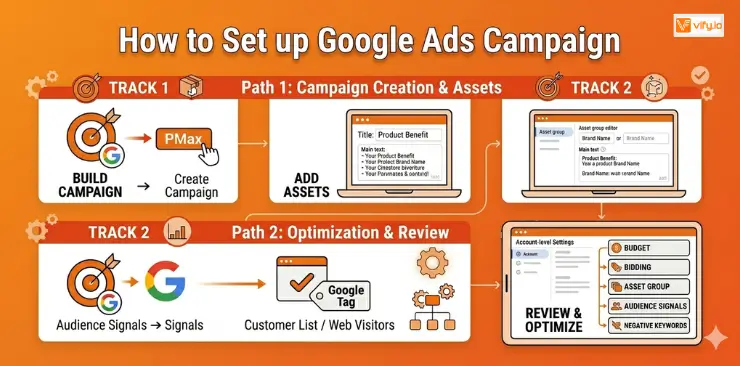
In Google Ads, click + New Campaign → Select goal: Sales → Select campaign type: Performance Max → Connect your Merchant Center account and select your Shopify product feed.
Step 2: Set your budget and bidding strategy
For most Shopify merchants starting out, the recommended bidding strategy is Maximize Conversion Value. Once you’ve accumulated 30–50 conversions, switch to Target ROAS and set a realistic target based on your actual data.
Step 3: Build your asset groups
Asset groups are how PMax serves ads across different Google surfaces. You’ll need:
- Headlines (up to 15): Include your main product benefit, brand name, and relevant keywords. Mix broad and specific.
- Descriptions (up to 5): Expand on benefits, include a call-to-action, mention free shipping or guarantees if applicable.
- Images: Minimum 1 landscape (1.91:1) and 1 square (1:1). High-quality product and lifestyle images perform best.
- Logo: Required. Upload a clean, high-resolution version.
- Video: Optional but recommended. Even a simple 15-second product slideshow video can improve reach. If you don’t upload one, Google may auto-generate one from your assets.
- Sitelink extensions: Link to your top category pages, bestsellers, and any active promotions.
Step 4: Set up audience signals
Audience signals are hints you give Google about who your ideal customer is. These signals will help the algorithm find the right people faster.
Recommended audience signals for Shopify stores:
- Your existing customer list (upload from Shopify → Customers export)
- Website visitors (from your Google Tag)
- Custom segments based on search terms your customers use (e.g., “buy [product category] online”)
- In-market audiences relevant to your product category
Step 5: Build a negative keyword list
Even with PMax, you can add negative keywords at the account level. This is one of the most important steps most beginners skip. At minimum, add negatives for:
- Competitor brand names (unless you’re intentionally targeting them)
- Irrelevant queries that sound like your product but aren’t (e.g., if you sell formal shoes, add “sports shoes”, “running shoes” as negatives)
- Job-related terms (“jobs”, “career”, “hiring”)
- Informational queries that don’t convert (“how to”, “DIY”, “free”)
Step 6: Review and Launch
Double-check: conversion tracking active, product feed approved in Merchant Center, budget set, assets complete. Then publish.
Set a reminder to check performance after 7 days — but avoid making significant changes during the first 2–3 weeks. PMax needs time to learn.
Common Shopify Google Ads mistakes
Running Google Ads without avoiding these mistakes is like leaving money on the table — or worse, actively burning it.
Launching without conversion tracking. This is the single most costly mistake. If Google can’t see which clicks turn into purchases, it has no way to optimize. You’ll spend weeks generating data that teaches the algorithm nothing. Always verify conversion tracking fires correctly on the order confirmation page before spending a dollar.
Sending all traffic to the homepage. Your homepage is designed for orientation, not conversion. A shopper who clicked a Shopping ad for “black leather wallet” and lands on your homepage has to work to find what they were looking for — most won’t. Always send ad traffic to the most specific relevant page: product page for specific products, collection page for categories.
Running broad match keywords without negatives. If you’re running Search campaigns, broad match can generate enormous reach — but much of it is irrelevant. A store selling “dog beds” could end up paying for searches like “hospital beds” or “flower beds” without a solid negative keyword list. Audit your search terms report weekly in the first month.
Ignoring Merchant Center feed quality. Your Google Shopping and PMax results are only as good as your product feed. Poor product titles (“New item 2024”), missing attributes (no GTINs, incorrect categories), and low-quality images all drag down your ad eligibility and impression share. Regularly check Merchant Center for feed errors and warnings.
Setting an unrealistic target ROAS too early. If your campaign has 20 conversions in its history and you set a Target ROAS of 800%, Google will severely restrict your impression share, trying to hit an impossible target. In the early stages, use Maximize Conversion Value without a ROAS target. Only introduce a Target ROAS once you have at least 30–50 conversions in a 30-day window, and start with a conservative target close to your actual average ROAS.
Conclusion
Running Shopify Google Ads is one of the most scalable ways to grow your e-commerce revenue — but only if you approach it with the right setup and realistic expectations. If you’re also looking to improve the overall profitability of your Shopify store alongside your Google Ads efforts, consider pairing your paid traffic strategy with tools that increase average order value and customer retention — loyalty programs, wishlist apps, and site speed optimization all have a meaningful impact on the conversion rates that your Google Ads campaigns depend on.
If you’re selling on Shopify and need a professional invoice solution, then Vify Shopify Order Printer app is the best choice for you. Try it for free today and experience it for yourself. We’re confident you’ll love it.