
Shopify and Google Merchant Center work together to send product information to Google, but connecting the two platforms is only the first step. Product data, store settings, account requirements, and product IDs all affect how reliably products sync and whether they remain eligible to appear on Google. A small configuration issue can lead to rejected products, missing listings, or even lost historical data. This guide explains how Google Merchant Center for Shopify works, what to prepare before connecting your accounts, how to set up the integration, troubleshoot common errors, and avoid issues that are difficult to reverse.
What Google Merchant Center does for a Shopify store
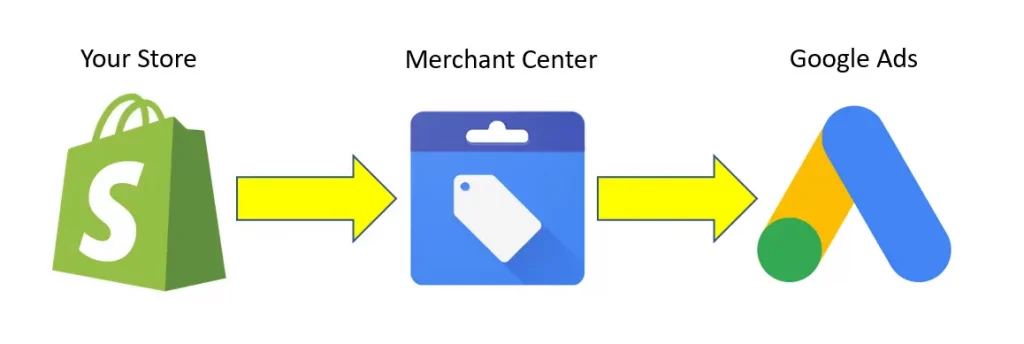
Google Merchant Center (GMC) is the place where Google receives and reviews your store and product data. Think of it as a catalog desk. Shopify is where your products live; Merchant Center is where Google checks that those products are described accurately, priced consistently, and sold by a business that follows its policies. Only then do they become eligible to appear across Google.
Shopify connects the two through the Google & YouTube app (also called a sales channel). According to Shopify’s Help Center, the channel automatically syncs your products and relevant store information with Merchant Center. This makes the Google Merchant Center Shopify setup relatively simple, as you can update your Google product feed directly from Shopify.
The app itself is built and supported by Google LLC, not Shopify. This matters when something breaks: Shopify Support can help with installing the app and setting up products, but questions about your Merchant Center account, suspensions, or ad approvals go to Google.
Which Google tools need Merchant Center?
Not every Google feature requires a Merchant Center account. Shopify’s documentation is explicit about this, and it saves some merchants an unnecessary step.
| Goal | Merchant Center required? | Main connection |
|---|---|---|
| List products on Google for free | Yes | Merchant Center |
| Run Performance Max shopping campaigns | Yes | Merchant Center + Google Ads |
| Track Google Ads conversions only | No | Google Ads |
| Measure store performance in GA4 only | No | Google Analytics 4 |
| Use listings, ads, and analytics together | Yes | Merchant Center + Google Ads + GA4 |
If the goal is only conversion tracking or Google Analytics 4 reporting, Merchant Center is not required. Product visibility on Google is different. Merchant Center is the foundation for that setup.
This distinction matters because unnecessary tools can complicate a tracking setup. For product listings and Shopping campaigns, however, a properly configured Google Merchant Center for Shopify connection is essential.
Connecting is quick. Passing Google’s review is the slow part, and most delays trace back to things you could have fixed before clicking anything. Shopify lists the requirements your store must meet, and the channel shows a checklist during setup.
Store requirements
- A Shopify online store that is not in private (password) mode
- A valid payment provider added in your Shopify admin
- A Refund Policy and Terms of Service, linked from your footer menu
- Contact information visible to customers: at least one of a phone number, email address, mailing address, or contact form
- Shipping to a supported country, in a currency that matches that country
The policy detail trips up many stores. Shopify’s troubleshooting guidance says policies must be added under Settings > Policies and linked in the footer using the Policies link type. A standalone page you wrote yourself under Online Store > Pages will not satisfy the checklist, even if the text is identical.
One more warning from Shopify: the channel cannot detect your contact information automatically, so you tick a confirmation box. If you confirm requirements that are not actually met, Google can suspend your Merchant Center account. Treat that checkbox as a statement you are making to Google.
Account requirements
| Requirement | Why it matters |
|---|---|
| A Google account that is an Admin on the Merchant Center account | Otherwise the account will not appear in the Shopify dropdown |
| Not a multi-client account (MCA) | Shopify cannot sync products to an MCA |
| A verified domain not claimed by another account | Shopify claims your domain automatically unless another account already holds it |
| One Shopify store per Merchant Center account | Connecting an account that is already linked to another store returns an error |
Product requirements
For most products, Shopify says you only need to add two things: a Google product category and unique product identifiers. Google requires an identifier for each product so it can match your item to similar products on Google. If a product has a GTIN (barcode), add it in the variant’s inventory section. If it has no GTIN, supply a brand and MPN through the Google & YouTube channel.
Some categories carry extra rules:
- Apparel & accessories may need age group, gender, color, and size
- Media (music, movies, video games) requires UPC, EAN, or JAN
- Books require an ISBN
Also note that product options, including variants, must be in English to sync with Google.
How to connect Shopify to Google Merchant Center
Shopify says the exact interface may change, and the channel is managed by Google, so use these steps as a map rather than a script.
Step 1: Check staff permissions
If you are staff rather than the store owner, you need permissions covering Orders, Products, Marketing, Discounts, Blog posts and pages, Navigation, Manage settings, and Manage and install apps and channels. Missing permissions are a common reason setup stalls for agencies and freelancers working in a client’s store.
Step 2: Install the channel and connect your Google account
From the Shopify App Store, install Google & YouTube. In your admin, go to Sales channels > Google & YouTube and click Connect Google Account. Choose the Google account that administers your Merchant Center account.
Step 3: Select or create a Merchant Center account
Pick an existing account from the dropdown. The list shows only accounts where your Google account is an administrator. If you have none, click Create new and create one from Google Merchant Center.
Step 4: Verify yourself
Enter your phone number, choose your country, and request a six-digit code by text. Two practical notes from Shopify’s guidance: the number should match the one in your store details settings, and verification allows five attempts within four hours. If you hit “too many attempts,” wait out the window rather than retrying repeatedly.
Step 5: Choose your markets
By default, the channel syncs markets automatically from Shopify Markets. If you prefer manual control, open Countries and Languages, turn off Automatic sync, and select the countries and languages you want.
Step 6: Set up shipping (if you plan to advertise)
Under Shipping settings, choose between:
- Automatically import shipping settings from Shopify, or
- Manually set up shipping settings in Google Merchant Center
Automatic import has conditions. Only rates from your General shipping profile sync; custom shipping profiles cause incorrect syncing. You also need a shipping zone for the target country, and carrier-calculated rates are supported only for certain carriers in Australia, Germany, and the United States. If your setup does not fit, use manual configuration.
Step 7: Review product title and description preferences
You can set preferences for how titles and descriptions are sent to Google. Google’s guidance on optimizing titles for Shopping is linked from the channel, and it is worth reading before you let a tool rewrite your catalog.
Step 8: Add missing product data
After the connection, products appear in the channel with statuses. Open the ones with errors, add the missing category, identifiers, or attributes, and let them re-sync.
Sync Google Merchant Center app for Shopify
The Google & YouTube app is a straightforward option for connecting a Shopify store with Merchant Center, but some stores need more control over how product data is managed. In that case, a dedicated Google Merchant Center app for Shopify can provide additional feed management features.
Anowave Google Merchant Center is a Shopify app designed to sync products with Google Merchant Center in real time through the latest Merchant Center API. It supports product synchronization, attribute mapping, custom rules, error validation, and feed optimization. The app also includes AI-driven category mapping and attribute validation, allowing merchants to preview product data before it is submitted to Google.
For merchants looking for a Google Merchant Center Shopify app with more advanced feed controls than the standard Google & YouTube channel, Anowave is one option worth considering.
A caution before you connect an existing account
If you already have a Merchant Center account with a feed, read this first. Shopify states that when you connect, your domain, product information, and relevant settings such as shipping and taxes sync to Google, and an existing product feed is overwritten to avoid conflicts. Any later changes you make in Merchant Center settings can also interfere with the channel and with Performance Max campaigns. If an old feed carries years of history, export and record your product IDs before connecting (see the product ID section below).
Free listings vs. Paid campaigns
Connecting Shopify and Google Merchant Center does not commit you to ad spend. Per Shopify’s Help Center, for eligible stores, products synced through the channel can display on relevant Google surfaces for free, including the Shopping tab, Google Search, Google Images, Google Maps, and Google Lens. Shopify’s documentation notes that stores selling in the United States are eligible for Shopping tab listings; for other countries and regions, check Google’s free listings page, since eligibility varies. You also need to confirm your product feed is opted in to free product listings in Merchant Center.
Paid campaigns are a separate step. Once Google Merchant Center for Shopify is connected, you can link a Google Ads account and run Performance Max campaigns. The App Store listing states that ad spend is billed directly to your Google Ads account and that you set the daily budget. The app is free to install, but advertising is not free.
One underused program deserves attention: the Shopping experience scorecard. Businesses that meet Google’s customer-experience criteria may receive the “Top Quality Store” badge and more prominent Shopping tab placement. This ties back to the basics: clear policies, accurate shipping information, and a trustworthy store.
Fixing disapprovals and suspensions
Problems in Google Merchant Shopify fall into two categories, and treating them the same wastes time.
- Item-level disapprovals affect individual products (missing identifiers, image problems, price mismatches).
- Account-level issues affect everything (policy violations, missing policies, misrepresentation).
Common problems and fixes
| Symptom | Likely cause | Fix |
|---|---|---|
| Merchant Center account missing from dropdown | Email lacks Admin access, or account is an MCA | Add the email as a User with Admin; use a non-MCA account; wait about 10 minutes |
| Domain verification error | Subdomain added instead of primary domain, or domain not verified | Use the primary domain; verify with the HTML tag in theme.liquid; disconnect and reconnect |
| Domain claimed on another account | Another Merchant Center account holds the claim | Transfer the claim (irreversible) or connect the other account |
| Refund policy or terms warning stays open | Policies created as custom pages or linked as custom links | Add under Settings > Policies and link with the Policies link type in the footer |
| Shipping import fails | Custom shipping profiles, no zone for target country, unsupported carrier | Use the General profile, add the zone, or switch to manual shipping |
| “Missing GTIN or MPN” | No barcode or brand/MPN | Add barcode in inventory, or brand and MPN in the channel |
| “Excessive capitalization” | ALL-CAPS titles | Switch to sentence or title case |
| “Promotional overlay on image” | Text, logos, or badges on the image | Replace with clean product images |
How suspensions work
Shopify’s guidance, based on Google’s process, says Google might email you at least seven days before a suspension, explain the problem, list actions to take, and include an appeal link. Egregious violations, such as counterfeit goods, circumventing systems, or coordinated deceptive practices, can lead to immediate suspension without warning.
Three details are easy to miss:
- Fixing the issue does not automatically trigger a re-review. You must request one before the deadline.
- Deadline extensions are not granted for any violation.
- If multiple issues exist, all must be resolved before you request review. Reviews can take up to seven days.
Common causes of account warnings include a missing refund policy, insufficient contact information, and misrepresentation of self or products. Fix account-level issues in Merchant Center first, then check Google Ads if that account is also flagged.
Conclusion
Setting up Shopify and Google Merchant Center is relatively straightforward, but keeping the connection healthy requires ongoing attention to product data, store policies, shipping settings, domain verification, and product identifiers. The Google & YouTube app provides a simple starting point for new stores, while stores with established Google Ads history need extra care when changing feeds or product IDs. A well-maintained Google Merchant Center for Shopify setup is not just about connecting the accounts, but also about monitoring product status, fixing issues early, and protecting the data Google uses to recognize and measure products over time.
For Shopify stores looking for a professional invoice solution that’s easy to customize without any coding, Vify Shopify Order Printer app is worth considering. Try it for free and see how it fits your store’s needs.