
Guest post by the Arvio team.
Arvio team has read the public catalogue of 30 live Shopify storefronts on September 3, 2026 and fetched a sample of their main image URLs directly. Every count below is from the 25 whose catalogue we read to the end; five stores hit our 1,000-product ceiling, so their totals are partial and excluded rather than mixed in. We sell a Shopify app ourselves, so we have a side in this; the frame, the exclusions and everything this method cannot see are set out at the end.
“Product images not showing” is three different problems wearing one sentence.
The image file does not load, and the shopper gets a grey box. Or the product genuinely has no image, and the theme is showing a placeholder. Or — the common one nobody searches for by name — the shopper picks a colour and the photo does not change, because that variant has no image of its own.
Three causes and three fixes. The request below tells you which one you are looking at.
Key takeaways
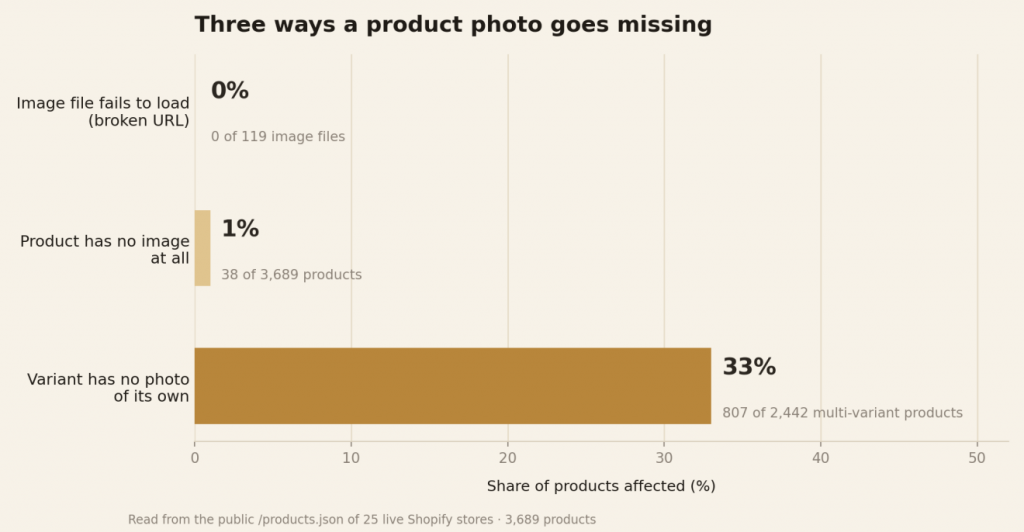
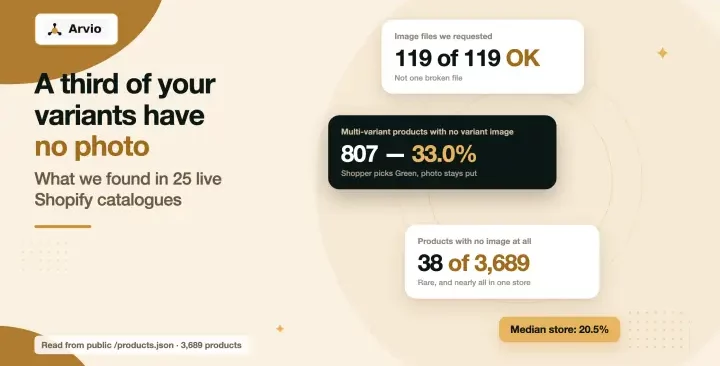
- The image files themselves came back fine every time we asked for one. We fetched up to five main image URLs per store — 119 across 25 stores — and all 119 returned HTTP 200. Read that for what it is: an anonymous request to the CDN succeeded. It says the file exists and is being served; it cannot tell you the image renders on the page, and five products per store is a spot check, not a survey of the file layer. If your image is not loading, the suspect list starts with your theme and your cache, not Shopify’s CDN.
- Products with no image at all are rare. 38 of 3,689 products, and 35 of those 38 belong to one store. This is an import problem when it happens, not a background rate.
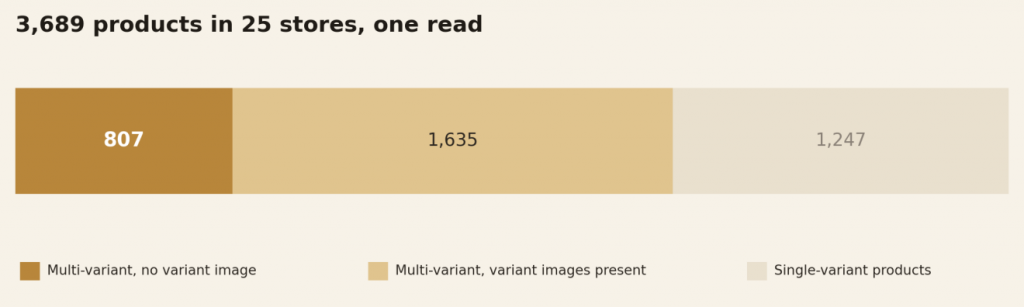
- The variant layer is where it goes wrong at scale. 2,442 products out of 3,689 have more than one variant, and 807 of them (33.0%) have no variant-level image at all.
- It is a per-store habit, not a random defect. Six of the 25 stores had no variant images on any multi-variant product. Six others had them on every one. The median store sits at 20.5%.
- One script tells you which of the three you have. It walks the same public catalogue JSON we read, page by page: whether the product has no image at all, or has variants and no image on any of them.
The one request that tells you which failure you have
Your catalogue is public JSON. Open this in a browser tab, no app and no login:
https://yourstore.com/products.json?limit=250
That URL gives you the first 250 products only. If your catalogue is bigger, &page=2, &page=3 and so on give you the rest — a 400-product store needs two pages, and reading one of them and calling it a catalogue is the most common way to get a clean-looking wrong answer.
Or get it as a task list. This prints one line per product that is missing an image somewhere — either the product itself has none, or it has variants and not one of them carries its own image:
python3 -c “
import json, sys, time, urllib.request
store = ‘yourstore.com’ # <- your domain
seen = 0
for page in range(1, 21): # 20 pages = 5,000 products
url = ‘https://%s/products.json?limit=250&page=%d’ % (store, page)
req = urllib.request.Request(url, headers={‘User-Agent’: ‘catalogue-check/1.0’})
products = json.load(urllib.request.urlopen(req))[‘products’]
if not products:
break
for p in products:
seen += 1
imgs = p.get(‘images’) or []
vs = p.get(‘variants’) or []
if not imgs:
print(‘NO IMAGE AT ALL ‘, p[‘handle’])
elif len(vs) > 1 and not any(v.get(‘featured_image’) for v in vs):
print(‘NO VARIANT IMAGES ‘, p[‘handle’], ‘(%d variants)’ % len(vs))
time.sleep(1)
print(‘read %d products’ % seen)
“
The last line is the one to read first. If it says fewer products than your admin does, the pages ran out early and the list above is incomplete — raise the page range and run it again.
That is the same rule we ran across 30 storefronts — 25 of which we read to the end, and those 25 are the ones every count in this article comes from. If it prints nothing and shoppers still report grey boxes, you are in failure 1 below and the answer is not in your catalogue.
You have the list. Somebody still has to write the text.
That script tells you which products are short a photo. The other half of a thin product page is the writing — titles, descriptions and metadata, field by field. Arvio reads your live catalogue and drafts those, and applies nothing you have not approved.
See Arvio on the Shopify App Store →
Or run the free audit on your own store first — it reads your catalogue and shows you the same list, read-only, with nothing installed.
Failure 1: the image does not load
This is the one people assume, and it was the one we could not reproduce.
We took a sample of main image URLs straight from the catalogues — 119 of them across 25 stores — and requested each one directly, reading only the first kilobyte. Every single one came back HTTP 200 with an image content type. Not one 404, not one 403, not one timeout.
That does not mean your image is fine. It means the file was there and serving every time we asked, so the failure sits somewhere between the file and the shopper’s screen. We did not measure that stretch; the list below is not from our data, it is the order worth checking in:
- Your theme’s lazy-loading. A blank slot that fills in when you scroll, or never fills in on a slow connection, is theme code, not a missing file.
- A cached page. You replaced the image and the shopper has the old HTML. Hard-reload before you debug anything else.
- A blocked request. Ad blockers and corporate proxies eat CDN requests. Try a different network before you rebuild your product.
- The URL you are checking is not the URL the page uses. Themes rewrite image URLs to add size suffixes. Copy the broken image’s URL out of the page, not out of your admin.
The check that separates these from a real catalogue problem is the one at the top: if the handle does not print, the product has an image and the file will serve when requested directly.
Failure 2: the product has no image at all
Rare, and concentrated. 38 of 3,689 products across 25 stores had zero images — 1.0% — and 35 of them were in a single store, a catalogue of 176 products.
That shape is worth reading. Thirty-five of the 38 sitting in one catalogue is not a background rate; it is one batch. Which batch, we cannot see. Twenty-one of the 25 stores had zero products with no image.
If the command above prints a long list of NO IMAGE AT ALL lines, treat it as an import artefact rather than as thirty-five separate mistakes, and go looking for the batch it came from — a supplier feed, a CSV, a migration. Fixing the batch is one job; fixing thirty-five products one at a time is thirty-five.
Failure 3: you pick a variant and the photo does not change
Nobody files this one as a bug. On the page it does not look like one.
Two-thirds of the products we read have variants: 2,442 out of 3,689, or 66.2%. Among those multi-variant products, 807 (33.0%) have no variant-level image at all. Not a missing image on one colour: no image assigned to any variant of the product.
What a shopper sees is one photo that does not respond. What the catalogue hands the theme is one photo for the whole product. Pick Green and there is no Green photo to hand over, because that variant carries none; a theme doing the standard fallback has nothing but the product’s first image to show. On a mug, that is a nuisance. On paint, apparel, or anything where the variant is the thing being chosen, it is the whole decision they came to make.
The distribution says this is a workflow, not an accident:
| Multi-variant products with no variant image | Stores |
|---|---|
| All of them (100%) | 6 |
| Some of them | 13 |
| None of them (0%) | 6 |
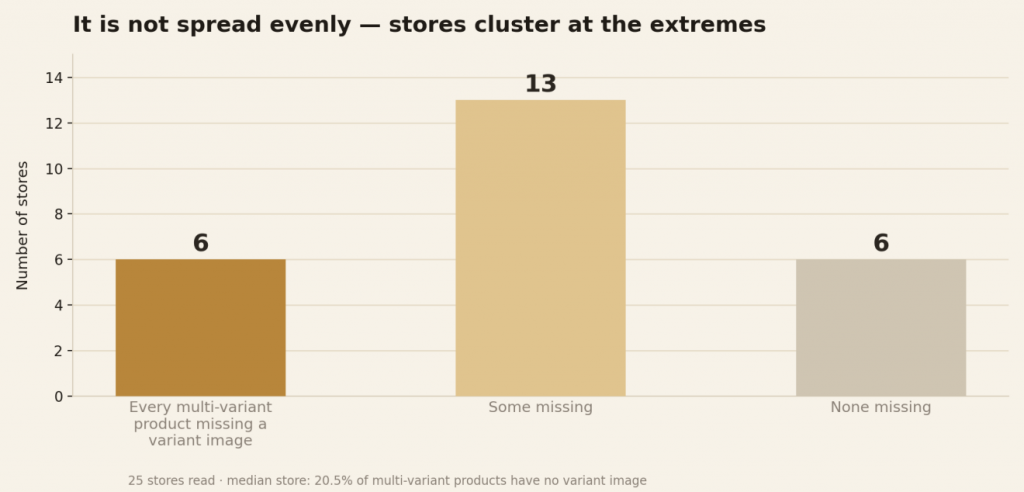
The median store sits at 20.5%. The extreme case in our sample was a 151-product catalogue in which all 150 multi-variant products had no variant image.
Why Shopify lets this happen: a variant image is optional. When a variant has none, the theme falls back to the product’s first image, which is a sensible default and a silent one. There is no warning, no validation error, and nothing in the admin that lists products where variants share a single photo.
The fix, per product: open the product, open each variant, and give it an image from the product’s media. The check afterwards is the same script as before — a handle that stops printing is a product that is fixed.
It is per variant, though, and that is the part that decides whether this gets done. A product with 4 colours × 3 sizes has 12 variants, and the images are assigned one at a time. Run that across a few hundred products and you are looking at an afternoon that nobody has. That is why a third of multi-variant products in the sample never got them.
What about image size?
Separate problem, separate audience. Google’s product data specification asks for images of at least 500 x 500 pixels — and its own wording is that “Enforcement of the new requirements will begin January 31, 2027”, so as of today it is a deadline, not a live rule. It is also about whether your products can serve in Shopping, not about whether a shopper sees a picture on your own store.
Image size is only one part of the product data that matters for Google Shopping. Product titles, descriptions, identifiers, categories and other feed fields also affect how products are understood and displayed. For a broader look at setting up and optimizing product feeds, see the full guide to Google Shopping for Shopify.
In our sample, 188 of the 3,651 products that have a main image (5.1%) carried one under 500 pixels on one side, 20 were under 250, and one was under 100. The denominator is 3,651 rather than 3,689 because 38 products have no main image to measure.
What this article does not know
- We never rendered a page. Everything here is the JSON your storefront publishes. Theme bugs, lazy-loading, CDN behaviour and caching are exactly where failure 1 lives, and they are invisible to this method.
- featured_image is what we read. A theme can associate images with variants by other means — metafields, naming conventions, alt-text matching — and a store doing that would look like a failure here and behave correctly for shoppers.
- Five of the 30 stores hit the 1,000-product read cap and are excluded from every number above. Large catalogues are where variant counts get big, so the honest version is that we measured the smaller half.
- We have no admin access. Nothing here says a merchant forgot anything. A store can have good reasons to show one photo per product.
- One read, one day. These numbers are a snapshot taken on September 3, 2026. The shape of the problem — a variant image being optional, and therefore skipped — is not something a Shopify release is likely to change, but the percentages would move if we read again.
How this was measured
Sample. The frame is built from store URLs their owners posted publicly on the Shopify Community asking for feedback: 720 topics, 474 distinct store domains, of which 230 still served a catalogue on August 26, 2026. From those 230 we drew 60 at random with a recorded seed (20260826), then read the first 31 in alphabetical order; 30 answered, and 25 of those returned a complete catalogue. Only the 230 → 60 step is random.
The biggest bias is survivorship. Of the 474 candidate domains, 244 did not return a public catalogue when we asked — 118 domains that no longer resolve, 56 returning 404, 31 returning HTTP 402 (Shopify’s unpaid freeze), 18 password-protected or no longer running Shopify, and 21 other refusals. Most of those look like stores that are gone, but “we could not read it” is not the same finding as “it closed”, and the password-protected ones are plainly still someone’s store. What is fair to say is that stores which have stopped serving a catalogue are missing from every number here, and they are unlikely to be the stores that got their variant images right. The frame also skews newer and smaller than the Shopify population.
Catalogue read, September 3, 2026. Per store, GET /products.json?limit=250 for up to four pages or 1,000 products, one request per second, with a user agent identifying our research crawler and carrying a contact address.
What was counted. A product has no image when its images array is empty. A product counts as multi-variant when it has more than one variant, and as having no variant image when none of those variants carries a featured_image. Main image dimensions come from the width and height the endpoint reports.
Image fetches. For a subset of products we requested the main image URL directly and read the first kilobyte, recording status, content type and content length. 119 fetches, 119 HTTP 200 responses.
Exclusion rule. Any store whose catalogue read reached the 1,000-product cap is excluded from every denominator, because the products past the cap could change any share we quote. That removes 5 of the 30 stores.
FAQ
Why does my Shopify product image not change when I select a variant? Because that variant has no image assigned, so the theme falls back to the product’s first image. It is the default state, not a fault: 33.0% of the multi-variant products we read across 25 stores were in it. Assign an image to each variant in the product editor, then re-run the check above.
Are Shopify product images broken or is it my theme? Request the image URL directly. In our sample all 119 main images we fetched returned HTTP 200, so a file that serves on request and does not appear on the page points at the theme, the cache, or the network — not at the catalogue.
Why is my product showing a placeholder image? The product has no images at all. That was 1.0% of the products we read, and 35 of the 38 cases were in one store, which is the signature of an import rather than of forgetting.
Do I need an image for every variant? Not technically — Shopify treats it as optional, which is why so many stores skip it. It matters when the variant is what the shopper is choosing. If your options are sizes of the same object, one photo is honest. If they are colours or materials, one photo answers the wrong question.
Does a missing variant image affect Google? Not through this route. What Google reads is the product page and its structured data, and the image requirement in its spec is about size, not about variants.
Can I check this without running a script? Yes: open https://yourstore.com/products.json?limit=250 and search for “featured_image”: null. The script only saves you the scrolling.
What if the list comes back long? Then the question stops being which products need images and becomes who has the afternoon. Somebody has to decide which photo belongs to Green, and that part is genuinely manual.
Written by the team behind Arvio: AI Store Operator, a Shopify app that drafts the text on your products — titles, descriptions and metadata — field by field, and applies nothing you have not approved. Images, including which photo belongs to which variant, stay yours. You can see what it would say about your catalogue with the free audit — read-only, no install.