
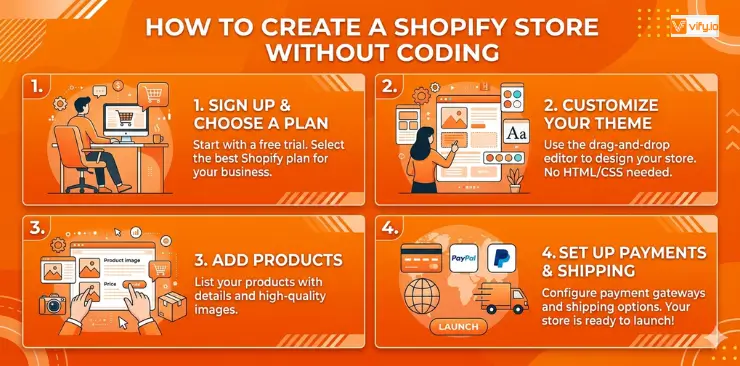
Starting an online business is easier than ever — but many beginners still feel overwhelmed by technical setup. If you’re wondering how to create a Shopify store without coding, this guide will walk you through everything step by step. Shopify powers millions of businesses worldwide and makes it simple to create a Shopify store without hiring developers or dealing with complex tools. In this guide, you’ll learn exactly how Shopify create a store process works, so you can launch a professional online store quickly and start selling with confidence.
What is Shopify and Why should you use it?
Shopify is a cloud-based e-commerce platform that lets anyone create a fully functional online store without technical knowledge. It handles everything from website hosting and product management to payment processing and order fulfillment — all under one roof.
Unlike building a website from scratch or using a general-purpose website builder, Shopify is purpose-built for selling. Every feature, from its checkout flow to its analytics dashboard, is designed to help you sell more, faster.
Key Benefits of Shopify
- No coding required: Drag-and-drop store builder with professional themes
- Built-in payment processing: Accept credit cards, PayPal, Apple Pay, and more
- Mobile-first: Every theme is fully responsive and optimized for mobile shoppers
- Scalable: Works for a one-product store and a million-dollar brand equally well
- App ecosystem: Over 17K+ apps to extend your store’s functionality
- 24/7 support: Live chat, email, and a comprehensive help center
Who should use Shopify?
- Dropshippers looking for a platform that integrates with suppliers
- Small businesses selling physical or digital products online
- Content creators selling merchandise or digital downloads
- Entrepreneurs launching a new brand from zero
How to create a Shopify store
Step 1: Sign Up for a Shopify Free Trial
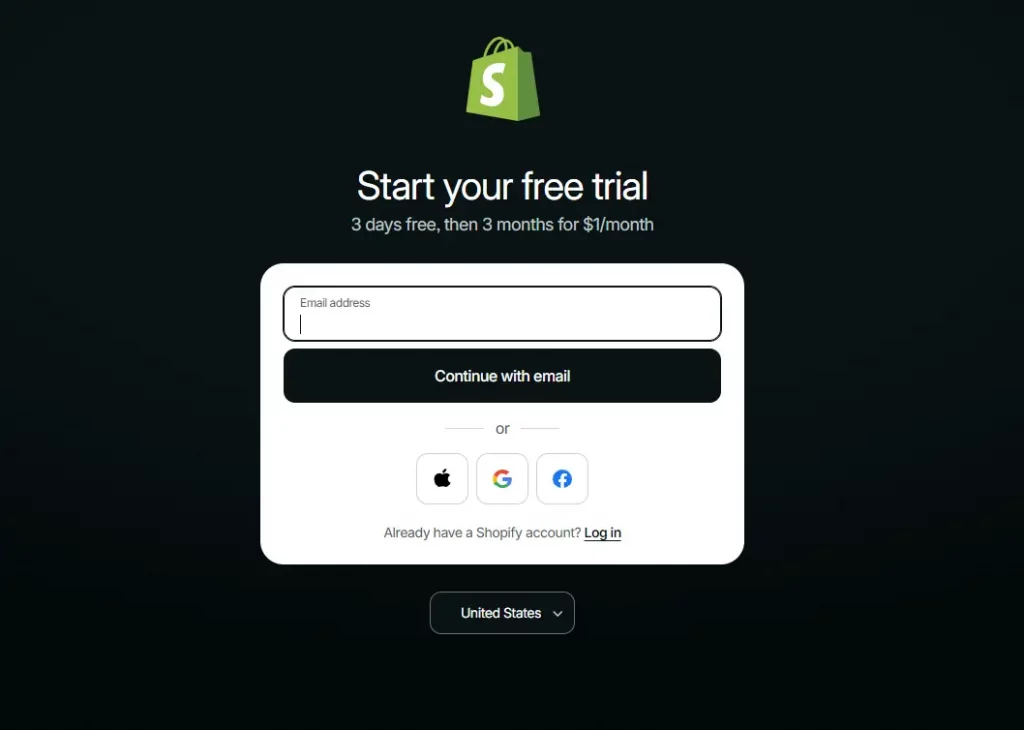
The first step to create a Shopify store is heading to shopify.com and clicking Start Free Trial. Shopify currently offers a 3-day free trial, followed by a discounted introductory rate for new merchants.
- Go to shopify.com
- Click the Start Free Trial button
- Enter your email address and create a password
- Choose a name for your store — this becomes your myshopify.com subdomain
- Answer a few quick questions about your business (you can skip these)
- You are now inside your Shopify admin dashboard
Step 2: Set up your Store’s basic information
Fill in your store’s foundational settings. Go to Settings (bottom-left of your dashboard) and configure the following:
- Store name and contact email
- Store address (used for tax calculations and shipping)
- Default currency and timezone
- Unit system (imperial or metric)
This is also where you can purchase a custom domain or connect one you already own. A custom domain (like yourstore.com) looks far more professional than the default myshopify.com URL. Shopify domains start at around $14 per year.
Step 3: Choose and Customize your Shopify Theme
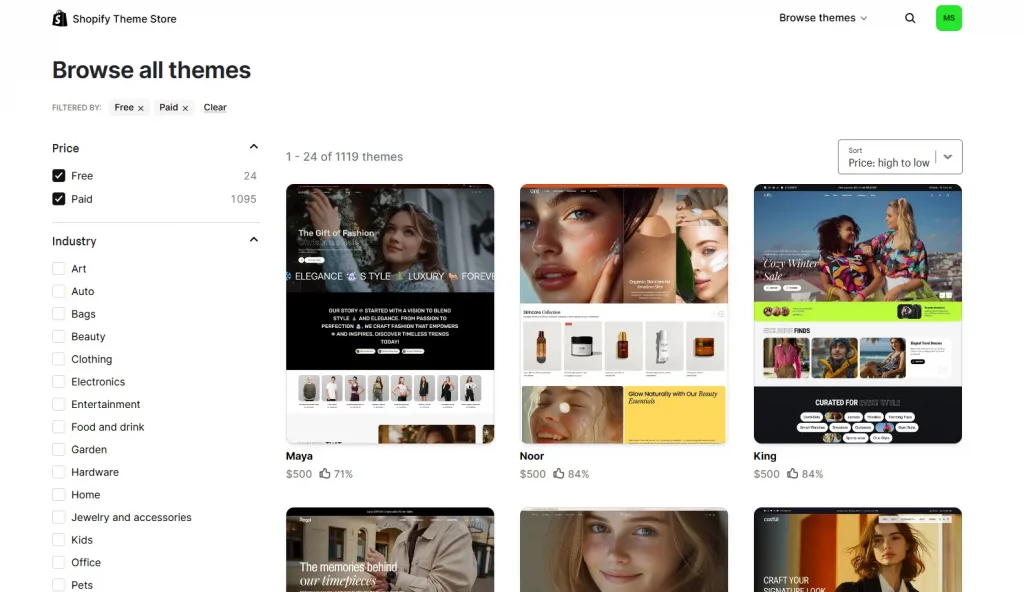
Your theme determines how your store looks. Shopify’s Theme Store offers both free and premium themes, and all of them are mobile-responsive.
How to choose a theme:
- Go to Online Store > Themes in your dashboard
- Click Visit Theme Store to browse options
- Filter by industry, layout style, and price
- Preview themes on both desktop and mobile before deciding
- Click Add to Theme Library when you find one you like
Customizing your theme:
Once your theme is added, click Customize to open the drag-and-drop theme editor. Here you can:
- Upload your logo and set brand colors
- Edit your homepage sections
- Customize fonts and button styles
- Adjust your header and footer navigation
Recommendation: Discover Top 12 Best Free Shopify Templates
Step 4: Add your Products
Products are the heart of your Shopify store. Here is how to add them properly:
- Go to Products in your dashboard
- Click Add product
- Fill in the product title and description
- Upload high-quality product images (at least 3 from different angles)
- Set the price (and compare-at price if on sale)
- Add SKU, barcode, and inventory quantity if applicable
- Set product variants (size, color, etc.) if needed
- Fill in the shipping details (weight, dimensions)
- Optimize the SEO section: edit the page title, meta description, and URL slug
- Click Save
Organizing products into collections:
Collections are like product categories. Go to Products > Collections to group your products by type, season, sale, or any other criterion. Collections make it easier for shoppers to browse your store and help with on-site SEO.
Step 5: Configure Payment Settings
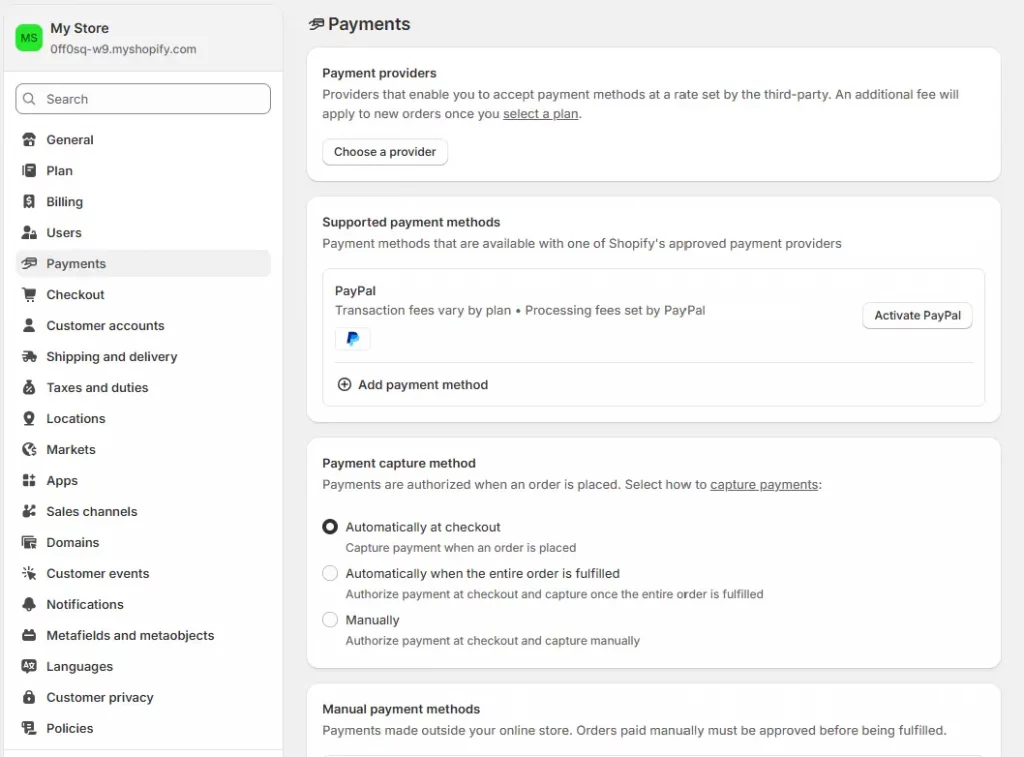
Without payment settings, your store cannot accept money. Here is how to get that set up:
- Go to Settings > Payments
- Enable Shopify Payments if you are in a supported country — this is the fastest and cheapest option, as it eliminates third-party transaction fees
- Alternatively, add PayPal, Stripe, or another third-party payment provider
- Enable accelerated checkouts: Shop Pay, Apple Pay, Google Pay
- Review transaction fees for your chosen plan
Step 6: Set Up Shipping Settings
Shipping is one of the most important factors in customer purchasing decisions. A clear, fair shipping policy builds trust and reduces cart abandonment.
- Go to Settings > Shipping and Delivery
- Create shipping zones (domestic, international)
- Set your shipping rates: free shipping, flat rate, or carrier-calculated rates
- Configure local delivery or pickup if applicable
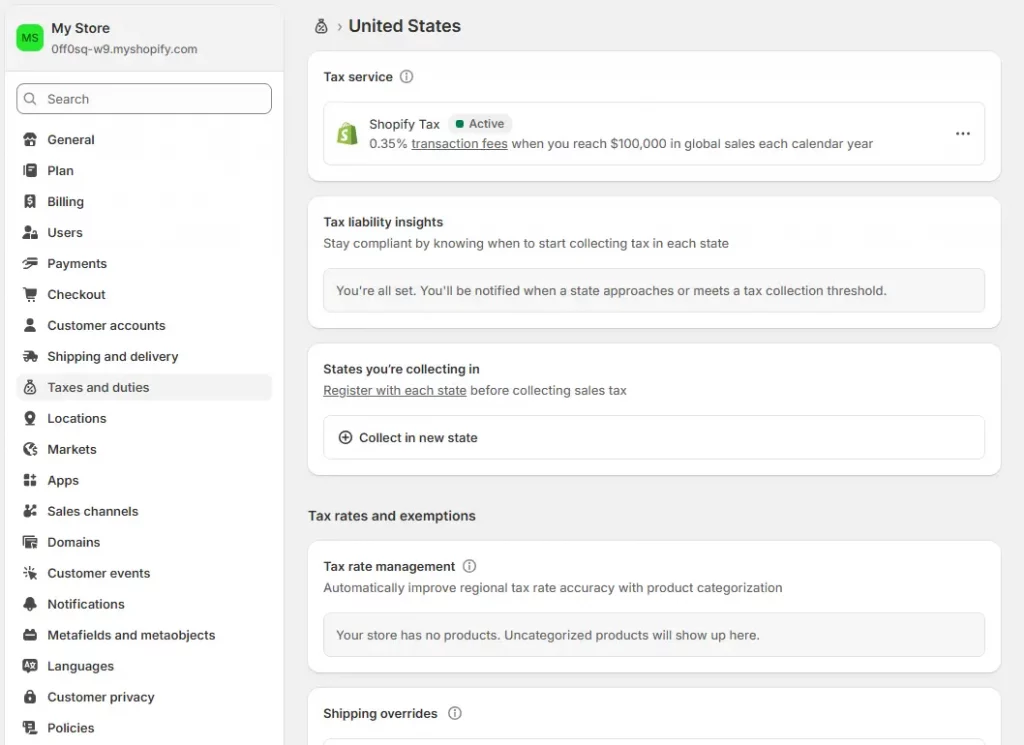
Step 7: Configure Tax Settings
Shopify can automatically calculate sales tax based on your store location and your customers’ locations. This is a significant time-saver, especially if you sell across multiple regions.
- Go to Settings > Taxes and Duties
- Ensure your store’s home country is set correctly
- Enable automatic tax calculation
- Review tax overrides for specific product types if needed (e.g., some food and digital products have different tax rules)
Step 8: Review and Launch your Shopify Store
You are almost there. Before you go live, run through this pre-launch checklist:
Pre-launch checklist:
- Place a test order to confirm your checkout and payment flow work correctly
- Preview your store on mobile to ensure it looks great on smaller screens
- Check that all product pages have images, descriptions, and prices
- Confirm your shipping rates and policies are correct
- Add essential pages: About Us, Contact, Privacy Policy, Return Policy, Terms of Service
- Check your store’s navigation menus (header and footer)
- Review your homepage for any typos or broken elements
Going live:
- Go to Online Store > Preferences
- Scroll down to Password protection
- Uncheck Enable password
- Click Save
Congratulations — your Shopify store is now live and open to the world.
How much does it cost to Create a Shopify Store?
Understanding Shopify’s pricing is important before you commit. Here is a full breakdown of what you will pay:
| Plan | Monthly Price | Transaction Fee | Best For |
| Basic | $25/month | 2% | Solo entrepreneurs |
| Grow | $65/month | 1% | Growing stores |
| Advanced | $399/month | 0.6% | Scaling businesses |
| Plus | $2,300+/month | 0.2% | Enterprise brands |
Additional costs to budget for:
- Custom domain: $14–$20 per year (or free if you already own one)
- Premium theme: $100–$500 one-time fee
- Apps: Varies widely; many essential apps have free tiers
- Professional photography: $0 (DIY) to $500+ for product photos
Conclusion
Now you’ve learnt how to create a Shopify store and you can definitely build one. Creating a Shopify store is one of the best decisions you can make if you want to start or grow an online business. The process is straightforward: sign up for a free trial, configure your settings, choose a theme, add your products, set up payments and shipping, and launch.
The hardest part is taking the first step. Shopify handles all the technical complexity so you can focus on what matters most: building your brand, finding your customers, and growing your sales.
If you’re selling on Shopify and need a professional invoice solution, especially one that’s easy to customize without any coding skills, then Vify’s Shopify Order Printer app is the best choice for you. Try it for free today and experience it for yourself. We’re confident you’ll love it.