

Understanding Shopify sign in is the first step to managing your store efficiently, but many users still run into login errors, slow access, or confusion across devices. This guide shows you exactly how to sign in to your Shopify store quickly and securely, with clear steps, troubleshooting tips, and best practices to ensure you can access your dashboard without interruptions and stay focused on running your business.
What is the Shopify Sign In Page?
Before diving into the steps, it helps to understand that there are two distinct Shopify sign in entry points, and knowing which one to use will prevent confusion.
Shopify ID
This is the central authentication hub for Shopify. When you go to accounts.shopify.com, you log in with your Shopify ID — a single email and password (or passkey) that gives you access to every store associated with your account. This is the recommended entry point if you manage more than one store, or if you are accessing Shopify from a new device.
Direct store admin URL
Your store also has a dedicated admin address that follows the pattern: yourstore.myshopify.com/admin. Navigating directly to this URL and signing in takes you straight to that store’s dashboard, skipping the store-selection step. This is the fastest route when you only manage a single store.
Other Shopify login portals
- Shopify Partners dashboard: partners.shopify.com
- Shopify Plus: uses the same Shopify ID system
- Shopify mobile app: same credentials, accessed via the iOS or Android app
How to Sign In to your Shopify Account
Sign in via web browser (desktop or laptop)
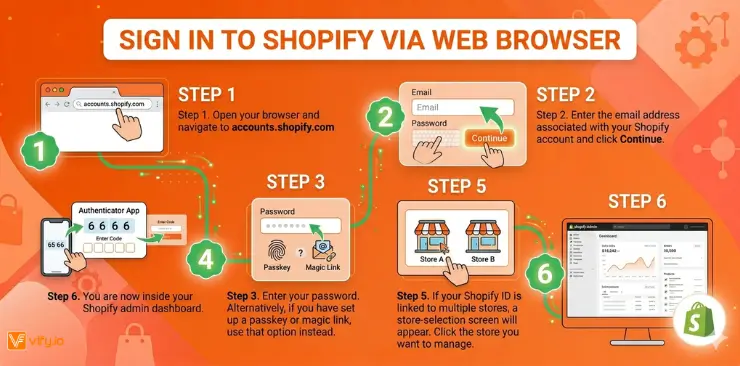
- Step 1. Open your browser and navigate to accounts.shopify.com
- Step 2. Enter the email address associated with your Shopify account and click Continue.
- Step 3. Enter your password. Alternatively, if you have set up a passkey or magic link, use that option instead.
- Step 4. If you have two-factor authentication (2FA) enabled, open your authenticator app, copy the 6-digit code, and enter it in the prompt.
- Step 5. If your Shopify ID is linked to multiple stores, a store-selection screen will appear. Click the store you want to manage.
- Step 6. You are now inside your Shopify admin dashboard.
Sign in to Shopify using the mobile app
The Shopify app for iOS and Android lets you manage your store on the go. Here is how to sign in to your Shopify store from your phone:
- Step 1. Download the Shopify app from the App Store (iOS) or Google Play (Android).
- Step 2. Open the app and tap Log in.
- Step 3. Enter your email address and tap Continue.
- Step 4. Enter your password. If Face ID or fingerprint unlock is enabled, you can use biometric authentication after your first login.
- Step 5. Complete 2FA if prompted, then select your store.
How staff members sign in to a Shopify store
Staff accounts work a little differently. Here is how to sign in to your Shopify store as a staff member:
- The store owner sends a staff invite to your email address.
- You click the link in the invite email and create your own Shopify ID (or link an existing one).
- Once your account is active, sign in at accounts.shopify.com using your own credentials.
- Select the store you have been invited to — your dashboard will reflect the permissions assigned by the store owner.
Common Shopify Sign In Problems
Even experienced merchants occasionally run into login issues. Here are the most common problems and exactly how to fix them.
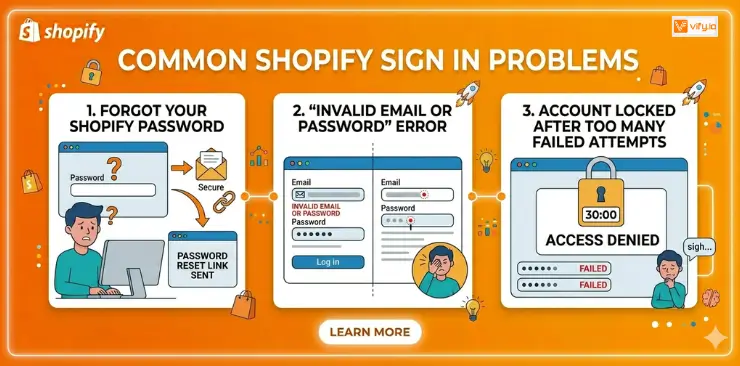
Forgot your Shopify password
- Step 1. Go to accounts.shopify.com and enter your email, then click Continue.
- Step 2. Click Forgot password on the password entry screen.
- Step 3. Check your inbox for a password reset email from Shopify (check spam if it does not arrive within two minutes).
- Step 4. Click the reset link, create a new strong password, and sign in again.
‘Invalid email or password’ error
- Double-check for typos in your email address — a single misplaced character will trigger this error.
- Make sure Caps Lock is off.
- Try opening an incognito/private browser window to rule out cache or cookie issues.
- Check whether you signed up with a different email address (work vs personal, for example).
- If none of the above works, use the Forgot password flow described above.
Account locked after too many failed attempts
Shopify temporarily locks accounts after several consecutive failed login attempts as a security measure. Wait 30 minutes, then try again. If the lockout persists, contact Shopify Support via the Help Centre to unlock your account.
Shopify Sign In Security
Your Shopify account holds sensitive business data, customer information, and payment settings. Protecting your sign-in credentials should be a top priority. Follow these best practices:
Enable two-factor authentication (2FA)
- Step 1. In your Shopify admin, go to your profile icon > Manage account.
- Step 2. Under Security, click Set up two-step authentication.
- Step 3. Choose your preferred method: authenticator app (recommended), SMS, or security key.
- Step 4. Save your backup codes in a secure password manager.
Additional security recommendations
- Use a strong, unique password of at least 12 characters with a mix of letters, numbers, and symbols. A password manager makes this easy.
- Set up a passkey for passwordless sign in — passkeys are phishing-resistant and faster than passwords.
- Regularly review your active sessions under Account > Security. Remove any sessions from devices you no longer use.
- Never share your Shopify login credentials with team members. Create individual staff accounts with the appropriate permission level instead.
- Be cautious of phishing emails that mimic Shopify’s login page. Always verify the URL before entering your credentials.
Conclusion
In summary, mastering Shopify sign in is essential for maintaining smooth, uninterrupted access to your store and ensuring your daily operations run efficiently. By understanding the correct login paths, following secure authentication practices, and knowing how to troubleshoot common issues, you can confidently sign in to your Shopify account from any device without delays or risks. As your store grows, consistent and secure access becomes even more critical — making a reliable Shopify sign-in process not just a basic step, but a foundational part of managing and scaling your business effectively.
If you’re selling on Shopify and need a professional invoice solution, especially one that’s easy to customize without any coding skills, then Vify’s Order Printer app Shopify is the best choice for you. Try it for free and experience it for yourself. We’re confident you’ll love it.