

If you’ve ever landed on an online store and immediately felt lost — products scattered everywhere, no clear categories, no obvious path to find what you need — you’ve experienced what happens when a merchant ignores collections in Shopify. Studies consistently show that customers who can’t find products quickly simply leave. Collections solve this problem elegantly. They are Shopify’s built-in system for grouping products into organized, browsable pages — giving your customers a logical path through your store and giving Google a clear signal about what each page is about.
What are collections in Shopify?
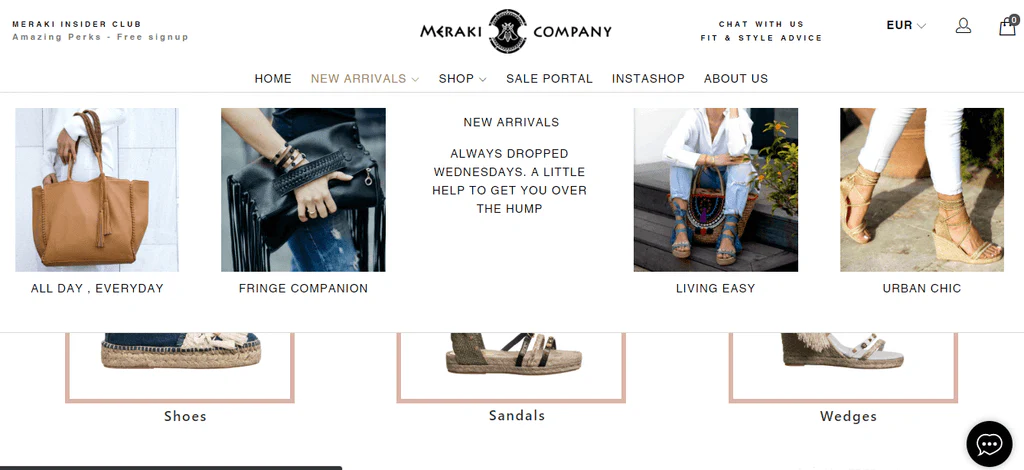
A collection in Shopify is a grouping of products that share a common theme, attribute, or purpose — displayed together on a dedicated storefront page. For example, a clothing store might have collections for “Men’s Jackets,” “New Arrivals,” or “Summer Sale.” Each collection gets its own unique URL, title, description, and SEO metadata.
How collections work in a Shopify store
When a customer visits your store, collections act as your store’s navigation backbone. Instead of browsing hundreds of individual products, shoppers can go directly to a relevant collection page — whether that’s ‘Women’s Shoes,’ ‘Gifts Under $50,’ or ‘Organic Skincare.’ Each collection page displays a grid of products, typically with filtering and sorting controls.
Behind the scenes, collections are connected to your store’s navigation menu, your homepage sections, and potentially your marketing campaigns. A well-structured collection setup makes your store easier to browse, reduces bounce rate, and increases the chances of a customer finding something they want to buy.
Why collections Shopify matter
Collections serve two masters simultaneously: your customers and search engines.
For customers: Collections shorten the path to purchase. A shopper looking for a yoga mat doesn’t want to scroll through 500 products — they want to click ‘Yoga Accessories’ and find what they need in seconds. Well-organized collections on Shopify reduce friction and build trust.
For SEO: Collection pages are some of the most valuable pages on your Shopify store from an organic search perspective. Each collection page can target a high-volume category keyword (e.g., ‘women’s running shoes’), accumulate backlinks, and rank for navigational searches. Unlike individual product pages — which often have thin content and short lifespans — collection pages are evergreen and can build authority over time.
How to create collections in Shopify
Creating collections in Shopify takes just a few minutes. Follow these steps to set up your first collection from scratch.
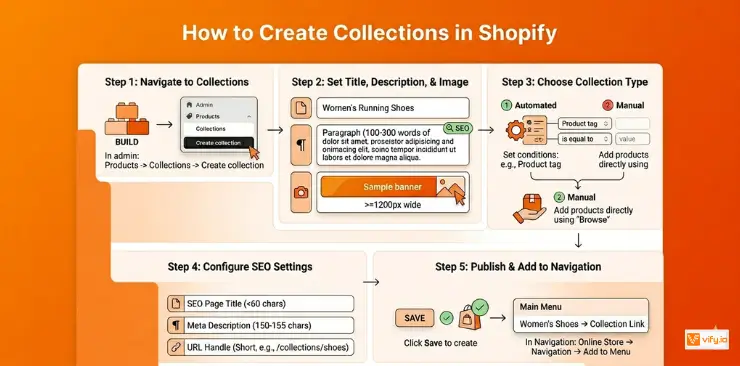
Step 1: Navigate to Products › Collections
Log in to your Shopify admin panel at yourstorename.myshopify.com/admin. In the left sidebar, click Products, then select Collections from the dropdown. You’ll see a list of all existing collections. Click the Create collection button in the top-right corner to begin.
Step 2: Set Collection Title, Description, and Image
Title: Give your collection a clear, descriptive name. This appears as the page heading on the storefront and is used as the default SEO title. Be specific — ‘Women’s Running Shoes’ is better than ‘Shoes.’
Description: Write a 100 – 300 word description of the collection. This is one of the most underused SEO opportunities in Shopify. A well-written description helps Google understand the page’s topic and gives customers context. Include your target keyword naturally.
Image: Upload a collection image (also called a banner image). This typically appears at the top of the collection page, depending on your theme. Use a high-quality image (minimum 1200px wide) and include a descriptive file name and alt text.
Step 3: Choose Collection Type
Scroll down to the Collection type section. Select either Manual or Automated.
If you choose Automated: You’ll see a conditions panel. Set your rule(s). For example, select ‘Product tag’ from the first dropdown, ‘is equal to’ from the operator dropdown, and type your tag value. Click ‘Add another condition’ to add multiple rules. Choose whether products must match all conditions or any condition.
If you choose Manual: Skip the conditions panel. You’ll add products directly after saving the collection, using the ‘Browse’ button in the Products section.
Step 4: Configure SEO Settings
Scroll down to the Search engine listing section. Click ‘Edit’ to expand the SEO fields. You’ll see three fields:
- Page title: Include your main keyword. Keep it under 60 characters. Example: ‘Women’s Running Shoes | YourBrand’
- Meta description: Write a compelling 150–155 character description that includes your keyword and gives shoppers a reason to click.
- URL handle: Shopify auto-generates this from the title. Edit it to be short and keyword-rich. Example: /collections/womens-running-shoes
Step 5: Publish and Add to Navigation Menu
Click Save to create the collection. Now make it accessible to customers by adding it to your navigation menu. Go to Online Store › Navigation in the left sidebar. Click your main menu, then click ‘Add menu item’. Enter the collection name, search for and select the collection, and Save.
Your collection page is now live and accessible from your storefront header navigation.
How to customize collection page on Shopify
The default collection page Shopify is functional, but to stand out and convert visitors into buyers, you should customize it to match your brand and merchandising goals. Shopify’s theme editor gives you powerful control without writing a single line of code.
Editing Layout and Design in the Shopify Theme Editor
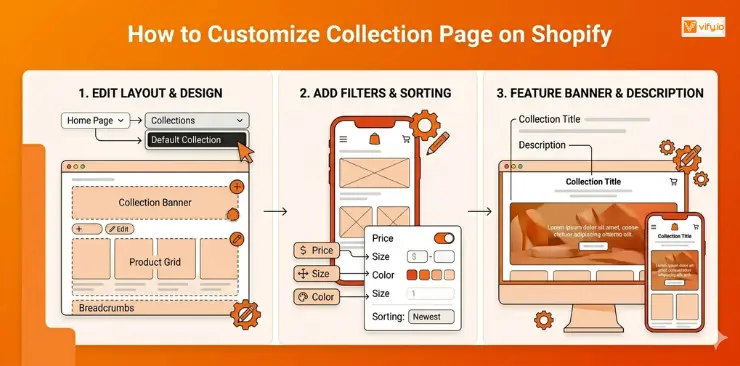
Go to Online Store › Themes in your admin, then click Customize next to your active theme. In the top bar, switch the page type from ‘Home page’ to ‘Collections’ › ‘Default collection’ using the dropdown. This loads a preview of a collection page.
You can now edit sections that appear on every collection page — such as the collection banner, the product grid, and breadcrumbs. Changes made here apply globally to all collection pages using the default template.
Recommendation: Discover Top 12 Best Shopify Templates.
Adding Filters and Sorting Options
Shopify’s native filtering and sorting — available through the Search & Discovery app (free, by Shopify) — lets customers narrow down products by price, size, color, availability, and any custom attribute you define.
To enable it, install or open the Search & Discovery app from your Shopify admin. Navigate to Filters, then configure which product attributes appear as filters on collection pages. Good filtering dramatically improves UX, particularly on collections with more than 20–30 products.
Featuring a Collection Banner and Description
Most Shopify themes display a banner image and the collection description at the top of collection pages. This prime real estate serves double duty: it creates a strong visual brand impression for shoppers, and it gives search engines substantive text content to index.
Treat your collection banner like a mini landing page hero — use an image that reflects the collection’s personality, and write a description that speaks to your customer’s intent. ‘Shop our full range of organic cotton basics — ethically made, built to last’ tells both Google and your shopper what this page is about.
Conclusion
Well-organized collections in Shopify do far more than tidy up your storefront — they improve navigation, strengthen your SEO foundation, and help customers find products faster with less friction. Whether you use manual collections for curated campaigns or automated collections for scalable catalog management, a smart collection structure creates a better shopping experience while making your store easier for search engines to understand. By combining optimized collection titles, compelling descriptions, strong visuals, and user-friendly filtering, you can turn your Shopify collection pages into high-converting category hubs that drive both traffic and sales over the long term.