

Having a well-designed contact us page on Shopify is one of the simplest yet most powerful trust signals you can offer your visitors. It tells customers you are real, reachable, and ready to help — and that alone can be the difference between a completed purchase and an abandoned cart. Let’s discover how to set up, customize, and optimize your Shopify contact us page from scratch — the easiest way to build brand trust and boost conversions with minimal effort.
Why Contact Us Page on Shopify important
Build customer trust. When a shopper lands on your store for the first time, they want to know there is a real person or team behind it. A visible, easy-to-find contact page signals legitimacy — especially for newer stores that have not yet built a large review base.
Reduce cart abandonment. Research consistently shows that customers who have a question and cannot find an easy way to ask it will simply leave. Giving shoppers a direct line to you removes a major friction point at the decision stage.
Improve customer satisfaction. Post-purchase support, order questions, return requests — a dedicated Shopify contact page makes handling all of these faster and more professional, for both you and your customers.
A trust signal for Google. From SEO perspective, Google’s quality guidelines emphasize Experience, Expertise, Authoritativeness, and Trustworthiness. A contact page — especially one that includes a physical address or phone number — contributes to the Trustworthiness factor, which can positively influence your search rankings.
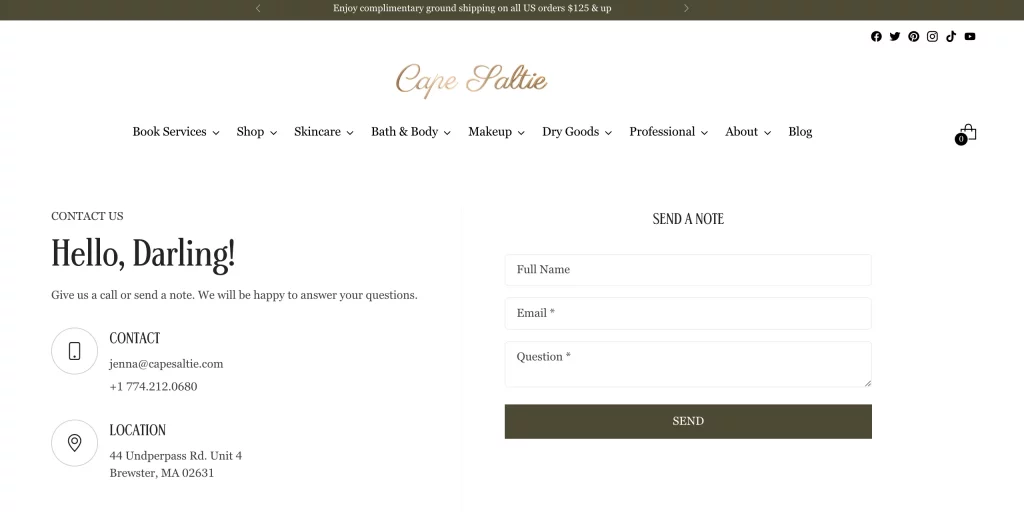
How to add a Contact Us Page in Shopify
Shopify includes a built-in contact page template, which means you do not need any third-party tools or coding knowledge to get started. Here is how to create a contact us page in Shopify using the native admin.
Step 1: Go to Online Store → Pages
Log in to your Shopify admin panel. In the left-hand sidebar, click Online Store, then select Pages. This is where all your static live pages — including your About Us, FAQ, Privacy Policy, and soon, your Contact page.
Step 2: Click “Add Page”
In the top-right corner, click the Add page button. You will be taken to a page editor where you can configure the title, content, and template.
Step 3: Set the Page Title
Type Contact Us (or Contact, Get in Touch, or whatever fits your brand voice) into the Title field. This title will display as the H1 heading on the page and also feeds into the page’s default SEO title — so keep it clear and descriptive.
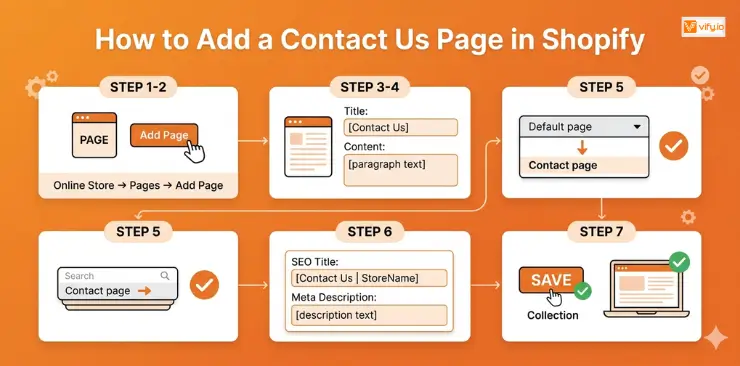
Step 4: Add Introductory Content
In the content editor below the title, write a short paragraph inviting visitors to reach out. For example:
“Have a question about your order, our products, or anything else? Fill out the form below and our team will get back to you within 24 hours.”
This introductory text appears above the contact form and sets the tone. It is also a great place to naturally include your primary keyword — for example, mentioning that this is your contact us page on Shopify or linking to your FAQ if customers can self-serve there first.
Step 5: Select the Contact Page Template
This is the most important step. Scroll down to the Theme template section (on the right-hand side of the editor) and change the template from Default page to Contact page.
This tells Shopify to render the built-in contact form on this page. Without this step, your page will just display the text you wrote — with no form.
Step 6: Configure SEO Settings
Scroll down to the Search engine listing section and click Edit. Here you can set a custom SEO title and meta description for the page. Use your target keywords naturally:
- SEO title: Contact Us | [Your Store Name]
- Meta description: Have a question? Reach out to us via our contact form and we’ll reply within 24 hours. [Your Store Name] is here to help.
Step 7: Save and Preview
Click Save, then click View page to see how it looks on the front end. You should see your introductory text followed by a form with fields for Name, Email, Phone (optional), and Message.
How to add the Contact Page to the Navigation Menu
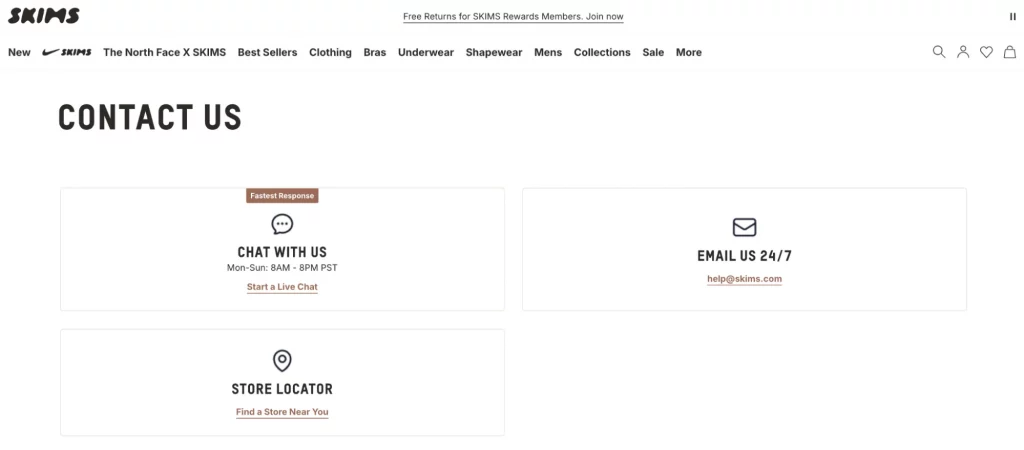
Creating the page is only half the job — customers need to be able to find it. Here is how to add it to your navigation:
- In your Shopify admin, go to Online Store → Navigation.
- Click on your Main menu (for header placement) or Footer menu (for footer placement).
- Click Add menu item, type “Contact Us” as the name, and search for the page you just created.
- Click Add and then Save menu.
Conclusion
A professional contact us page on Shopify does much more than provide a simple contact form — it builds trust, reassures hesitant shoppers, and creates a direct communication channel between your brand and your customers. Whether someone has a pre-purchase question, needs support after ordering, or simply wants to verify that your business is legitimate, an accessible and well-structured contact page can significantly improve the overall customer experience. By using Shopify’s built-in contact template, optimizing your page content for SEO, and making the page easy to find through your navigation menu, you create a stronger, more trustworthy storefront that supports both conversions and long-term customer relationships.