
Research from the Baymard Institute shows that nearly 70% of online shoppers abandon their cart before completing a purchase. While reasons vary, a checkout experience that feels untrustworthy or off-brand is consistently one of the top culprits. The good news is you can customize the Shopify Checkout Page to match your brand, build customer trust, and dramatically improve conversion rates. This complete guide walks you through every method available, so let’s get into it.
Why customize the Shopify checkout page matters
Before diving into the how, it is worth understanding the why. Skipping checkout customization is one of the most overlooked mistakes Shopify merchants make — and it comes with a measurable cost.
The impact of checkout design on conversion rates
The checkout page is where purchase intent is at its highest. A customer who reaches checkout has already decided they want your product. At this stage, your job is not to persuade — it is to remove friction and reassure.
A checkout page that looks generic, loads slowly, or lacks trust signals introduces doubt. Customers wonder: Is this site legitimate? Is my payment information safe?
Studies show that adding trust badges, clear security indicators, and a consistent brand experience at checkout can increase conversion rates by 10–20%. Even small visual improvements — like matching your brand colors or adding a logo — signal professionalism and reduce anxiety.
Brand consistency from cart to confirmation page
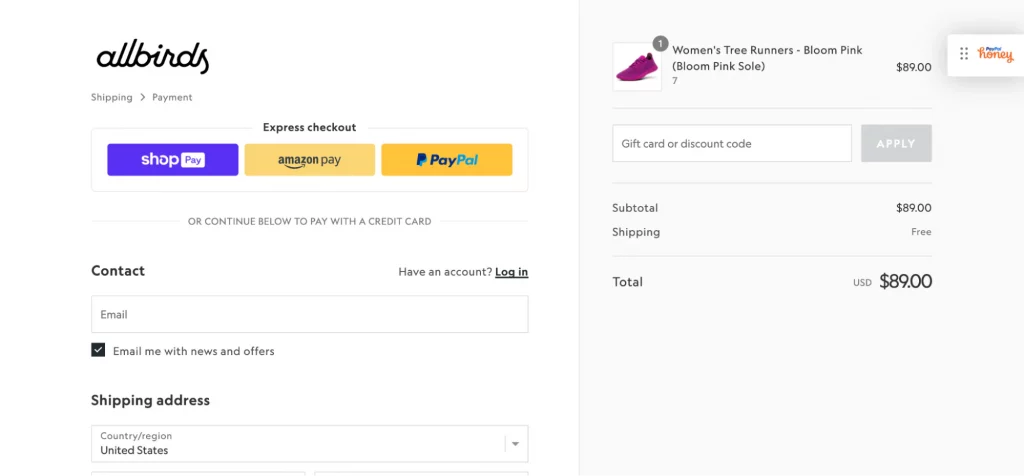
Imagine a luxury fashion brand with a beautifully designed storefront — elegant typography, muted tones, curated imagery. Then their checkout page shows Shopify’s default blue buttons, a generic font, and no logo in sight.
That jarring transition breaks the psychological safety net that great branding builds. Customers make subconscious judgments about brand quality at every touchpoint. A checkout that does not match your store signals inconsistency — and inconsistency signals risk.
When you edit the Shopify checkout page to reflect your visual identity, you keep customers in your brand world right up to order confirmation. That continuity builds trust, reduces hesitation, and keeps people from second-guessing their decision at the finish line.
How to edit Shopify checkout page using Theme Editor
The Shopify Theme Editor gives you visual, no-code control over your checkout appearance.
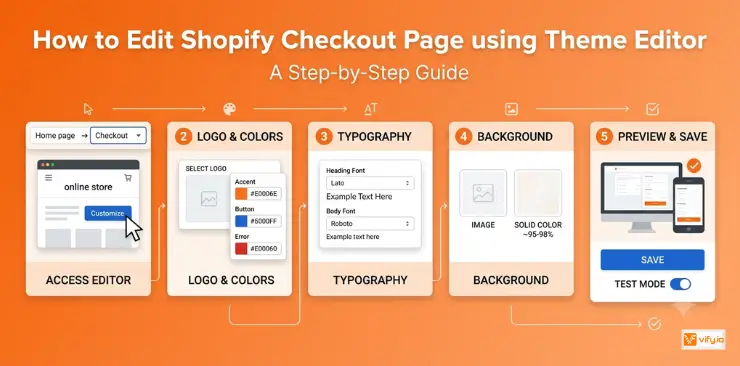
Step 1: Access the checkout editor in Shopify admin
- Log in to your Shopify Admin
- In the left sidebar, go to Online Store → Themes
- Find your active theme and click Customize
- In the top dropdown (which defaults to “Home page”), click it and select Checkout
You are now inside the checkout editor. The left panel shows all available settings, and the right panel shows a live preview of how your checkout page will look.
Step 2: Upload your logo and set brand colors
Logo:
- Under the “Header” section in the left panel, click Select image
- Upload your logo file (recommended: PNG with transparent background, at least 400px wide)
- Adjust the logo size using the slider — aim for something visible but not overpowering
Colors:
- Under “Colors,” you will see options for Accent color, Button color, and Error color
- Set your accent color to match your primary brand color (use your exact hex code)
- Set error color to red or your brand’s alert color — do not use the same color as your accent
Step 3: Customize fonts and typography
Shopify offers a curated list of font pairings for checkout. To change them:
- Go to the Typography section in the left panel
- Choose a Heading font and Body font from the available options
- Look for fonts that match or complement what you use on your storefront
If your storefront uses a Google Font or a custom font that is not available in the checkout editor, you will need to use the Branding API (Shopify Plus) or a third-party app to inject it.
Step 4: Add a background image or color
A background image can add a strong brand impression — but it needs to be handled carefully to avoid hurting readability.
If using a background image:
- Keep file size under 1MB for fast loading
- Use a low-contrast or blurred image so form text remains easy to read
- Test on mobile — images that look great on desktop can overwhelm small screens
If using a solid background:
- A very light tint of your brand color (95–98% white) creates a subtle branded feel without distracting from the form
- Avoid dark backgrounds unless your form panel is clearly separated with a white card
Step 5: Preview and save your changes
Before saving, always test your checkout appearance without placing a real order:
- Click the mobile icon in the preview to check the mobile layout
- Walk through the preview mentally — logo visible? Colors consistent? Text readable?
- Click Save in the top right corner
To do a full live test without spending money, use Shopify’s Bogus Gateway (found under Settings → Payments → Test mode) to place a test order and see the actual checkout experience as a customer would.
How to customize Shopify checkout page fields & form layout
Beyond visual styling, you can also control which fields appear on your checkout form — a powerful way to reduce friction and speed up the purchase process.
Showing, hiding, or reordering checkout fields
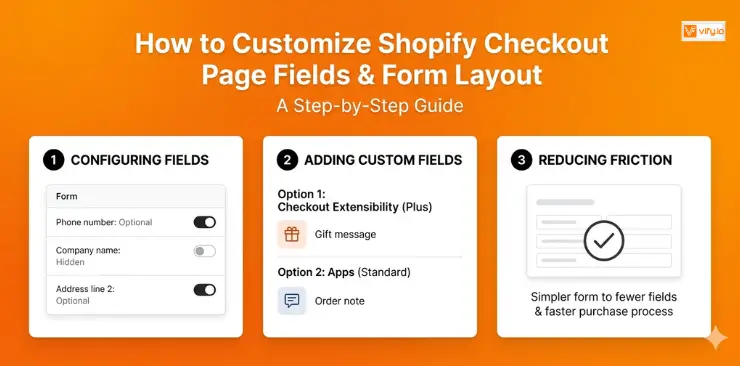
Shopify allows you to configure several checkout fields directly from the admin settings. To access these:
- Go to Settings → Checkout in your Shopify admin
- Scroll to the Customer information section
Here you can control:
- Phone number: Set to “Required,” “Optional,” or “Don’t include”
- Company name: Show or hide the company field
- Address line 2: Make it optional (recommended — hiding it entirely can frustrate users who need it)
- Last name: Required by default but can be made optional in some regions
Reducing the number of required fields — even by one or two — has been shown to increase checkout completion rates. Only ask for information you genuinely need.
Adding custom fields (eg gift messages, order notes)
Native Shopify checkout does not support adding arbitrary custom fields out of the box on standard plans. However, there are two main ways to add them:
Option 1 — Checkout Extensibility (Shopify Plus): Using Shopify’s UI Extensions, you can add custom input fields, checkboxes, or dropdowns at specific points in the checkout flow. These are built with React and integrate natively with Shopify’s checkout architecture.
Option 2 — Apps (all plans): Apps like Checkout Blocks allow you to add gift message fields, order notes, custom text inputs, and more without writing a single line of code. This is the recommended path for merchants on standard plans.
Common custom fields merchants add:
- Gift message or gift wrapping option
- Delivery date preference
- Special instructions for the order
- Subscription preference or loyalty program opt-in
Conclusion
In the end, learning how to customize the Shopify Checkout Page is not just about making checkout look better — it’s about creating a smoother, more trustworthy buying experience that helps turn more carts into completed orders. Whether you want to customize Shopify checkout page branding, simplify form fields, or edit checkout page Shopify settings for better usability, even small improvements can have a real impact on conversions and customer confidence. A clean, branded, and friction-free checkout experience is often the final detail that separates abandoned carts from successful sales.
If you’re selling on Shopify and need a professional invoice app then Vify Shopify Order Printer app is the best choice for you. Try it for free today and experience it for yourself. We’re confident you’ll love it.