
If Shopify data needs to be reviewed, analyzed, or shared in a spreadsheet, knowing how to export Shopify to Google Sheets can simplify the workflow. Shopify offers several ways to move orders, products, and customer data into Google Sheets, but each one serves a different purpose. This guide compares 5 methods based on data freshness, so it is easier to choose a Shopify Google Sheets setup without testing multiple options.
5 ways to export Shopify to Google Sheets
| Method | Data freshness | Best for | Cost |
|---|---|---|---|
| 1. Native CSV export + Sheets import | One-time, manual | Audits, backups, one-off analysis | Free |
| 2. Shopify Flow “Add row to spreadsheet” | Event-driven, appends one row per trigger | Logging new orders or events to a shared sheet | Free (Flow is a free app) |
| 3. Scheduled export apps (Matrixify, EZ Exporter) | Scheduled snapshot (hourly to daily) | Product catalogs, recurring reports, large data | Free tier up to $149.95/month |
| 4. Live order sync apps (OSync and similar) | Updates on new and changed orders | Fulfillment and ops teams working from a sheet | Free to about $8/month |
| 5. Data connector (Coupler.io) | Scheduled refresh, manual on free plan | Reporting dashboards that blend Shopify with other sources | Free to $259/month |
Decide how your data needs to be
Before picking a method, try answering these three questions to find the best way to export Shopify to Google Sheets for your store:
1. How often does the sheet need to be updated?
- Never (one-time): a store audit, a migration backup, a tax-season pull.
- Every hour or day: a recurring sales report, an inventory review, a product catalog your merchandiser edits.
- Within minutes of each order: a fulfillment sheet shared with a 3PL, a dropship supplier, or a packing team.
2. What kind of data is it? Orders and products are the two native CSV exports this guide walks through. Other data types, such as metafields, discounts, and payouts, are where apps earn their keep. Matrixify’s listing, for example, customer names, discounts, payouts, and metafields among its supported data.
3. Who touches the sheet afterwards? If your team only reads it, any method works. If people edit it and expect formulas to survive, the way a tool writes to Sheets (append versus overwrite) becomes critical. We cover that in the gotchas section.
Once you know your answers, the rest of this guide is a lookup.
Method 1: Native Shopify CSV export + Google Sheets import
This is the zero-cost, zero-app route, and it is the right starting point for any one-time Shopify to Google Sheets export.
How exporting works in Shopify
Shopify’s Help Center describes CSV exports for both products and orders, and the delivery rules differ:
| Products | Orders | |
|---|---|---|
| Where | Products page → Export | Orders page → Export |
| Direct browser download | When all products have fewer than 100 variants | Up to 50 orders, or the current page of orders |
| Emailed instead | When any single product has more than 100 variants (other cases outside the direct-download rule are also emailed) | More than 50 orders, or exports by date range; sent to you and the store owner |
| File format choice | CSV for Excel/Numbers/other spreadsheet programs, or plain CSV | Orders, optionally with transaction history |
| Images | Not included in the file | – |
Shopify also notes that order export time scales with volume: an export with fewer than 100,000 items might finish in under an hour, while one with 400,000 items could take around four hours.
Step-by-step: export Shopify to Google Sheets with CSV
- In your Shopify admin, open Products or Orders.
- Apply any filters (date range, status, collection) so you only export what you need.
- Click Export, choose the scope (current page, selected, all, or by date), and pick the CSV format.
- If the file is emailed, open the message and download the CSV. Large exports can take a while; a Shopify support reply in the Community advises waiting up to 24 hours for very large files.
- In Google Sheets, go to File → Import → Upload and select the CSV.
- Choose how to import: insert as a new sheet, replace the current sheet, or append rows.
Method 2: Shopify Flow
Shopify Flow is Shopify’s automation platform. Shopify describes it as event-based: it watches your store for triggers, checks conditions, and runs actions. Shopify lists Flow as a free app available on Basic, Grow, Advanced, and Plus plans, so you no longer need Plus to use it.
Flow connects to Google Sheets through an Add row to spreadsheet action. According to Shopify’s documentation, the action adds a single row to a Google Sheets spreadsheet, requires you to connect your Google account, and can be used with any trigger. You provide the spreadsheet URL, an existing tab name, and the row contents as comma-separated values.
A basic setup
- Install the Shopify Flow app from the Shopify App Store.
- Create a workflow with the trigger Order created (or another trigger such as a customer or inventory event).
- Add the action Add row to spreadsheet and connect your Google account when prompted.
- Paste the sheet URL, type the exact tab name, and map fields such as order name, total, and customer email into the comma-separated row contents.
- Turn the workflow on and place a test order.
Standout features
- It is free and runs inside Shopify, with no third-party subscription.
- It works with many triggers, not just orders, so you can log low-stock events or new customers.
- Shopify’s docs note that you can use Flow’s For each action to add one row per order line item.
Considerations
- One row per trigger run. The action adds a single row at a time, so order edits after creation do not rewrite the earlier row.
- No backfill. Because Flow reacts to events going forward, it will not pull in historical orders. Pair it with a one-time CSV import (Method 1) for your history.
- Commas break columns. Shopify’s docs explain that columns are separated by commas, and merchants in the Community report that product titles containing commas spill into extra columns. A common workaround is removing commas from fields with a Liquid
replacefilter. - Quota errors. Shopify documents 403 errors (the sheet is not accessible to the account that connected Flow) and 429 or 500 errors (too many requests or an oversized worksheet).
Flow is the sweet spot for a simple “log every new order” sheet. When you need edits reflected or history filled in, move to an app.

Method 3: Scheduled snapshots with Matrixify or EZ Exporter
For a scheduled Shopify export to Google Sheets without manual downloads, the two most established App Store options are Matrixify and EZ Exporter. They solve the same problem in different ways.
Matrixify
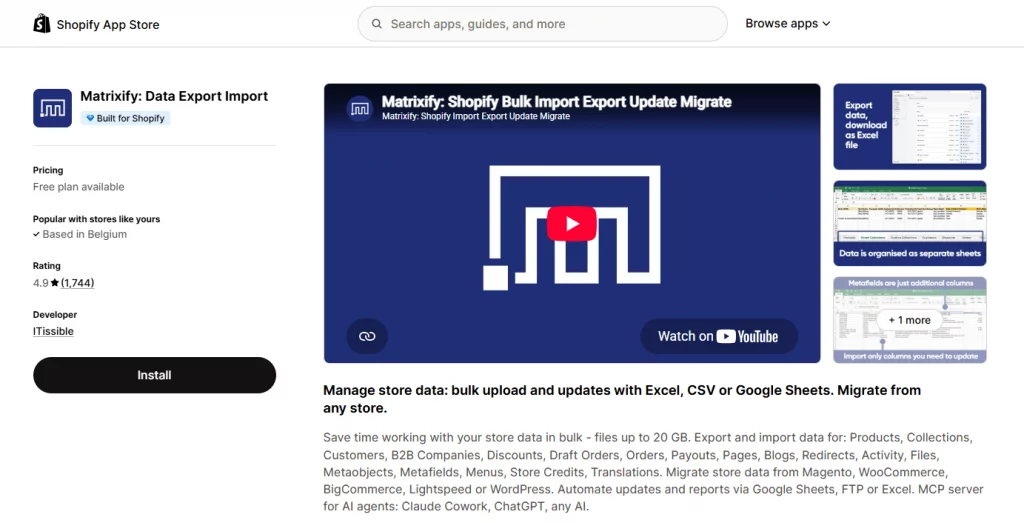
Matrixify is a bulk import/export app with the Built for Shopify badge. Its listing shows a free plan and paid plans of $20, $50, and $200 per month. The plans are capped per file, which matters for Sheets use:
| Plan | Price | Per-file limits (examples) |
|---|---|---|
| Free | $0 | 10 products, 10 customers, 10 orders |
| Basic | $20/month | 5K products, 2K customers, 1K orders |
| Big | $50/month | 50K products, 20K customers, 10K orders |
| Enterprise | $200/month | Unlimited |
How Matrixify gets data into Sheets: according to Matrixify’s own tutorial, you set up a scheduled export in CSV format with a repeat interval, then paste the exported file’s URL into a Google Sheet using the IMPORTDATA function. The tutorial notes that Google Sheets refreshes IMPORTDATA only about once an hour, so scheduling exports more often than hourly gains you nothing. Matrixify can also go the other way: you can schedule imports from a Google Sheet back into Shopify, which makes it unusual among Shopify to Google Sheets tools.
Watch out for: per-file plan limits. A recent one-star review on the listing describes frustration after being prompted for a second plan upgrade during a migration; the developer disputes that account and says the app shows each plan’s limits before you choose. Either way, check your row counts against the table above before paying.
EZ Exporter
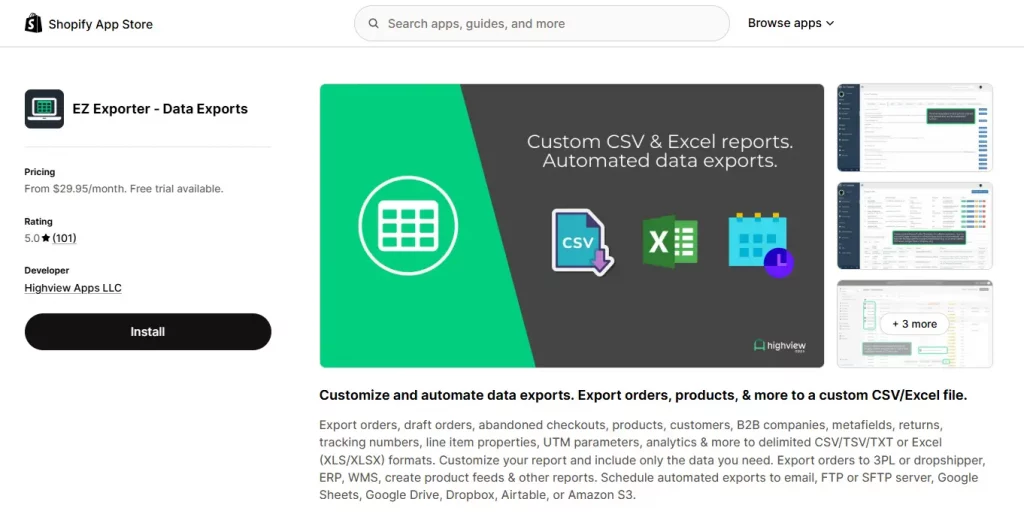
EZ Exporter, from Highview Apps, exports orders, products, customers, metafields, and more, and can deliver on a schedule to email, FTP/SFTP, Dropbox, Google Drive, Google Sheets, Airtable, and Amazon S3.
The detail most “best apps” articles miss is which tier unlocks Google Sheets:
| Plan | Price | Highlights |
|---|---|---|
| Standard | $29.95/month | 10 templates, scheduling every 15 minutes, email/FTP/SFTP, Dropbox and Google Drive. No Google Sheets. |
| Advanced | $49.95/month | 15 templates, Google Sheets integration, Amazon S3, grouping and aggregation |
| Premium | $149.95/month | 50 templates, very large datasets, Airtable, ShopifyQL analytics export |
All third parties include a 7-day free trial. The Highview Apps knowledge base explains that, when writing to Sheets, you can add a new tab, add or overwrite a tab, append rows to an existing tab, or overwrite an existing tab, which gives you control over whether manual edits survive.
Which one should you pick?
Choose Matrixify if you need bulk edits and round trips (export, edit in Sheets, re-import), or if you want the cheapest paid entry at $20/month. Choose EZ Exporter if you want a direct, native Sheets destination with append/overwrite control and 15-minute scheduling, and can justify the $49.95 tier. If you only need Google Sheets, EZ Exporter’s lower tiers will not help.
Method 4: Live order sync with a Google Sheets app
If your team needs the sheet to update as orders arrive and change, a dedicated sync app is the closest to “live”.
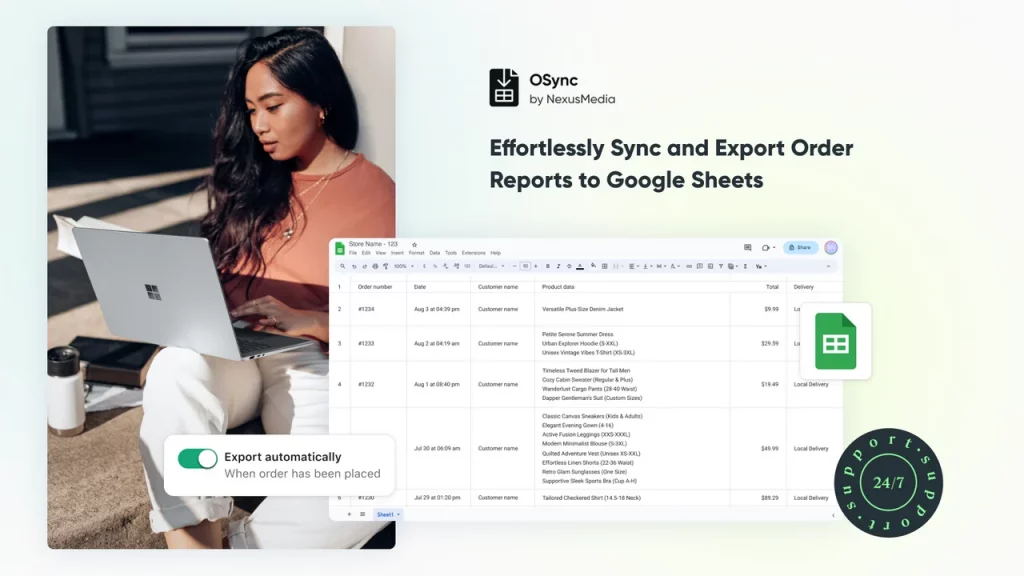
OSync: Export Orders to Sheet (by NexusMedia) is the clearest example. Its listing shows a free plan (up to 50 orders), a $3.99/month plan (up to 500 orders), and a $7.99/month unlimited plan. It supports more than 90 order attributes through a column editor, filters by order status, and updates the sheet when a new order is placed or an existing order changes.
Two newer apps in the same lane are worth knowing about, but they have almost no track record yet:
- Exportly Google Sheets Sync ($4.99/month) lists the ability to create separate sheets for accounting, fulfillment, and analytics teams, with field mapping and filters, but shows zero reviews.
- Sheets Feed – Ultimate has a free plan and a 5.0 rating from two reviews.
A perfectly reasonable approach for a small store: test one of these on a free plan, and move to EZ Exporter or Matrixify if volume or reliability needs grow. For a store doing meaningful revenue, a sync app with hundreds of reviews is a safer foundation than one with a handful.
Method 5: Coupler.io for Reporting Dashboards
Coupler.io is a different kind of tool. It is a data integration platform (400+ sources, with Shopify among its most popular) that delivers data from Shopify to Google Sheets and other destinations on a schedule. It is available as a Google Workspace Marketplace add-on. It makes sense when your goal is not “an order log” but “a dashboard that combines Shopify sales with ad spend and analytics.”
Current pricing from Coupler.io’s pricing page:
| Plan | Monthly price | Annual billing | Refresh | Data volume |
|---|---|---|---|---|
| Free | $0 | – | Manual | 100 rows/run |
| Starter | $32 | $24/month | Daily | 5,000 rows/run |
| Active | $132 | $99/month | Daily | Unlimited |
| Pro | $259 | $199/month | Hourly | Unlimited |
The free plan’s 100-row limit makes it a trial, not a production setup, and the 5,000-row cap on Starter will not cover a busy order history. Coupler.io earns its price when you blend multiple sources; for a plain Shopify export, Methods 1 to 4 are cheaper.
Conclusion
There is no single best way to export Shopify to Google Sheets, but there is a best way for your situation. Decide how fresh the data needs to be, then match the tool: native CSV for snapshots, Shopify Flow for a free running log, Matrixify or EZ Exporter for scheduled reports, a sync app for near-live orders, and Coupler.io for dashboards that blend sources. Start free, test with real data, and keep raw data separate from your reports so you can swap methods as your store grows.
For Shopify stores looking for a professional invoice solution that’s easy to customize without any coding, Vify Shopify Order Printer app is worth considering. Try it for free and see how it fits your store’s needs.