
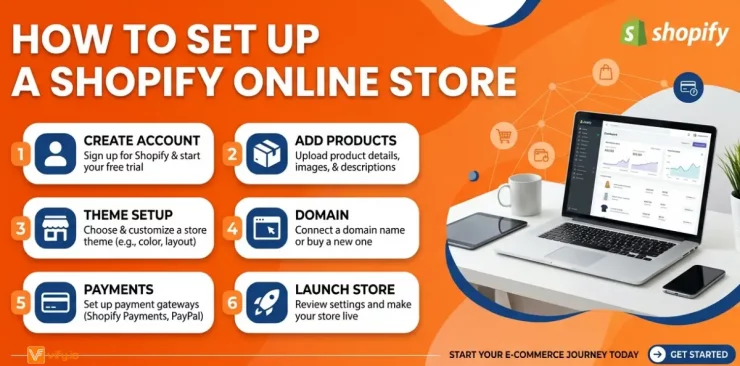
Setting up a Shopify online store is one of the most effective ways to start selling online, but many beginners struggle with where to begin and how to do it right. From choosing the right theme to adding products and configuring payments, each step plays a key role in building a successful Shopify online shop. In this guide, you’ll learn how to set up an online store on Shopify step by step, with practical tips to help you launch faster, avoid common mistakes, and grow your business confidently.
Why Shopify should be your FIRST choice
With so many ecommerce platforms available today, choosing the right one can feel overwhelming. From WooCommerce and Wix to Squarespace, BigCommerce, and Etsy, each solution promises to help you sell online. Yet millions of businesses continue to choose Shopify online store as the foundation for their ecommerce operations.
The reason is simple: Shopify was created specifically for online selling. Instead of adding ecommerce functionality to a website builder, Shopify was designed from the ground up to help merchants launch, manage, and grow an online business efficiently.

Everything you need in one platform: Hosting, checkout, payment processing, security, and storefront management are all included. Rather than juggling multiple tools and services, merchants can manage their entire Shopify online shop from a single dashboard.
Beginner-friendly setup: Shopify’s intuitive drag-and-drop editor makes it easy to build a professional storefront without technical expertise. Even first-time entrepreneurs can create a polished shop online Shopify and start selling within a short period of time.
Integrated payment solutions: Shopify Payments allows merchants to accept major payment methods, including credit cards, debit cards, Apple Pay, Google Pay, and Shop Pay. Because the system is built directly into Shopify, setup is faster and merchants in supported countries can avoid additional third-party transaction fees.
A powerful app marketplace: The Shopify App Store offers thousands of integrations that extend your store’s functionality. From marketing automation and customer reviews to subscriptions and loyalty programs, merchants can customize their Shopify online store to match almost any business model.
How to set up a Shopify Online Store
Launching a Shopify online store is much more straightforward than many new merchants expect. By following the steps below, you can create a fully operational ecommerce site and prepare it for customers.
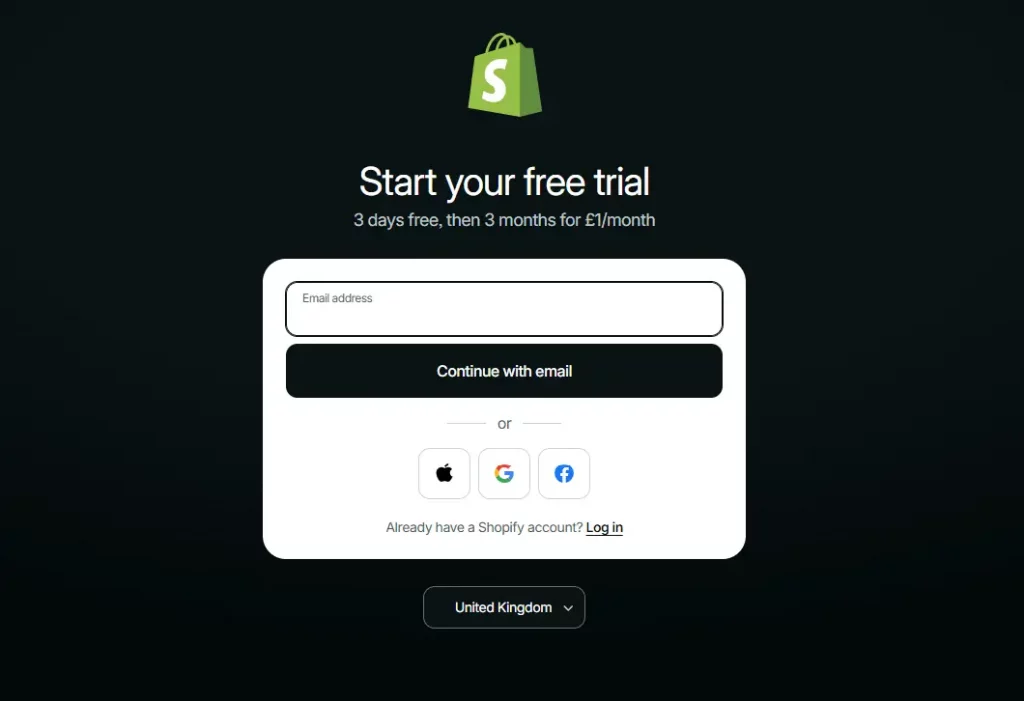
Step 1: Start your free Shopify trial
Go to Shopify.com and click ‘Start free trial.’ Enter your email address, create a password, and answer a few onboarding questions about your business stage and goals. Shopify uses these to personalize your dashboard.
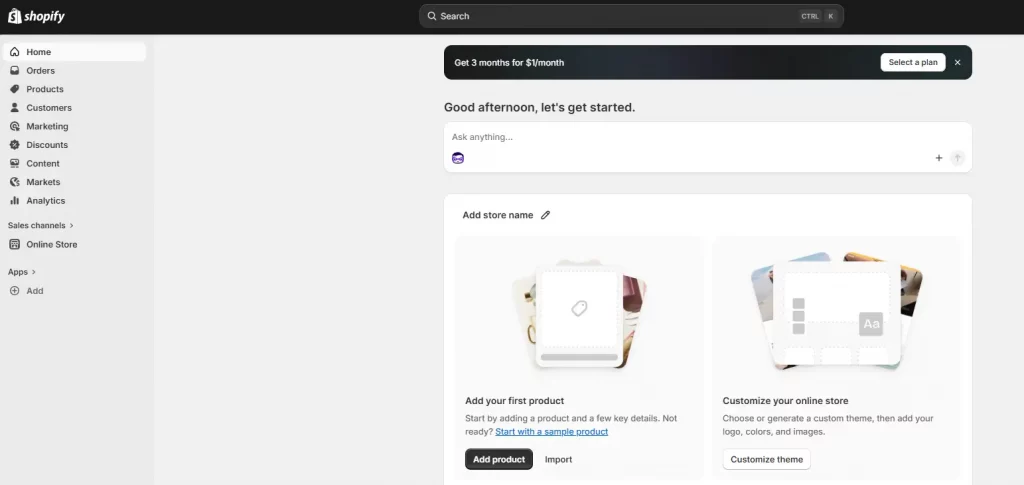
You will then land on your Shopify admin, the central hub for everything: products, orders, customers, analytics, and settings. Spend two minutes clicking through the sidebar to get oriented.
Step 2: Name your store and set up domain
During setup, Shopify assigns a default URL in the format yourstore.myshopify.com. Since this address becomes part of your brand identity, it’s worth choosing a store name that aligns with your business.
For a more professional appearance, connect a custom domain such as yourbrand.com. Domains can be purchased directly through Shopify or connected from external registrars like GoDaddy or Namecheap through Settings > Domains.
Step 3: Choose and install a free Shopify template
Your theme determines the appearance and user experience of your Shopify online shop. Navigate to Online Store > Themes > Visit Theme Store and explore Shopify’s collection of professionally designed free themes.
A useful approach is to install a theme and customize it before publishing. This allows you to experiment with layouts, branding, and content without affecting your live storefront.
🌟 Don’t know which theme is suitable for your online store? Discover Top 12 Best Free Shopify Templates
Step 4: Configure your store settings
Before designing or adding products, complete these foundational settings under the Settings menu:
- General: store name, email, store address, unit system
- Payments: enable Shopify Payments or connect a third-party gateway
- Checkout: contact method, required fields, order processing preferences
- Shipping and delivery: set up zones and rates (covered in detail below)
- Taxes and duties: Shopify can auto-calculate tax rates by region
- Notifications: customize order confirmation, shipping, and abandoned cart emails
Step 5: Build your online shop pages and navigation
Every Shopify online store needs a set of core pages beyond the product catalog. Create these under Online Store > Pages:
- About Us — your brand story, mission, and the people behind the store
- Contact — a simple form so customers can reach you
- FAQ — answers to common questions about shipping, returns, and sizing
- Shipping Policy — delivery timeframes, carriers, and international shipping details
- Return and Refund Policy — your terms, clearly stated
- Privacy Policy — Shopify auto-generates a compliant version under Settings > Policies
Once pages are created, add them to your navigation. Go to Online Store > Navigation and build your Header menu (main navigation) and Footer menu (policy pages and secondary links).
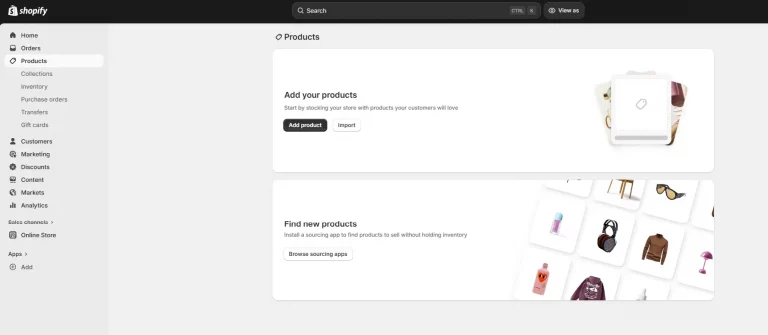
Step 6: Add your products
Go to Products > Add product. For each product, complete:
- Title: clear, keyword-rich, and descriptive
- Description: benefits-focused copy that answers buyer questions and includes relevant search terms
- Images: high-resolution, multiple angles, consistent background — compress before uploading
- Pricing: set your price and optionally a ‘compare at’ price to show a discount
- Inventory: enable tracking, set your quantity, and assign a SKU
- Variants: add options like size, color, or material
- Shipping: enter product weight and dimensions for accurate rate calculation
- SEO preview: customize the page title and meta description for each product
Organize products into Collections (go to Products > Collections). Collections are the category pages of your Shopify online store — think ‘Women’s Tops’, ‘Sale Items’, or ‘New Arrivals’. Customers use them to browse; Google uses them to understand your catalog structure.
Step 7: Set up shipping zones and rates
Open Settings > Shipping and Delivery to define where you ship and how shipping costs are calculated.
Common shipping strategies include:
- Flat-rate shipping
- Free shipping above a minimum order value
- Real-time carrier-calculated rates
Many merchants operating a shop on Shopify online store use free-shipping thresholds as a simple way to encourage larger orders and increase average order value.
Step 8: Activate payments
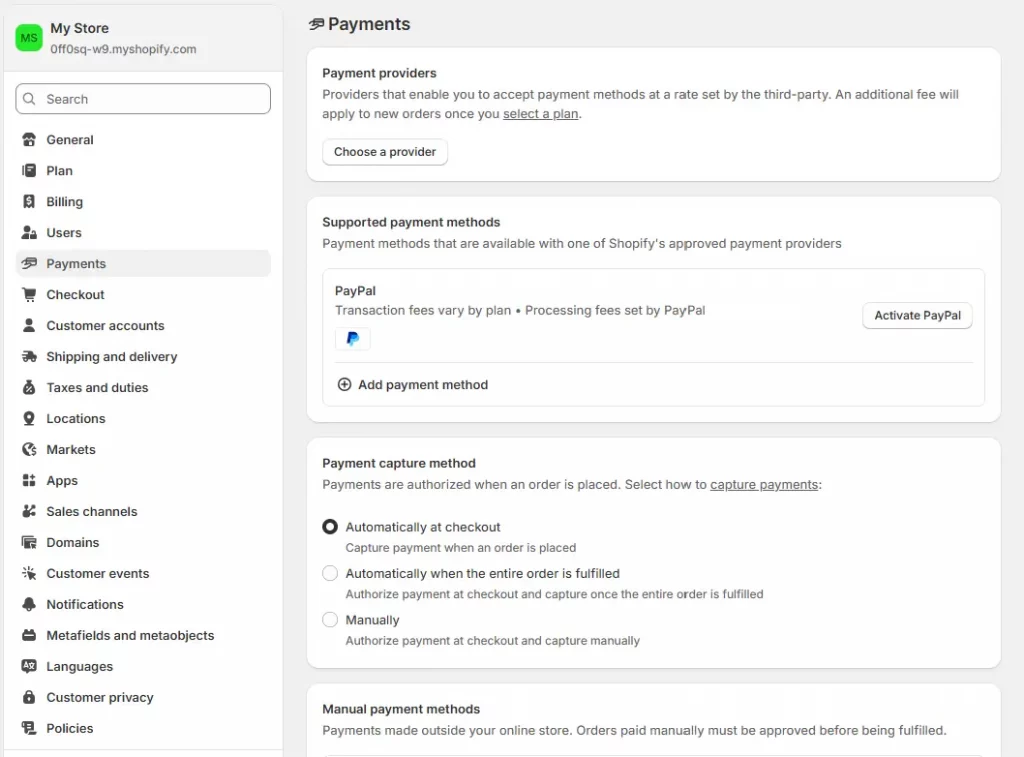
Go to Settings > Payments. Shopify Payments is the simplest option — it is built in, requires no third-party account, and activates in minutes. It supports all major credit and debit cards, Apple Pay, Google Pay, and Shop Pay.
If Shopify Payments is not available in your country, or if you prefer a specific processor, connect a third-party gateway such as PayPal, Stripe, or a local provider. Note that using a third-party gateway incurs an additional transaction fee (0.5% to 2%, depending on your Shopify plan).
Always run a test order before going live. Go to Settings > Payments > Enable test mode, place an order, and confirm the checkout flow works end-to-end on both desktop and mobile.
Conclusion
Building a successful Shopify online store is not just about completing the setup — it’s about creating a strong foundation that supports growth, scalability, and a seamless customer experience. By following the step-by-step process outlined in this guide, you can confidently launch a fully functional store, avoid common beginner mistakes, and position your business for long-term success. Whether you’re starting your first online store on Shopify or refining an existing one, the key is to stay consistent, test what works, and continuously optimize every part of your store to drive better results.
If you’re selling on Shopify and need a professional invoice solution, especially one that’s easy to customize without any coding skills, then Vify’s Shopify Order Printer app is the best choice for you. Try it for free today and experience it for yourself. We’re confident you’ll love it.