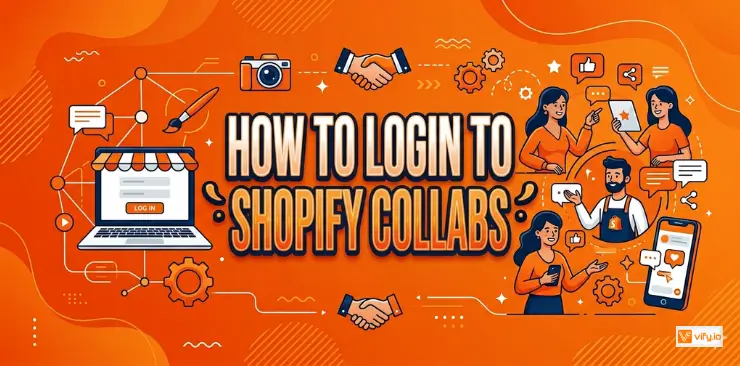
The Shopify Collabs login process should be simple, but it often causes confusion for new users. Many people end up on the wrong login page, use the wrong account credentials, or aren’t sure where creators and merchants are supposed to sign in. If that’s where you’re stuck, this guide will help. We’ll walk through the correct Shopify Collabs login steps, explain the differences between account types, and cover the most common sign-in problems and solutions.
What is Shopify Collabs?
Shopify Collabs is a built-in tool of Shopify that helps merchants connect with content creators, influencers, and affiliates willing to promote their products.
Think of it as a matchmaking service between two groups of people:
- Merchants who have products to sell and want more people to discover them.
- Creators (influencers, bloggers, TikTokers, YouTubers, niche content makers) who are looking for brands to collaborate with — often in exchange for free products, a commission on sales, or both.
What makes Shopify Collabs different from other influencer marketing tools is that it’s built directly into Shopify itself. You don’t need to install a separate app, create a new account on another website, or manually export sales data into a spreadsheet. Everything is already connected, because Collabs lives right inside the same dashboard you already use every day.
How to login to Shopify Collabs as a Creator
If you’re a creator — meaning you make content on platforms like Instagram, TikTok, YouTube, or a blog, and you’re interested in partnering with brands, here’s what the process typically looks like.
Step 1: Check email for an invitation
In most cases, your journey with Shopify Collabs begins with an email. This might come directly from a brand you’ve been in touch with, or from Shopify Collabs itself after a brand has invited you to their program. This email usually contains a unique link that’s the starting point for setting up your access.
If you’ve been actively reaching out to brands or applying to creator programs, keep an eye on your inbox (and don’t forget to check your spam or promotions folder — invitation emails sometimes end up there).
Step 2: Create or sign in to Creator Account
Once you click the invitation link, you’ll either be prompted to create a new creator account or sign in if you already have one. This is where you’ll set up your credentials — typically an email and password, though some creators may have the option to sign in using an existing social media or email-based account.
If this is your first time, take a moment to use a password you’ll actually remember (or better yet, save it in a password manager), since you’ll be coming back to this account regularly to check your performance and earnings.
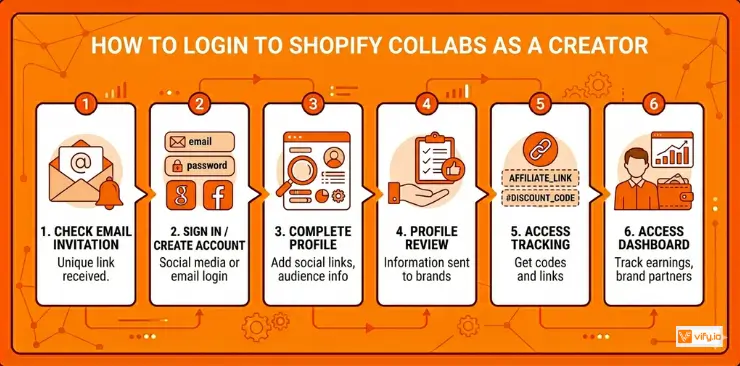
Step 3: Complete profile
Before you can start promoting products, you will need to fill out some information about yourself. This usually includes:
- Links to your social media accounts (Instagram, TikTok, YouTube, etc.)
- Your general audience size or follower count
- The type of content you typically create
- Any niches or categories you specialize in
This information is what brands will see when reviewing your application, so it’s worth taking the time to fill it out thoughtfully and accurately.
Step 4: Access dashboard
Once your profile is set up, you’ll land on your creator dashboard. From here, you can browse available brand partnerships, view your affiliate links and discount codes for programs you’ve joined, and track how much you’ve earned so far.
If you’ve already created a Shopify Collabs account in the past, you don’t need to start from scratch. Simply return to the creator login page and sign in with your existing credentials. Your profile information should already be there.
How to login to Shopify Collabs as a Merchant
Now let’s talk about the other side of the equation: merchants. If you run a Shopify store and want to manage your own Collabs program — reviewing creator applications, setting commission rates, and so on — the process is actually much simpler than the creator side, mainly because there’s no separate account involved at all.
Step 1: Login to Shopify Admin
This is the same login you already use every day to manage your store, products, orders, and settings. There’s no separate “Collabs Shopify login” page for merchants to bookmark or remember.
Step 2: Navigate to the Collabs section
Once you’re in your admin dashboard, look for the Collabs feature. Depending on how your store is set up, this might appear as its own app, a section under your marketing tools, or a dedicated channel. If you’re not sure where to find it, searching your admin’s navigation menu or checking Shopify’s help documentation for the current location is a good starting point.
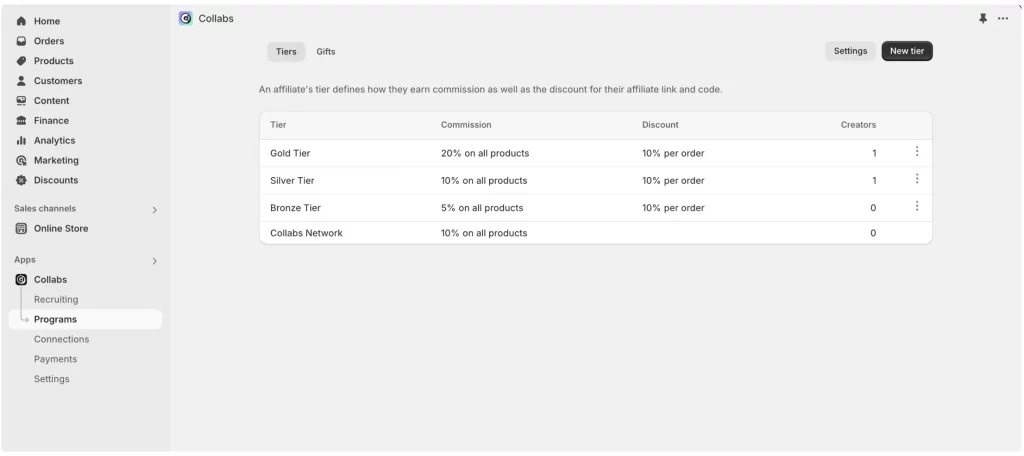
Step 3: Manage program
From here, everything related to your creator program lives in one place. You can review applications from creators who want to join your program, set or adjust your commission rates, monitor which creators are performing well, and manage any product gifting you’ve set up.
Recommendation: Explore the complete guide to set up Shopify Collabs
Common Shopify Collab login issues
Even with a relatively simple system, things can occasionally go sideways. Here are some of the most common Shopify Collabs login issues people run into, along with practical fixes.
“I can’t find the login page”
This is one of the most frequent issues, especially for creators. If you can’t locate the Shopify Collabs login portal, your best bet is to go back to the brand’s original invitation email, which usually contains a direct link that takes you straight to where you need to be.
If you’ve lost that email entirely, try searching your inbox for terms like “Shopify Collabs” or the brand’s name combined with words like “invitation” or “partnership.” If you genuinely can’t find it, reaching out to the brand directly to ask them to resend the invitation is perfectly normal.
“My password isn’t working”
If your password keeps getting rejected, start with the simplest fix: use the password reset option, usually found as a “Forgot password?” link near the login fields. This will typically send a reset link to your email.
If you originally signed up using a social account — for example, signing in with a Google or Facebook account rather than creating a separate password — make sure you’re selecting that same sign-in method. Trying to enter a password manually when your account was set up through a social login is a common source of confusion.
“I’m logged in but can’t see my dashboard data”
Sometimes, especially shortly after creating a new account, there can be a brief delay while your profile information syncs with the system. If your dashboard looks empty or incomplete right after logging in, try:
- Refreshing the page
- Logging out completely and logging back in
- Clearing your browser’s cache and cookies for the site
- Trying a different browser, just to rule out a browser-specific issue
In most cases, one of these simple steps resolves the issue. If your dashboard still looks wrong after a reasonable amount of time, it may be worth reaching out to support for further help.
“I was invited but never received login details”
If a brand has told you they’ve sent an invitation but you can’t find anything in your inbox, the first step is always to check your spam, junk, or promotions folders. Automated emails from marketplace platforms sometimes get filtered there by mistake.
If it’s genuinely nowhere to be found, the most efficient solution is to contact the brand that invited you directly. From their side, they can typically resend the invitation through their own Collabs dashboard, which will generate a fresh link for you.
“My merchant account doesn’t show the Collabs option”
This one is a bit different from the others, because it’s less about a login error and more about feature availability. Shopify Collabs availability can vary depending on your store’s location, your specific plan, and how Shopify is rolling out the feature across different markets.
If you’ve logged into your Shopify admin successfully but simply don’t see any Collabs-related section, this is likely a regional or plan-based limitation rather than something wrong with your login itself. Checking Shopify’s official help resources for current availability in your country and plan tier is the best way to get clarity on this.
Conclusion
Understanding the Shopify Collabs login process can save you time and eliminate unnecessary frustration when accessing the platform. Since creators and merchants use different sign-in paths, knowing which login method applies to your account is the key to getting started quickly. If you encounter login issues, most can be resolved with a few simple troubleshooting steps. Once you’re successfully logged in, you can focus on what matters most—building partnerships, managing collaborations, and making the most of everything Shopify has to offer through a seamless Shopify collab login experience.
If you’re selling on Shopify and need a professional invoice solution, then Vify Shopify Order Printer app is the best choice for you. Try it for free today and experience it for yourself. We’re confident you’ll love it.