
Shopify Google Analytics gives merchants a deeper view of what happens before, during, and after a purchase. While Shopify Analytics focuses on orders, sales, products, and customers, GA4 tracks individual visitor actions such as product views, cart additions, checkout steps, and purchases. This makes Google Analytics for Shopify especially useful for understanding where visitors come from, how they interact with a store, and where potential customers drop out of the buying journey.
What Shopify Google Analytics offers
Shopify already includes its own analytics, so adding GA4 may seem unnecessary at first. The two tools, however, answer different questions.
Shopify Analytics is built around the store’s own records, including orders, products, customers, sales, refunds, and returns. GA4 is built around events, which are individual actions taken by visitors, such as viewing a product, adding an item to the cart, or starting checkout.
That difference makes Shopify GA4 reporting particularly useful for understanding the customer journey before a completed order.
| Question | Best source | Why |
|---|---|---|
| How much income did we make last week? | Shopify | Built on current order records |
| How many orders, refunds, and returns? | Shopify | Reflects cancellations and changes in the admin |
| Which channels bring engaged visitors? | GA4 | Acquisition and engagement reporting across sources |
| Where do shoppers drop off between product page and checkout? | GA4 | Event-based funnel analysis |
| Which landing pages attract traffic but no sales? | GA4 | Page-level behavior plus ecommerce events |
| Which Google Ads campaigns drive purchases? | GA4 + Google Ads | Linked properties share audiences and key events |
Think of the two platforms as complementary tools rather than competing analytics systems. Shopify tells the store what was earned. Shopify GA4 data helps explain how that revenue was generated and where potential sales are being lost.
Before setting up Google Analytics for Shopify
A basic Shopify GA4 setup takes around 15 minutes when the necessary accounts and settings are ready.
1. A Shopify store
Google Analytics cannot reliably track events while the online store is password-protected. The storefront password needs to be removed before testing the integration.
2. A Google account
An existing Google account can be used for GA4, including an account already associated with Gmail or Google Ads. The Gmail inbox itself is not required for Analytics.
3. A GA4 property and web data stream
Create a GA4 property in Google Analytics, then create a web data stream for the Shopify store. The stream provides a Google tag ID beginning with G-.
Two settings are worth checking during property creation:
- Reporting time zone: Match the Shopify store’s time zone.
- Currency: Match the store’s currency.
A mismatch can cause daily totals to fall on different dates across Shopify and GA4, making reports harder to reconcile later.
A Google Merchant Center account is not required for basic GA4 tracking. The Google tag setup can be completed without connecting Merchant Center.

Set up GA4 for Shopify with Google & YouTube app
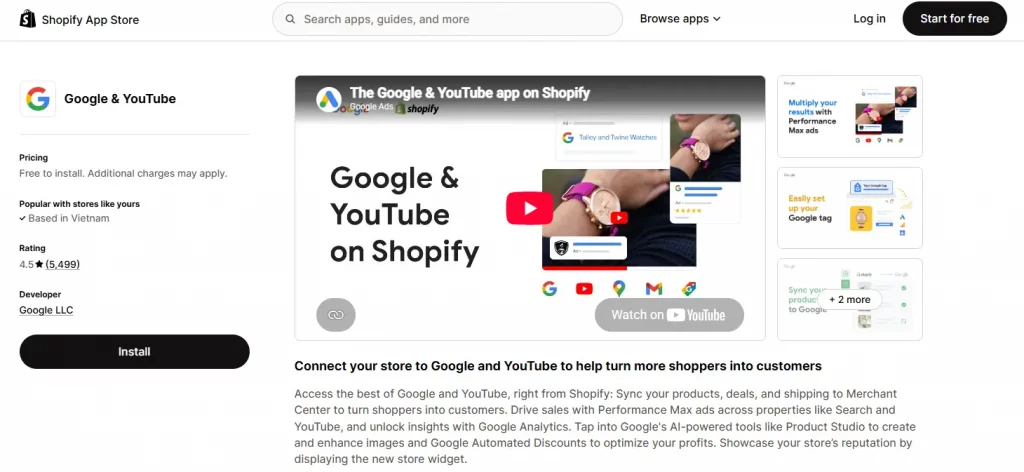
For most stores, the Google & YouTube sales channel provides the simplest route for setting up GA4 for Shopify. It is built by Google, free to install, and handles the tagging needed for Shopify’s checkout.
Step 1: Install Google & YouTube
Open the Shopify App Store and search for Google & YouTube, then install the channel.
After reviewing the requested permissions, connect the Google account associated with the GA4 property.
Step 2: Open the Google Analytics section
Open the Google & YouTube channel’s Overview page and find the section titled “Just want to set up Google Analytics 4?”
Select Get started.
This provides a GA4 setup path without requiring a full Google Ads or Merchant Center configuration.
Step 3: Connect the GA4 property
Under Your Google account, select the Google Analytics property created for the store.
Choose Connect, then Confirm.
This is Google’s recommended connection method for the standard integration.
Step 4: Confirm the Google tag
Check that the Google tag displayed in the app matches the G- measurement ID associated with the web data stream.
Select Complete setup to finish the connection.
Completing every setup step matters because an unfinished configuration may prevent later changes to the Analytics settings.
Step 5: Link Google Ads when needed
Stores running Google Ads can link the GA4 property to Google Ads. This makes it possible to measure key events and create audiences based on store activity.
Stores that do not advertise through Google Ads do not need this step.
Once the tag is active, the standard Shopify integration automatically sends certain ecommerce events to GA4. This is one of the main advantages of using the native Google Analytics for Shopify setup.
Manual Google tag setup
The recommended app connection may not work for every setup. For example, access restrictions or a requirement to send data to multiple GA4 properties may call for a manual configuration.
Google’s documentation provides an alternative through the Google tags section in the app’s Settings page, where a tag can be added manually.
GA4 Shopify setup with Google Tag Manager
The native integration covers standard tracking for most stores. Google Tag Manager becomes more useful when a business needs custom events, multiple tags managed from one location, or a server-side tracking setup.
A GA4 Shopify setup using GTM has an important limitation: Shopify’s checkout is sandboxed. A GTM container added directly to the theme can track storefront activity, but it does not automatically cover the checkout where the purchase takes place.
A complete GTM implementation therefore involves two parts.
Storefront tracking
Add the GTM container to the Shopify theme so it loads across browsing pages.
Checkout and purchase tracking
Create a custom pixel under:
Settings → Customer events → Add custom pixel
The custom pixel can subscribe to Shopify’s standard events and send relevant information to the data layer. Custom pixels require Checkout Extensibility.
There are also two limitations to consider. Custom pixels run in a sandbox, so GTM Preview mode does not work inside the pixel. Testing needs to rely on actual events instead. Session continuity between storefront browsing and checkout can also be harder to maintain than with the native integration.
| Google & YouTube app | GTM + custom pixel | |
|---|---|---|
| Setup effort | Low, around 15 minutes, no code | Higher, with container, data layer, and event mapping |
| Best for | Most stores needing reliable GA4 tracking | Custom events, multiple tags, or server-side tracking |
| Checkout coverage | Handled by the app | Handled by the custom pixel |
| Debugging | Standard GA4 tools | GTM Preview has sandbox limitations |
| Maintenance | Updated by Google | Managed by the store team |
| Risk | Low | Duplicate tracking if the native connection remains active |
For most stores, starting with the Google & YouTube app keeps the Shopify GA4 setup simpler. GTM becomes relevant when there is a specific tracking requirement that the native integration cannot handle.
Avoid the duplicate-tracking
Duplicate tracking is one of the most damaging problems in a Shopify GA4 setup because both tracking paths can appear to work normally.
For example, a store may configure GTM to send purchase events to GA4 while leaving the Google & YouTube app’s GA4 connection active. The same order can then be recorded twice.
The result is inflated purchase counts and revenue in GA4, while Shopify continues to show the actual order data.
Google’s Shopify integration guidance specifically highlights the need to check for duplicate tags when conversions are being sent through both the Google & YouTube app and storefront or custom pixel implementations. Legacy tags left inside the theme can create the same problem.
The basic rule is simple:
Use one purchase pipeline into GA4, not two.
The Google & YouTube app or GTM can serve as the main pipeline. The other tracking path needs to be disabled when it sends the same purchase events.
This is one of the most important checks in any Shopify Google Analytics implementation.
Why Shopify and GA4 data differ
Comparing Shopify Analytics with GA4 often reveals differences in sessions, orders, and revenue. Some variation is expected because the platforms collect and process data differently.
The goal is not to force the two systems to produce identical numbers. The more useful approach is understanding why the figures differ and identifying signs of a broken setup.
| Cause | What happens | What to do |
|---|---|---|
| Different counting rules | Shopify and GA4 define sessions and visitors differently | Compare trends within each tool rather than absolute totals |
| Browser blocking | Ad blockers, VPNs, and privacy browsers can prevent GA4 tracking | Expect some undercounting; consider server-side tracking if the gap is significant |
| Consent settings | Visitors who decline cookies may not be fully tracked | Configure consent correctly and expect lower counts where consent is required |
| Time zone mismatch | Orders fall on different calendar days | Align GA4’s reporting time zone with Shopify |
| Processing delay | Data updates on different schedules | Compare completed days rather than the current day |
| Refunds and cancellations | Shopify reflects order changes while GA4 records the original purchase | Use Shopify to reconcile revenue |
| App-based checkouts | Subscription, upsell, or checkout apps may send their own data | Check each app’s analytics integration |
| Duplicate tags | The same purchase fires twice | Remove one tracking pipeline |
GA4 conversion figures often undercount compared with Shopify because GA4 relies partly on browser-side tracking that some visitors block or decline. Shopify’s revenue reporting is not dependent on the visitor’s browser cooperating in the same way.
That makes Shopify the more appropriate source for questions about actual revenue, while GA4 is particularly useful for understanding channels, behavior, and funnels.
If GA4 reports more revenue or orders than Shopify, duplicate tracking is one of the first things to investigate.
Frequently Asked Questions
Does Shopify have Google Analytics built in?
Shopify has its own built-in analytics, but GA4 is a separate Google product you connect to your store. The standard way is the Google & YouTube sales channel, which installs the tag for you.
Is Google Analytics for Shopify free?
Google Analytics 4 is free to use at the standard level, and the Google & YouTube app is free to install. Charges only apply if you choose to run paid Google Ads campaigns, which are billed to your Google Ads account.
Do I need Google Tag Manager to use GA4 on Shopify?
No. The Google & YouTube app handles standard GA4 tracking without GTM. GTM is useful if you need custom events, many tags or server-side tracking, but it adds complexity and requires a custom pixel to capture checkout events.
Why is GA4 showing different revenue from Shopify?
The tools count differently, and GA4 relies on browser tracking that ad blockers and consent choices can limit. Treat Shopify as your source of truth for revenue. If GA4 shows higher revenue, check for duplicate purchase tracking.
How long does it take for data to appear in GA4?
Realtime reports typically show activity within minutes. Standard reports can lag, so compare complete days rather than judging the current day.
Conclusion
A reliable Shopify Google Analytics setup starts with accurate tracking, consistent settings, and regular testing. Shopify remains the source for orders and revenue, while GA4 provides deeper insights into visitor behavior, acquisition, and conversion funnels. Keeping tracking clean and checking common issues such as duplicate events, time zones, consent, and processing delays helps ensure GA4 data is useful for understanding store performance.
For Shopify stores looking for a professional invoice solution that’s easy to customize without any coding, Vify Shopify Order Printer app is worth considering. Try it for free today and see how it fits your store’s needs.