

Managing a Shopify store and keeping your accounting records accurate can quickly become time-consuming when sales data, fees, taxes, and customer information need to be handled manually. Shopify QuickBooks Integration helps streamline this process by syncing key financial data between the two platforms and reducing repetitive bookkeeping tasks. This guide explains how the integration works, how to set it up, and how it can help create a more efficient workflow for your business.
Why use Shopify QuickBooks integration?
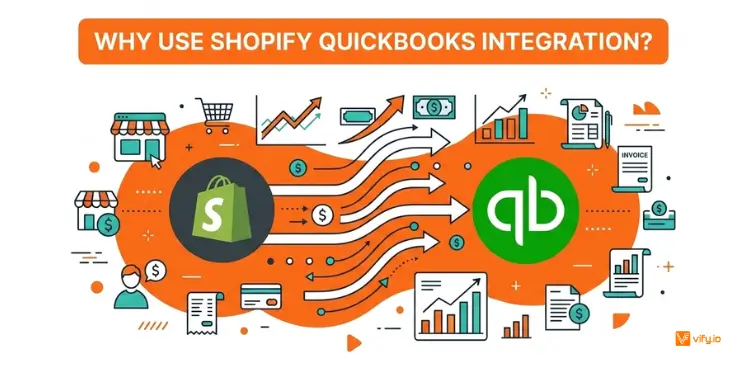
Managing Shopify finances manually can quickly become time-consuming and error-prone. A single order may include product revenue, discounts, shipping charges, taxes, refunds, and payment processing fees. Missing or recording any of these figures incorrectly can make reconciliation more difficult and create inaccurate financial reports.
This is where Shopify QuickBooks integration becomes valuable. By connecting QuickBooks and Shopify, sales and financial data can be transferred automatically rather than entered manually. Depending on the integration, synced data may include orders, customers, products, taxes, refunds, and Shopify Payments payouts.
The difference between gross sales and actual payouts is another common challenge. Shopify payouts often reflect payment fees, refunds, and other adjustments, meaning the amount deposited into a bank account does not always match the total value of individual orders. A properly configured sync helps organize these transactions in QuickBooks and makes reconciliation easier.
As order volume grows, automation also helps shorten the monthly closing process. More accurate and up-to-date financial data provides a clearer view of revenue, expenses, cash flow, and overall business performance.
Choosing the right QuickBooks integration for Shopify
There are several ways to set up a QuickBooks integration Shopify workflow, depending on the complexity of the business and the level of control required.
1. Intuit’s native QuickBooks online connector
Intuit provides its own connector through the Shopify App Store. It is free to install and is generally suitable for straightforward stores that use QuickBooks Online and need basic sales, payout, and inventory data synced automatically.
This option works best for merchants with relatively simple accounting requirements. However, businesses that need custom account mapping, multi-currency support, or more advanced synchronization settings may require a more flexible solution.
2. Third-Party integration apps
Apps such as MyWorks, Synder, and WeIntegrate provide more customization for businesses with complex accounting workflows. These tools can offer custom field mapping, individual order or summary syncing, multi-currency support, and compatibility with different QuickBooks versions.
This type of solution is often a better fit for stores managing multiple sales channels, wholesale orders, B2B transactions, or more detailed accounting structures. For merchants comparing options, the best Shopify QuickBooks integration is usually the one that matches the existing accounting workflow rather than simply offering the largest number of features.
3. Multi-platform accounting tools
Some platforms go beyond Shopify and connect multiple sales and payment channels to the same accounting system. For example, tools such as Synder may sync data from Shopify alongside Stripe, PayPal, Amazon, and other platforms.
This approach can simplify bookkeeping when Shopify is only one part of a larger ecommerce operation. Instead of managing separate integrations for every sales channel, financial data can be centralized within one system.

How to set up Shopify QuickBooks integration
Although the exact setup process varies between apps, most Shopify QuickBooks integration tools follow a similar workflow.
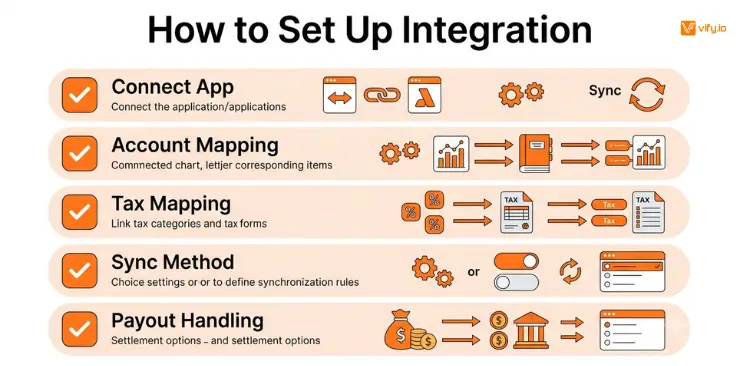
Install and connect the app. Start by installing the selected app through the Shopify App Store and authorizing access to the necessary store data. The next step is connecting the QuickBooks account through Intuit’s authorization process.
Configure account mapping. Sales revenue, shipping fees, discounts, refunds, and other transaction types need to be assigned to the appropriate accounts in QuickBooks. Proper account mapping ensures that synced data follows the existing accounting structure.
Set up tax mapping. Shopify tax data should be connected to the correct tax codes or agencies in QuickBooks. This configuration is particularly important for businesses collecting tax across multiple jurisdictions.
Choose a sync method. Some businesses prefer syncing every order individually for detailed transaction records. Others use daily summary entries to reduce the number of transactions recorded in QuickBooks and simplify reconciliation at higher sales volumes.
Configure payout handling. Shopify Payments payouts should be recorded in a way that reflects the actual deposits received in the bank account. This makes it easier to reconcile gross sales, processing fees, refunds, and the final payout amount.
Before enabling automatic syncing for all orders, it is worth testing a small batch of historical transactions. Comparing the synced results with Shopify reports can reveal mapping or configuration issues before they affect a larger volume of data.
What data syncs between Shopify and QuickBooks?
The exact data available depends on the app and subscription plan, but most integrations support the core information needed for ecommerce accounting.
| Data type | Typically syncs? | Notes |
|---|---|---|
| Orders and sales | Yes | Can sync as individual sales receipts, invoices, or daily summaries |
| Refunds | Yes | Handling varies between apps and may be linked to payouts |
| Customers | Yes | New records can be created or matched automatically |
| Products and inventory | Usually | Two-way inventory sync depends on the integration |
| Shopify Payments payouts | Yes on many paid plans | Can be matched with bank deposits for easier reconciliation |
| Sales tax | Yes | Requires accurate tax mapping during setup |
| Multi-currency transactions | Varies | Testing is recommended before relying on automated sync |
A key difference between QuickBooks and Shopify integrations is how this data is structured once it reaches the accounting system. Reviewing the sync rules before activation helps ensure that reports remain consistent with the business’s accounting practices.
Common Shopify and QuickBooks sync problems
Even a well-configured integration can encounter issues, especially when store settings or transaction workflows change over time.
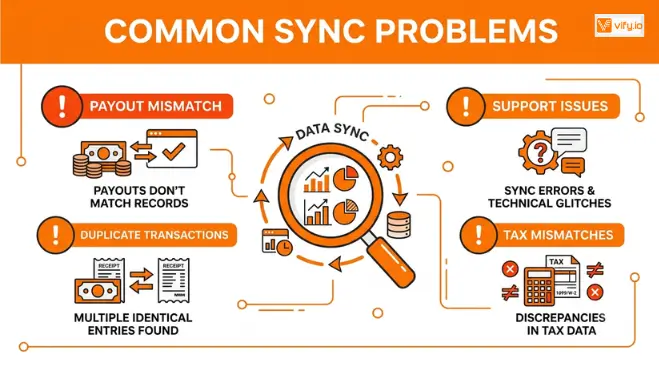
Incorrect payout amounts
Edited orders, currency conversions, refunds, and payment adjustments can sometimes cause the synced transaction total to differ from the actual Shopify payout. Checking the first few payouts against Shopify reports and bank statements helps identify these discrepancies early.
Duplicate transactions
Duplicate entries often occur when historical data is imported again after live syncing has already started. They can also appear when two separate apps are connected to the same QuickBooks account. Keeping only one active sync solution reduces the risk of duplicate records.
Support issues between platforms
When a problem occurs at the connection point, it can sometimes be unclear whether Shopify, QuickBooks, or the integration app is responsible. Third-party providers that specialize in ecommerce accounting integrations may offer more focused support because they manage the connection between both systems directly.
Sales tax mismatches
Incorrect tax mapping can lead to inaccurate reports and reconciliation problems. Tax settings should be reviewed whenever the business expands into a new jurisdiction or changes the way tax is collected.
A reliable Shopify QuickBooks integration depends not only on choosing the right app but also on configuring account mapping, tax rules, and payout handling correctly. Testing the connection with real transactions before enabling full automation can help prevent many common sync issues.
Conclusion
A well-configured Shopify QuickBooks integration can simplify ecommerce accounting by automating data synchronization, reducing manual entry, and making reconciliation more manageable. With the right setup, Shopify and QuickBooks can work together more efficiently, giving merchants clearer financial data and a smoother bookkeeping workflow as the business grows.
If you’re selling on Shopify and need a professional invoice solution, then Vify Shopify Order Printer app is the best choice for you. Try it for free today and experience it for yourself. We’re confident you’ll love it.