
If your Shopify store suddenly stops loading, your checkout breaks, or your admin panel refuses to open, the first question you need answered is simple: Is this my problem, or is Shopify down? Shopify maintains an official real-time dashboard that shows the health of every major service on the platform, and knowing how to check Shopify status can save you a lot of panic and troubleshooting time.
What is Shopify status?
Shopify status refers to the current operational health of Shopify’s platform infrastructure. At any given moment, Shopify’s systems are either running smoothly, experiencing minor slowdowns, dealing with partial issues, or facing a full outage. The official Shopify status page tells you exactly which one is true right now.
The status Shopify page is hosted at shopifystatus.com and is maintained directly by Shopify. It provides both real-time updates and a historical incident log, so you can see not just what is happening today but how Shopify has performed over the past few months.
What makes this page especially useful is its component-by-component breakdown. With millions of active stores on the platform, Shopify rarely experiences a total outage that affects everyone at once. Instead, incidents tend to be specific — for example, the API might be degraded while the storefront runs perfectly fine. The status page gives you that level of detail.
How to check Shopify Status
Step 1: Visit the official Shopify status page
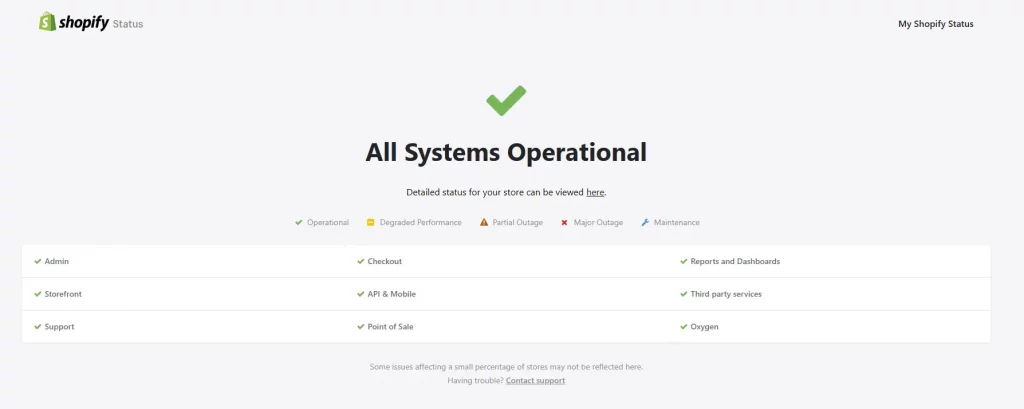
Go directly to shopifystatus.com. This is the only official Shopify status page, and it is the most accurate source of information about platform health. Bookmark this URL now so you can reach it instantly the next time something feels off with your store.
You can also subscribe to status updates directly from this page. Shopify offers email and SMS notifications so you receive an alert the moment an incident is reported or resolved.
Step 2: Read the color-coded status indicators
The Shopify status page uses a simple color system to communicate the severity of any issue at a glance. Here is what each color means:
| Status | Color | What It Means |
| Operational | Green | All systems are running normally with no known issues |
| Degraded Performance | Yellow | One or more services are slower than usual or intermittently failing |
| Partial Outage | Orange | Certain components are significantly impacted but others still work |
| Major Outage | Red | A critical service failure is affecting a large number of merchants or customers |
If you see green across the board and your store is still not working, the issue is likely on your end: a theme conflict, a misbehaving app, or a browser cache problem.
Step 3: Identify which component is affected
Rather than showing a single global status, Shopify breaks down its health report by individual components. Understanding which component maps to which part of your store helps you assess the real impact quickly.
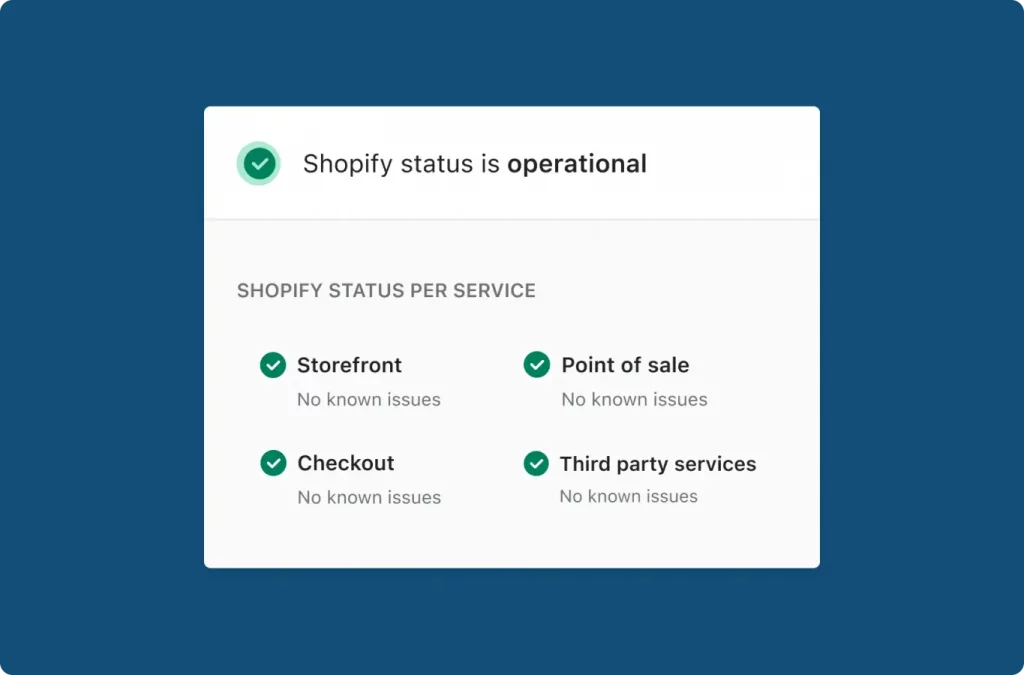
The components tracked on the Shopify status page include: Shopify Admin, Checkout, Online Storefront, Shop Pay, Retail POS, Shopify APIs, Shopify Support, and Shopify Flow. Each of these can have its own status independently from the others.
How to set up Shopify status notifications
The simplest way to stay informed is to subscribe directly at shopifystatus.com. Click the ‘Subscribe to Updates’ button and choose whether you want to receive notifications by email or SMS. You can select which components you want to be notified about so you only receive alerts that are relevant to your store.
FAQ about Shopify status
How do I check Shopify status?
Go to shopifystatus.com. This is Shopify’s official real-time status dashboard, showing the current health of all major components, including Admin, Checkout, Storefront, and APIs. You can also subscribe to email or SMS notifications directly from this page.
What does ‘Degraded Performance’ mean on the status page?
Degraded Performance means one or more Shopify services are experiencing slowdowns or intermittent errors but have not gone fully offline. You may notice slower page loads, occasional checkout errors, or admin actions taking longer than usual to complete.
Why is my Shopify store not working even though the status page shows green?
If the official status page shows all systems operational but your store is still having issues, the problem is almost certainly not with Shopify’s infrastructure. Common causes include a conflict with a third-party app, an error in your theme code, a corrupted browser cache, or a connectivity issue on your end. Try disabling apps one by one, clearing your cache, or testing from a different device and network.

What is the difference between shopify.status and shopifystatus.com?
These refer to the same thing. Merchants often search for ‘shopify.status’ or ‘status.shopify’ as shorthand, but the actual URL is shopifystatus.com — Shopify’s official system status page. There is no separate subdomain like status.shopify.com; all official status information lives at shopifystatus.com.
Conclusion
Keeping an eye on Shopify status is one of the simplest and most effective habits any merchant can develop. A quick bookmark of shopifystatus.com and a subscription to status notifications takes less than two minutes to set up, and it can save you hours of confused troubleshooting the next time something goes wrong.
If you’re selling on Shopify and need a professional invoice solution, then Vify Shopify Order Printer app is the best choice for you. Try it for free today and experience it for yourself. We’re confident you’ll love it.