

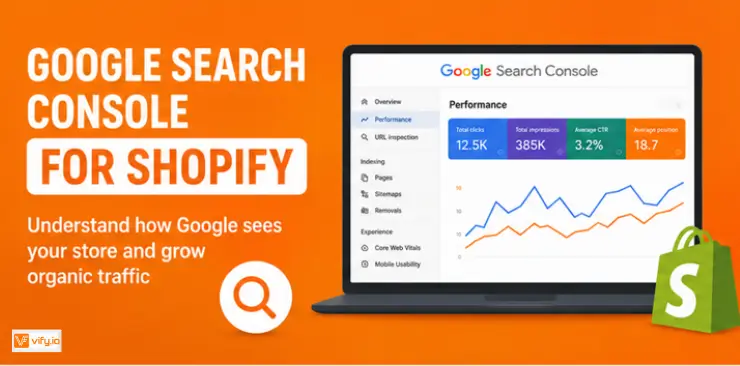
Understanding how customers find your store on Google is just as important as knowing what they do after they arrive. While Shopify provides valuable insights into sales and customer behavior, it doesn’t reveal how your pages perform in Google Search or why certain products fail to appear in search results. That’s where Google Search Console for Shopify becomes essential. In this guide, you’ll learn how to set up Shopify Search Console, submit your sitemap, monitor indexing and search performance to improve your store’s visibility and attract organic traffic.
What is Google Search Console for Shopify?
Google Search Console for Shopify is a free tool from Google that helps you understand how your store performs in Google Search. While Shopify Analytics focuses on what visitors do after they arrive on your website, Google Search Console shows what happens before they ever click your store.
With Shopify Search Console, you can see which keywords bring traffic to your website, which pages appear in search results, how often people click on them, and whether Google can successfully crawl and index your content. It also alerts you to technical SEO issues that may prevent your products or collections from appearing in search results.
Unlike paid SEO platforms that estimate rankings using third-party data, Google Search Console reports information directly from Google’s own search engine. That makes it one of the most reliable tools for monitoring your store’s organic search performance.
Whether you’re launching a new Shopify store or managing an established ecommerce business, setting up Google Search Console and Shopify together is one of the first SEO tasks you should complete.
Why Google Search Console matters for Shopify SEO
Many merchants rely on Shopify Analytics to monitor sales, traffic, and customer behavior. While these metrics are valuable, they don’t explain how customers found your store in the first place.
That’s where Google Search Console for Shopify becomes invaluable.
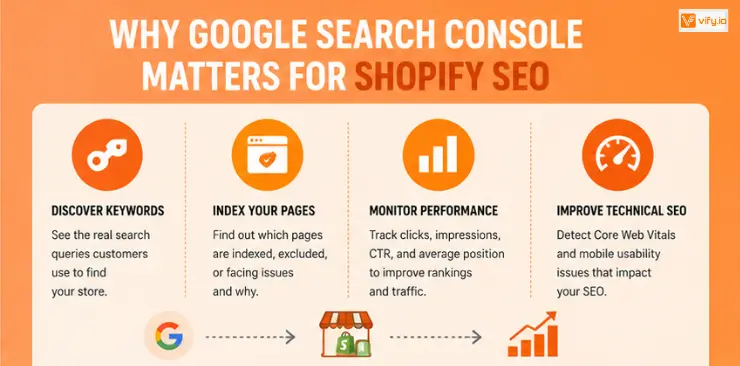
Discover the keywords customers actually use
One of the biggest advantages of Shopify Search Console is access to real search queries.
Instead of guessing which keywords drive organic traffic, you can see exactly what customers searched before clicking your website. In many cases, you’ll uncover valuable long-tail keywords that you never intentionally optimized for. These insights can help you improve existing pages or create new content around topics that already attract potential customers.
Make sure Google can index your pages
Publishing a product doesn’t automatically guarantee that Google will include it in search results.
Google Search Console shows which pages have been indexed, which ones are excluded, and why. This makes it much easier to identify problems such as duplicate URLs, accidental noindex tags, or pages that Google has discovered but hasn’t crawled yet.
Without this information, you may assume a product isn’t selling because demand is low, when the real issue is that customers can’t even find it through search.
Monitor your store’s search performance
The Performance report provides a clear picture of how your website appears in Google Search.
You’ll be able to track:
- Total clicks
- Impressions
- Average ranking position
- Click-through rate (CTR)
These metrics help you identify pages with strong ranking potential. For example, if a collection page receives thousands of impressions but very few clicks, improving its page title and meta description may significantly increase traffic without changing the content itself.
Improve technical SEO
Google also evaluates the overall experience visitors have on your website.
Through Core Web Vitals and indexing reports, Google Console Shopify helps you detect issues such as slow-loading pages, layout shifts, or mobile usability problems that may negatively affect both rankings and user experience.
Since many Shopify stores rely on multiple third-party apps, these reports are especially useful for spotting performance issues before they begin hurting your SEO.
How to set up Google Search Console for Shopify
Connecting Shopify Google Console to your store only takes a few minutes, and once the setup is complete, Google will begin collecting valuable search data automatically.
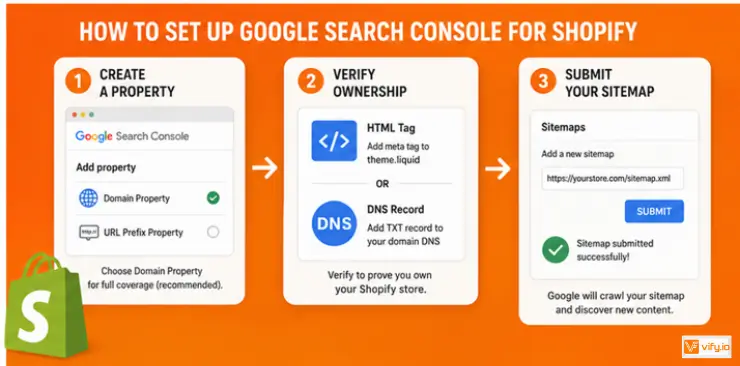
Step 1: Create a property
Log in to Google Search Console using the Google account you want to manage your store with.
Select Add Property, then choose one of the following options:
- Domain Property — tracks your entire domain, including all subdomains and both HTTP and HTTPS versions. This is the recommended choice if you manage your own domain settings.
- URL Prefix Property — tracks only the exact URL you enter. This option is simpler to verify and works well if you’re just getting started.
For most merchants with a custom domain, the Domain Property provides a more complete view of your store’s SEO performance.
Step 2: Verify ownership
Google offers several verification methods, but the two most common for Shopify merchants are:
HTML tag verification
Copy the verification meta tag from Google Search Console.
In Shopify: Online Store → Themes → Edit Code
Open theme.liquid, paste the verification tag immediately before the closing </head> tag, then save your changes.
Return to Google Search Console and click Verify.
DNS verification
If you’re using a custom domain, you can verify ownership by adding the TXT record provided by Google to your domain’s DNS settings.
Although DNS verification takes slightly longer because of propagation, it’s the recommended approach since it creates a Domain Property that tracks your entire website instead of a single URL.
Step 3: Submit your sitemap
Every Shopify store automatically generates an XML sitemap, so there’s no need to install a separate sitemap app.
Simply submit: https://yourstore.com/sitemap.xml
Inside Google Search Console: Indexing → Sitemaps → Add sitemap
Once submitted, Google will regularly check the sitemap for newly published products, collections, blog posts, and pages.
This only needs to be done once. Shopify automatically updates the sitemap whenever your store content changes.
Best practices for using Google Search Console
Setting up Google Search Console for Shopify is only the first step. To get meaningful results, make it part of your regular SEO routine.
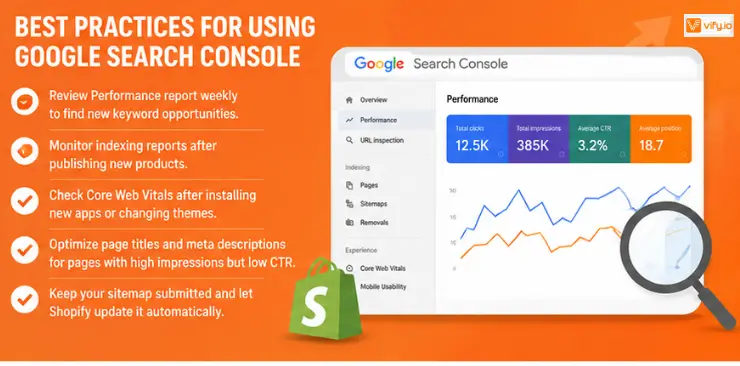
A few habits can make a significant difference:
- Review your Performance report every week to identify new keyword opportunities.
- Monitor indexing reports after publishing large batches of products.
- Check Core Web Vitals after installing new apps or changing themes.
- Update page titles and meta descriptions for pages with high impressions but low CTR.
- Keep your sitemap submitted and let Shopify maintain it automatically.
Consistently reviewing these reports allows you to spot small issues before they grow into major traffic losses.
Conclusion
Setting up Google Search Console for Shopify is one of the most valuable SEO investments you can make for your store. It gives you direct insight into how Google crawls, indexes, and ranks your pages, helping you uncover keyword opportunities, monitor search performance, and resolve technical issues before they affect your organic traffic. By checking your reports regularly and acting on the insights they provide, you can build a stronger SEO strategy and drive sustainable long-term growth for your Shopify business.
If you’re selling on Shopify and need a professional invoice solution, then Vify Shopify Order Printer app is the best choice for you. Try it for free today and experience it for yourself. We’re confident you’ll love it.