

A well-executed Shopify website design can be the difference between a store that gets traffic and one that actually converts visitors into customers. For beginners, the challenge is not just how to design a website on Shopify, but how to structure it in a way that builds trust, guides user behavior, and drives sales. This guide breaks down the essential principles and practical steps to help you design a Shopify website that looks professional, loads fast, and is optimized for real business results — even if you have no prior design experience.
Why does Shopify website design matter?
Shopify website design refers to the visual presentation, layout, user experience, and branding of your Shopify store. It encompasses everything a visitor sees and interacts with — your homepage layout, product page structure, typography, color palette, navigation, and call-to-action buttons.
But design isn’t just about aesthetics. It’s a direct driver of business performance. Here’s why it matters:
- Conversion rates: A well-designed store guides visitors toward purchase. Even small improvements in layout and CTA placement can increase conversions by 10–30%.
- Trust & credibility: 75% of consumers judge a business’s credibility based on its website design. A polished store signals professionalism.
- Bounce rate: Poor design — slow load times, confusing navigation, cluttered layouts — sends visitors away before they ever browse your products.
- SEO performance: Shopify website design affects page speed, mobile-friendliness, and content structure, all of which Google uses as ranking signals.

How to Design a Website on Shopify: Before you begin
Before you touch a single setting in the Shopify editor, take time to lay the right foundations. Rushing into design without a clear brand direction is the fastest way to end up with a store that looks like a template — not a brand.
Step 1: Set Up your Shopify Account
Head to shopify.com and start a free trial. You’ll be asked to enter basic information about your business. Once inside your Shopify dashboard, you can begin setting up your store before choosing a payment plan. The plans all give you access to the theme editor and design tools covered in this guide.
Step 2: Define your Brand Identity
Your brand identity is the visual language of your business. Before designing anything, get clear on:
- Logo: If you don’t have one, tools like Canva or Shopify’s free Hatchful logo maker are good starting points.
- Color palette: Choose 2–3 primary brand colors. Use a tool like Coolors.co to build harmonious combinations. Stick to them consistently across your store.
- Typography: Pick 1–2 fonts that match your brand tone. For example, clean and modern for tech products, elegant and serif for luxury goods, playful and rounded for kids’ brands.
- Tone of voice: How do you sound? Friendly and casual? Expert and authoritative? This affects your button copy, headings, and product descriptions.
Step 3: Map Out your Site Structure
Plan your store’s pages before building them. A typical Shopify store includes:
- Homepage — The first impression. Showcases your brand, hero offer, and featured collections.
- Collection pages — Organized product categories (e.g., Men’s, Women’s, Sale, New Arrivals).
- Product pages — Individual product listings with images, descriptions, and the Add to Cart button.
- About page — Your brand story and mission.
- Contact page — Email, phone, or contact form.
- Legal pages — Shipping policy, return policy, privacy policy, and terms of service.
Map these out as a simple sitemap before you start designing. Clear navigation reduces friction and helps customers (and Google) find what they’re looking for.
Choosing the Right Shopify Theme for your store
Your Shopify theme is the design framework your entire store is built on. Choosing the right one upfront saves you hours of customization work later.
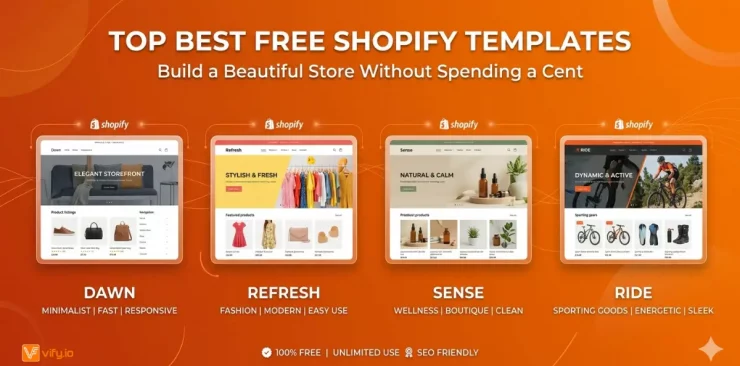
Shopify offers a variety of both free and paid themes in its official Theme Store.
- Free themes (e.g., Dawn, Sense, Craft): Well-built, maintained by Shopify, and perfectly capable for most stores.
- Paid themes ($100–$500 one-time fee): Offer more built-in features, more section types, and more polished design out of the box.
The right choice depends on your budget, technical comfort, and how much customization you need. Most new store owners do very well starting with a free theme.
🌟 Discover the Top 12 Best Free Shopify Templates
How to Design a Shopify Website Step by Step
With your account set up, brand defined, and theme selected, you’re ready to start designing. Here’s how to work through each key area of your store.
1. Customize your Theme in the Shopify Editor
Navigate to Online Store > Themes > Customize in your Shopify dashboard. This opens the visual theme editor — your main design workspace.
The editor uses a sections and blocks system:
- Sections are large content areas (e.g., Hero Banner, Featured Collection, Testimonials).
- Blocks are smaller elements inside sections (e.g., individual product cards, text blocks, buttons).
You can add, remove, reorder, and configure sections using the left sidebar. Changes are previewed in real time on the right. No coding required.
2. Design your Homepage for Conversions
Your homepage has one job: convince visitors to stay and explore. Structure it with a clear hierarchy:
- Hero section (above the fold): Full-width banner with your brand headline, a compelling subheading, and a single clear CTA button (e.g., ‘Shop Now’, ‘Explore the Collection’).
- Featured collections: 3–4 collection tiles that help shoppers quickly find what they’re looking for.
- Best sellers or new arrivals: Product grid showcasing your most popular or recently added items.
- Social proof: Customer reviews, star ratings, press mentions, or user-generated content.
- Brand story snippet: A short, visually supported section that explains who you are and why you exist.
- Email signup: A simple form with a value offer (e.g., ‘10% off your first order’).
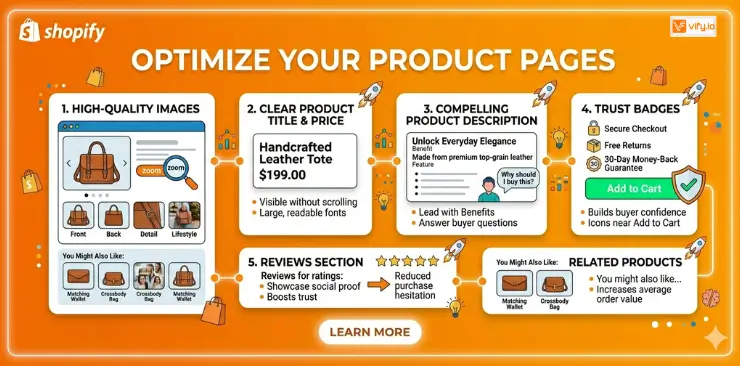
3. Optimize your Product Pages
Product pages are where buying decisions are made. Every element should build confidence and reduce friction:
- High-quality images: Use 4–8 photos per product — front, back, detail shots, and lifestyle imagery. Enable zoom.
- Clear product title and price: These should be immediately visible without scrolling.
- Compelling product description: Lead with benefits, not just features. Answer the question ‘Why should I buy this?’
- Trust badges: Secure checkout, free returns, money-back guarantee icons placed near the Add to Cart button.
- Reviews section: Social proof directly on the product page reduces purchase hesitation significantly.
- Related products: A You might also like section increases average order value.
4. Set Up your Navigation & Footer
Navigation is the backbone of your store’s user experience. A confused visitor is a lost customer.
- Main navigation: Keep it to 5–7 items maximum. Use clear, descriptive labels. Prioritize collections, then secondary pages.
- Mega menus: If you have many collections, a dropdown mega menu helps visitors jump directly to sub-categories.
- Footer: Include links to your legal pages (Privacy Policy, Refund Policy, Terms of Service), contact info, social media links, and a newsletter signup. This is also where Google looks for trust signals.
5. Apply your Branding (Logo, Colors, Fonts)
In the Shopify theme editor, go to Theme Settings to apply your brand-wide design settings:
- Upload your logo and set its size.
- Set your brand colors for buttons, accents, backgrounds, and text.
- Choose your typography — most themes allow you to select from Google Fonts.
- Set your button style — rounded, square, outlined, or solid.
Apply these settings before customizing individual sections, so every element already reflects your brand.
Conclusion
Shopify website design doesn’t have to be overwhelming. With the right theme, a clear brand identity, and a methodical approach to customization, you can build a store that looks professional, loads fast, and converts visitors into loyal customers.
Start with the foundations: define your brand, choose a theme that fits your niche, and work through your homepage, product pages, and navigation in order. Layer in best practices around mobile, speed, and trust as you go.
The most important thing is to launch. A live store that you iterate on over time will always outperform the perfect store that never ships.
If you’re selling on Shopify and need a professional invoice solution, especially one that’s easy to customize without any coding skills, then Vify’s Order Printer app Shopify is the best choice for you. Try it for free today and experience it for yourself. We’re confident you’ll love it.